
Use Zapier to trigger ezeep printing from applications in your workflow, for example when an order or invoice is created.
Prerequisites:
- An active ezeep Pro, Enterprise or Business subscription.
- An active zapier subscription https://zapier.com/sign-up
- A ezeep user with assigned ezeep printers
Configure Zapier
- Log in to your ezeep admin account.
- Navigate to the "Automation" section.
- Click "Log in" to link your ezeep account with Zapier.
- Log in using your preferred authentication method.
- Click "Create Zap" to start building your workflow.
- Give your new workflow a name.
- Select the trigger event you want, e.g., "New document in Google Docs app," and click "Continue."
- Click "Test Trigger"
- Afterward, click the "Action" button and select the ezeep app.
- Choose the action event, such as "Print File" and click "Continue"
- Configure the print job properties as needed. If not configured, default printer settings will be used. Click "Continue" when finished.
- Review a summary of the trigger and actions, and test the configuration by clicking "Test Step".
- After testing, click "Publish" to activate your workflow.
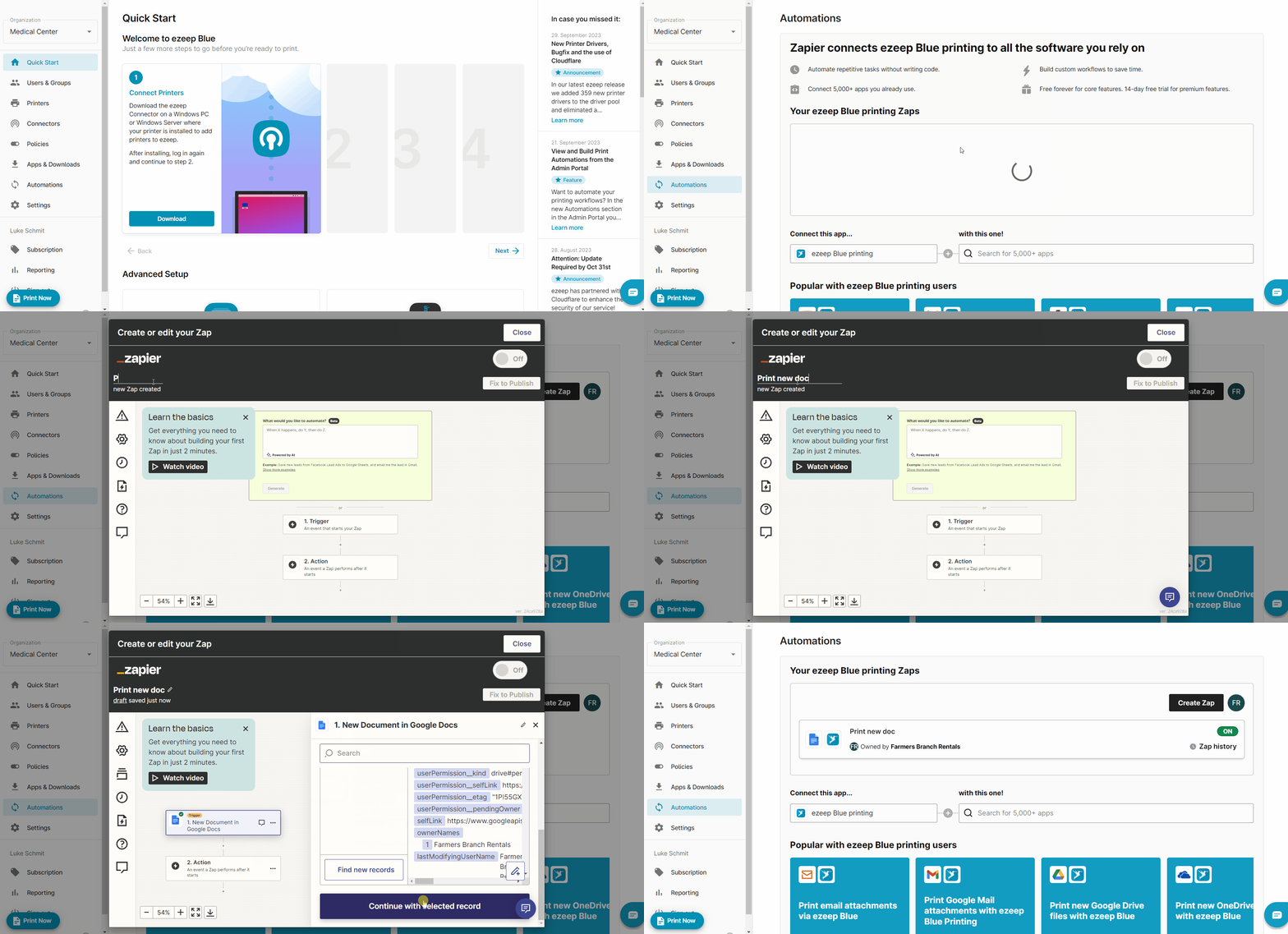
Upon successful Testing, your Zap will be enabled on your ezeep admin portal