
Install the ezeep Chrome extension to print from a Chromebook or supported Chrome browser. Follow these steps to sign in and access your printers.
Note: At this point you should have an existing ezeep account and printers assigned to you.
For Technical requirements see link: Technical Requirements
Install
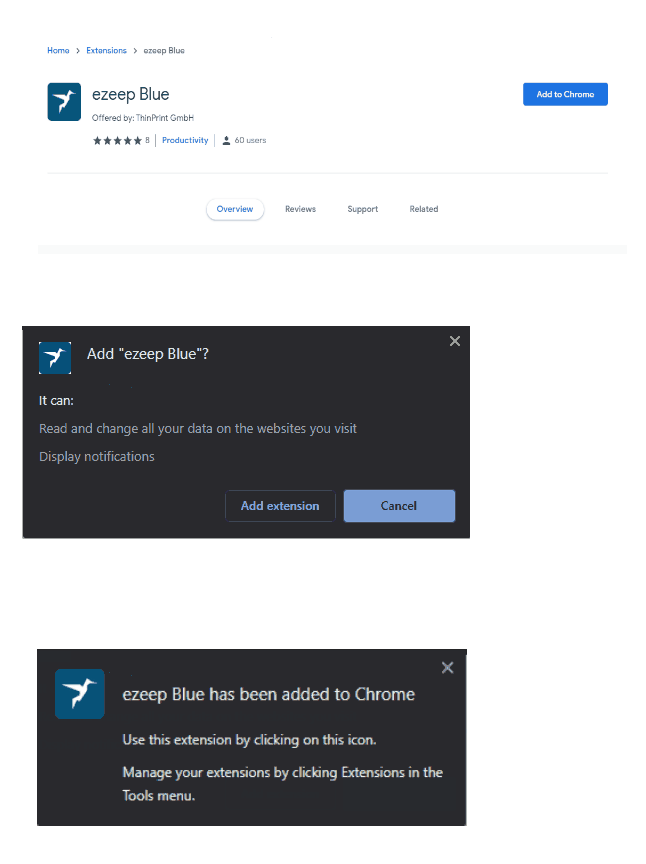
- On your Chromebook or Chrome browser, go to: www.ezeep.com/chrome-web-store
- Click "Add to Chrome"
- Click "Add extension."
- The ezeep Chrome extension has been added successfully.
Sign-in to ezeep
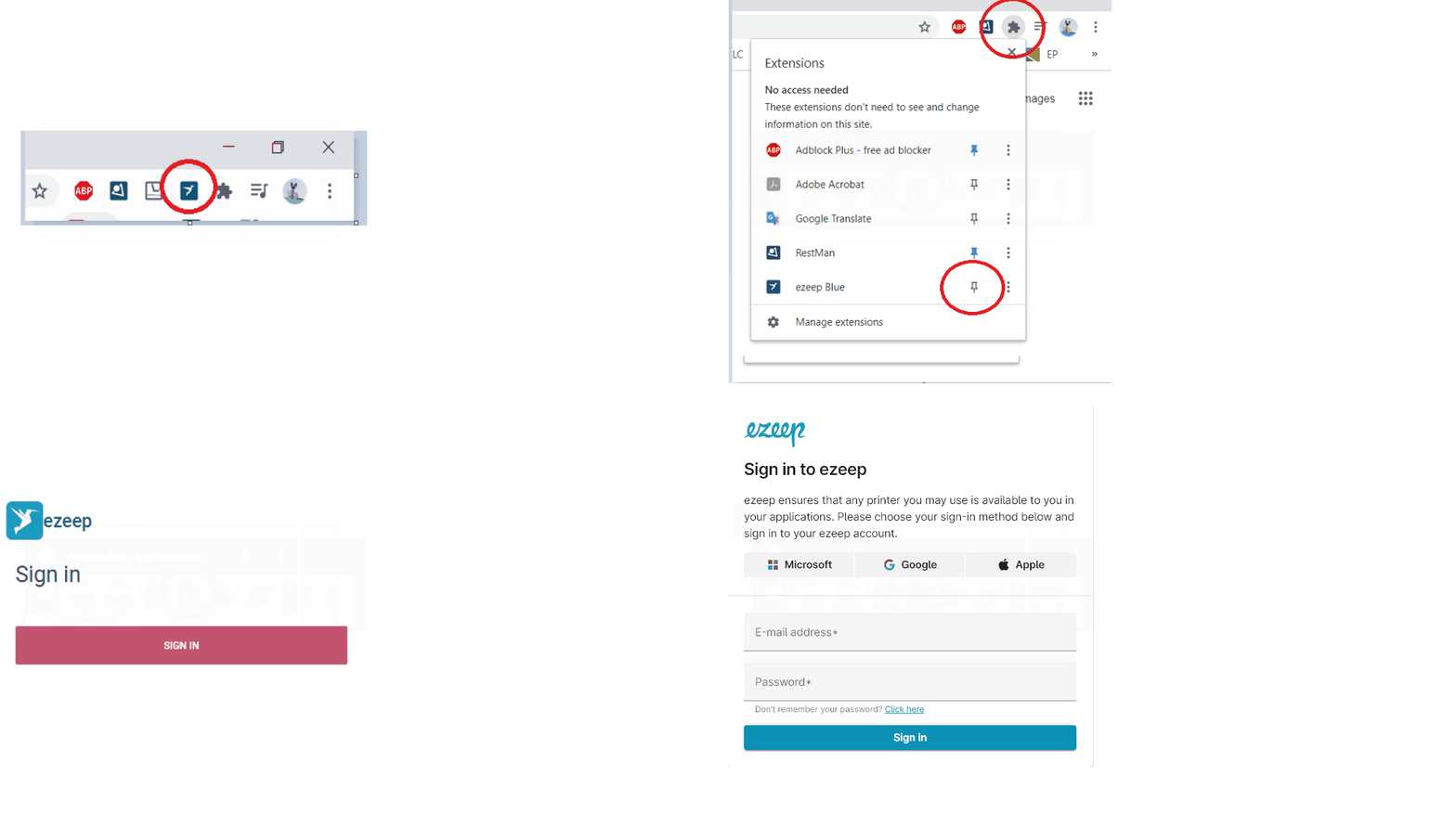
Next to the address bar, click the ezeep icon in the chrome browser pane.
If you can't see it, open the extension options menu by clicking on the puzzle piece icon to see all installed extensions. Then, click the "pin" icon next to ezeep.
Click "Sign In" and enter your ezeep account credentials.
- You are ready to start printing!
Are you ready to print? See link: Printing from Chrome
Uninstall
Uninstall app (Chromebook)
- In the corner of your screen, select the Launcher
 .
- Right-click the ezeep app to remove.
- Select "Uninstall" or "Remove from Chrome".
- Select "Uninstall".
Uninstall extension (Chrome Browser)
- Open the Chrome browser
- Select More

 More tools Extensions.
- Next to the ezeep extension, select "Remove".
- To confirm, select "Remove".
Tip: To remove an extension that's a button on the browser toolbar, right-click the button and select Remove from Chrome.