Overview
Print from Android with ezeep using assigned cloud printers or supported local Wi-Fi printers. For app installation, see ezeep Printer App for Android .
Note: To print to company/network printers, your administrator must assign printers to you in the ezeep Admin Portal. You can print to Wi-Fi printers immediately after choosing a model/driver.
Ways to print on Android
You can select a document to print in three ways:
- Print from the ezeep app
- Print from any app using Print, Share, or Open with
- Print from an app with a built-in Print option
Option 1: Print from the ezeep app
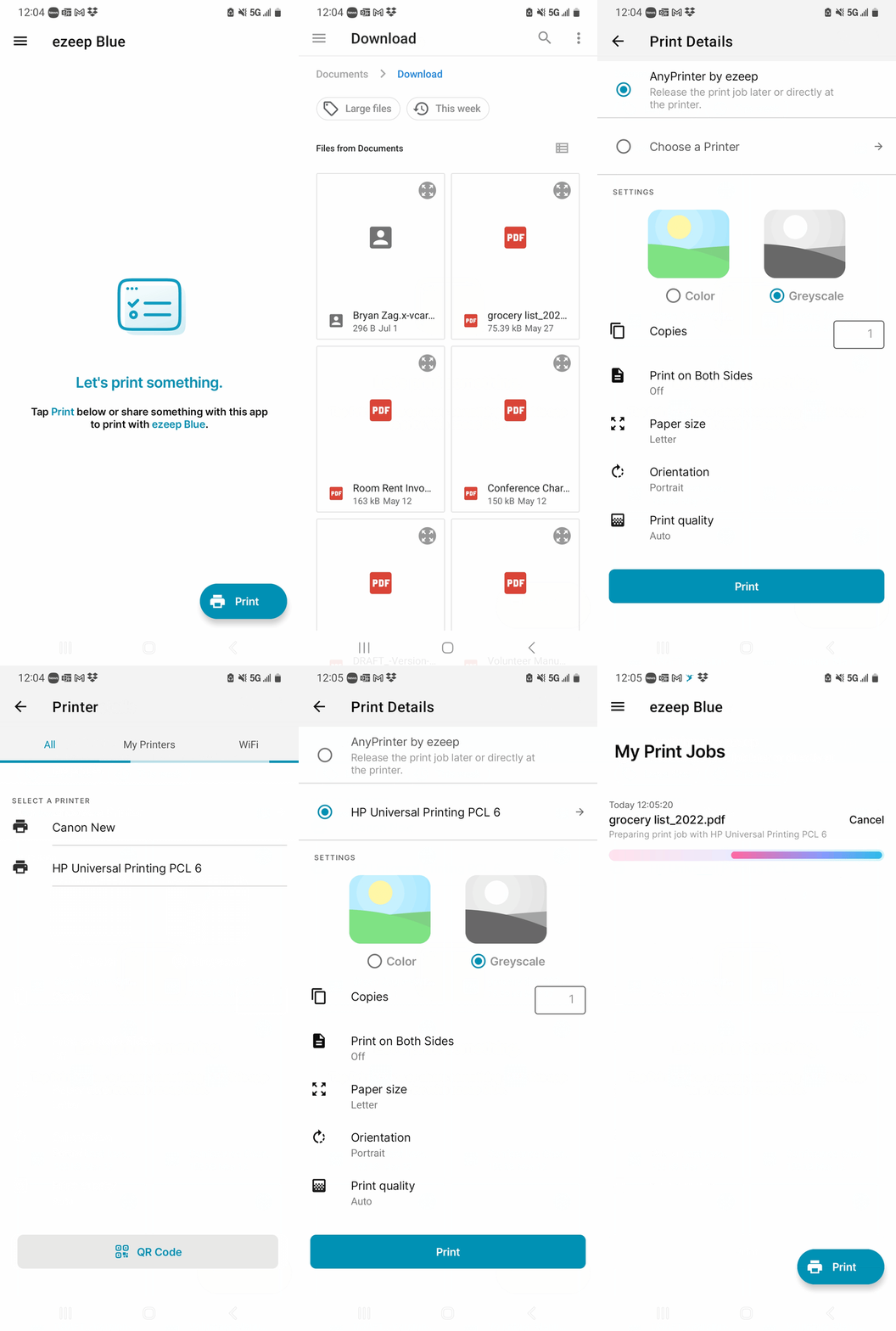
- Open the ezeep app on your Android device.
- Tap the Print button in the lower-right corner.
- Select a document.
- Tap Choose a printer.
- Select the printer.
- Adjust printer properties (as needed).
- Tap Print. Your job will be sent to the printer.
Option 2: Print from any app using “Print”, “Share”, or “Open with”
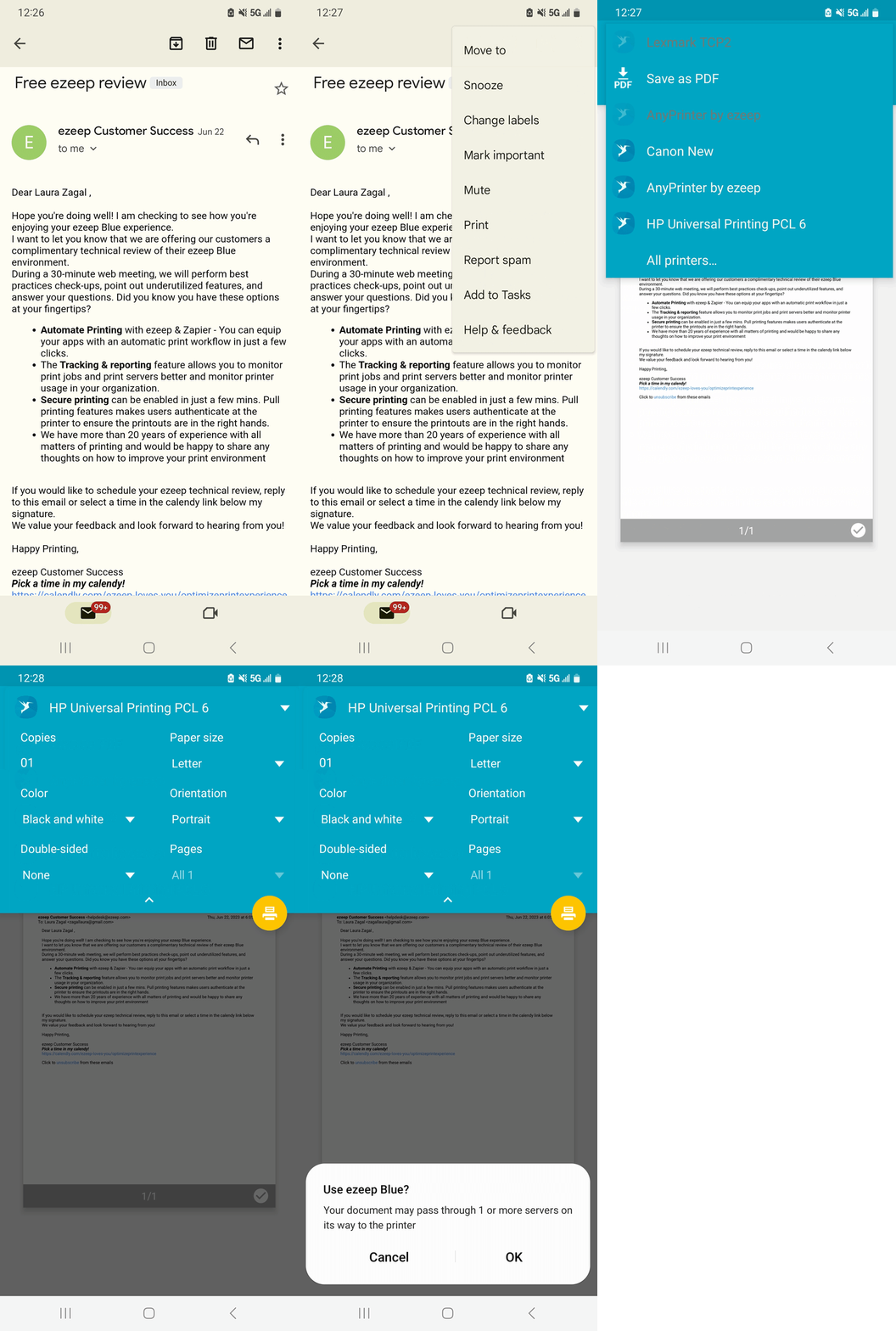
- Open any app and select your document.
- From the app’s menu, tap Print, Share, or Open with.
- Select ezeep from the list.
- You’ll be redirected to the ezeep print screen.
- Tap Choose a printer, select the printer, adjust properties if needed, then tap Print.
Option 3: Print from an app with a built-in “Print” option
Some apps (e.g., viewers/editors) include a native Print action. Use it to send the file directly to ezeep.
Choose a printer
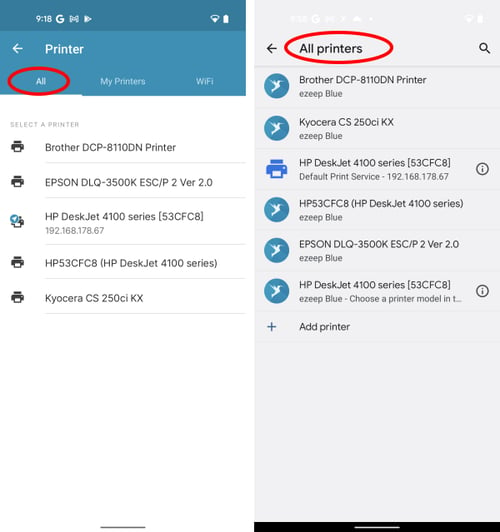
In the ezeep app you’ll see all available printers, including your company printers (if assigned by an admin) and printers shared on your current Wi-Fi network.
My Printers
Under My Printers you’ll find company printers provided to you by your administrator.
Wi-Fi Printers
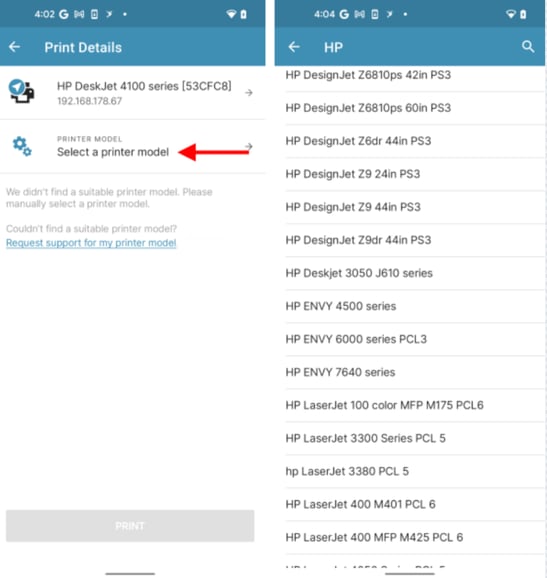
Under Wi-Fi you’ll find printers shared on your current Wi-Fi network (e.g., your home office). Before using a Wi-Fi printer for the first time, assign a driver to the printer:
- Select the Wi-Fi printer.
- Tap Select a printer model.
- Find your printer model in the list and select it.