The ezeep Remote Desktop Agent makes printers connected to your Windows PC or Mac available inside a supported virtual desktop session. Install the agent locally and the ezeep Print App in the remote session.
Note: At this point you should have an existing ezeep account
For Technical Requirements, see link:
Download
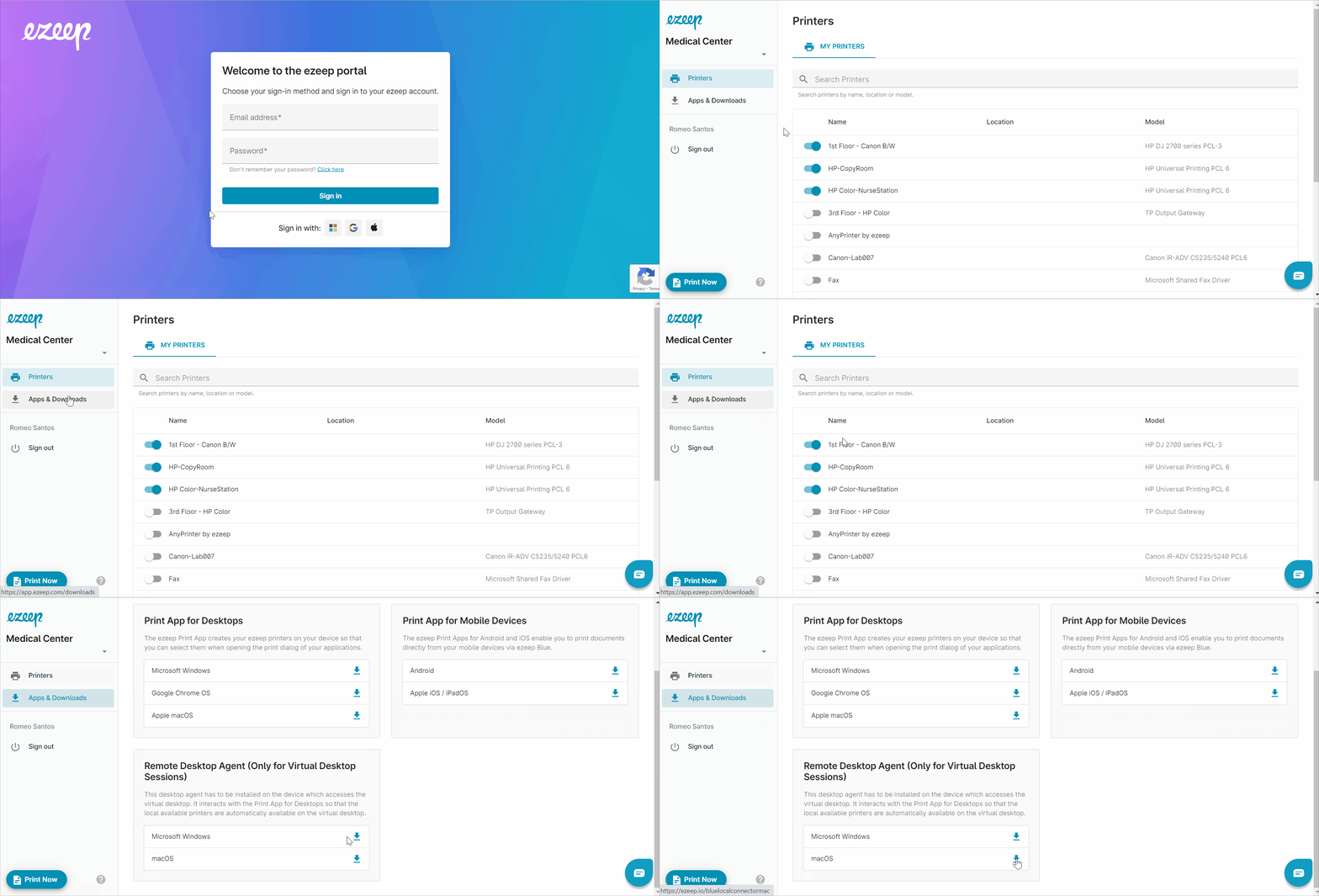
- Log in to the ezeep Portal
- On the left pane, select "Apps & Downloads."
- Under "Remote Desktop Agent," click the download arrow of your preferred OS.
- The software will download to the "Downloads" folder.
 Install
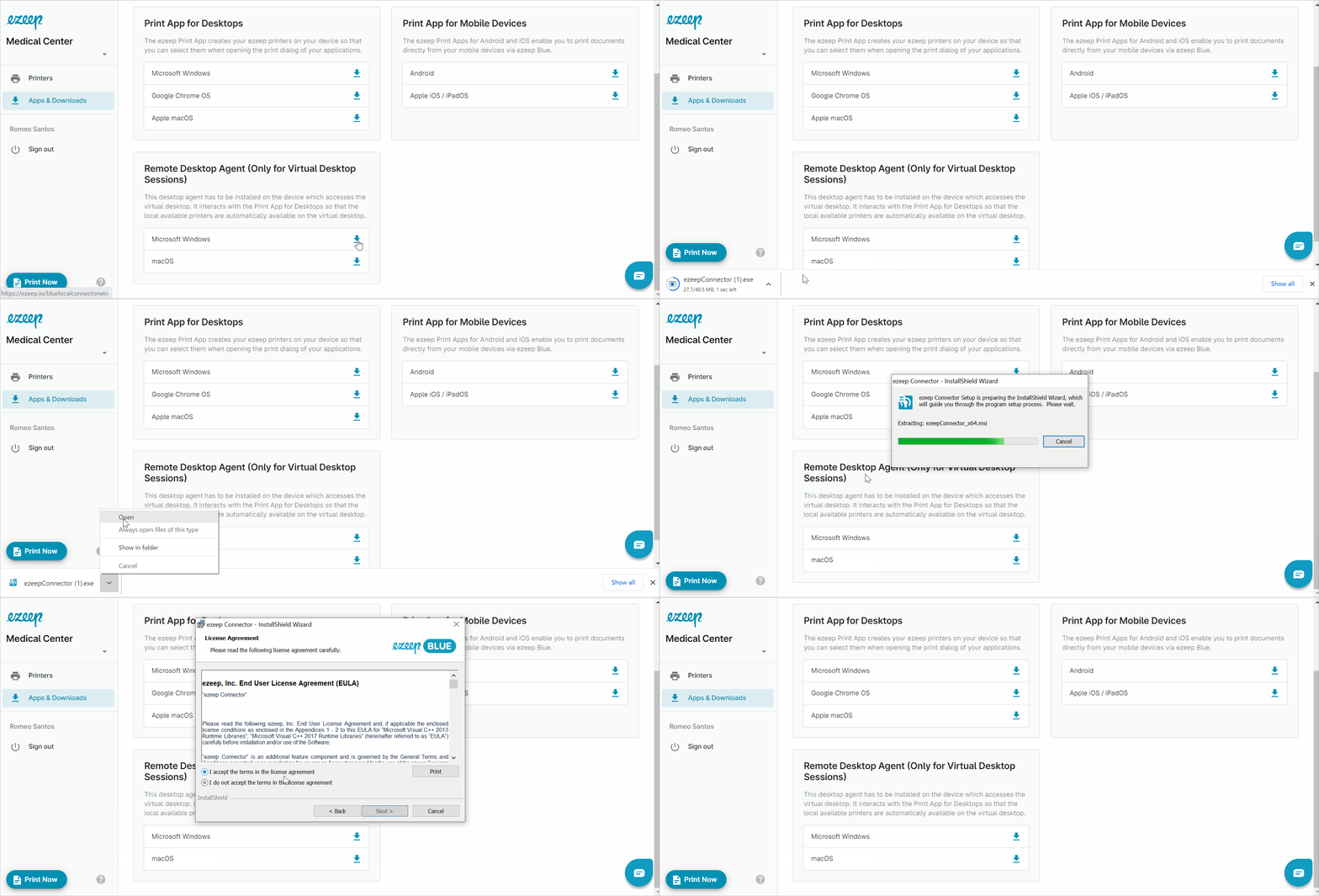
- Run the ezeep executable as Admin and follow the prompts. (example: Windows OS below)
- Click "Next"
- Select "I accept the terms in the license agreement" and click "Next."
- Select "Typical" and click "Next."
- Click "Install"
- To complete the installation, click "Finish."
- A reboot of the machine is required. Click "Yes."
- After the reboot, the ezeep login page will automatically open for you to log in. Enter your ezeep credentials.
Next Step: Download & Install the ezeep Print app on the virtual desktop where you want to print from. Go to the virtual desktop and follow the steps on this link:
Once the installs are completed, you are ready to start your remote session to the virtual desktop. The local printers on your physical desktop will then be redirected to your virtual desktop!
Upgrade
- Log in to the ezeep Portal and download the latest software version.
- On the left pane, select "Apps & Downloads."
- Under "Remote Desktop Agent," click the download arrow of your preferred OS.
- The software will download to the "Downloads" folder.
- Run the ezeep Remote Desktop Agent executable as Admin and follow the prompts.
- Click "Upgrade"
- Select all the defaults at the next prompts.
- To complete the installation, click "Finish."
- A reboot of the machine is required. Click "Yes."
- After the reboot, you are ready to start printing!
Uninstall
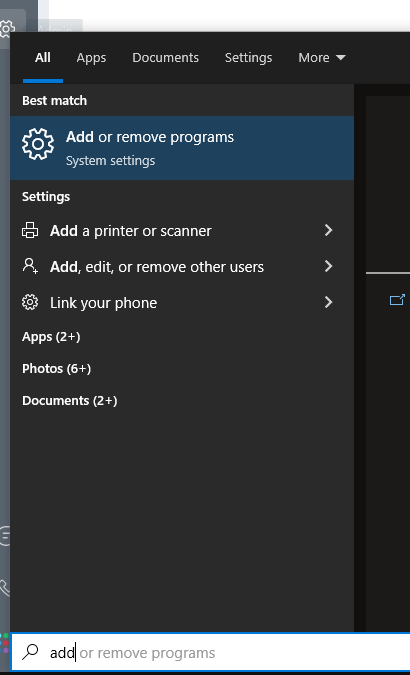
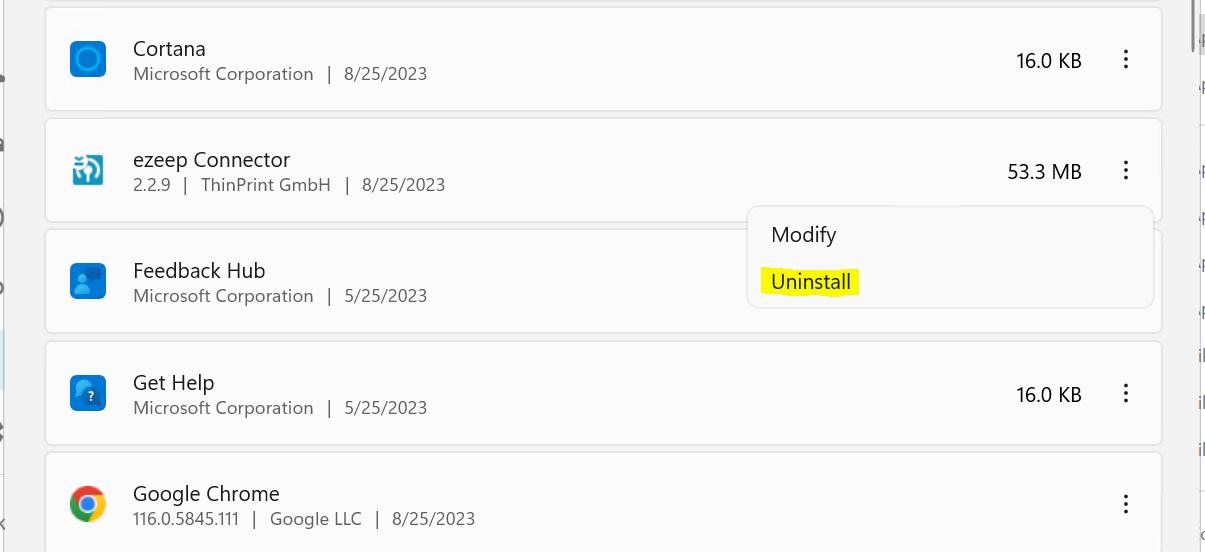
- Uninstall the application via "Add or Remove Programs" in Windows and follow the prompts.