
Use Pull Printing to release a confidential document only when you reach the printer. Send the job to AnyPrinter by ezeep, then authenticate using the configured QR-code or card-reader method.
Note: If you have not setup pull printing yet, go back to Setting up Pull Printing
Step 1: Sending a print job
- Select the document you want to print from any preferred desktop or mobile device where you have installed the ezeep Print App.
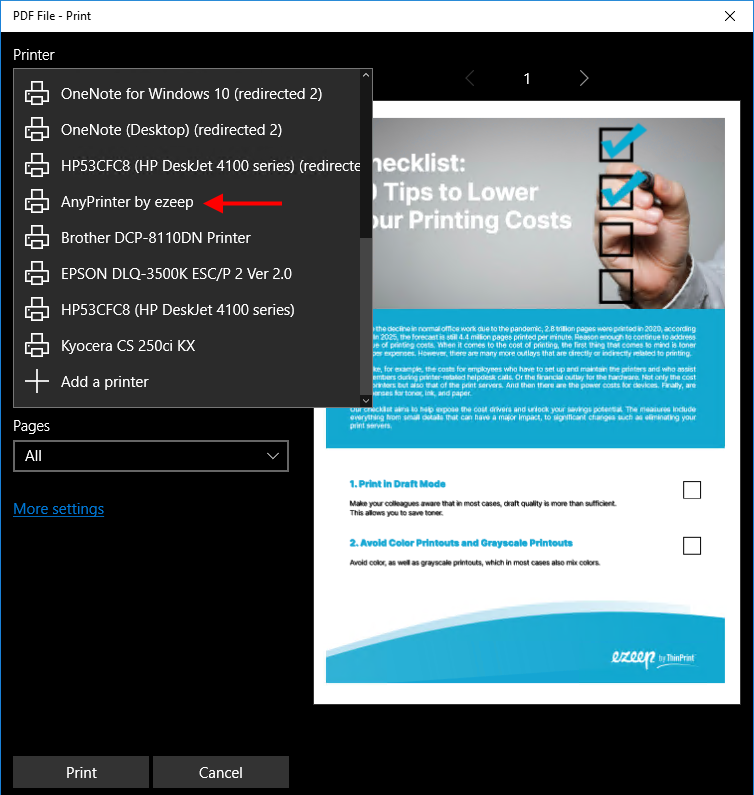
- Select the virtual printer "AnyPrinter by ezeep" from your printer list.
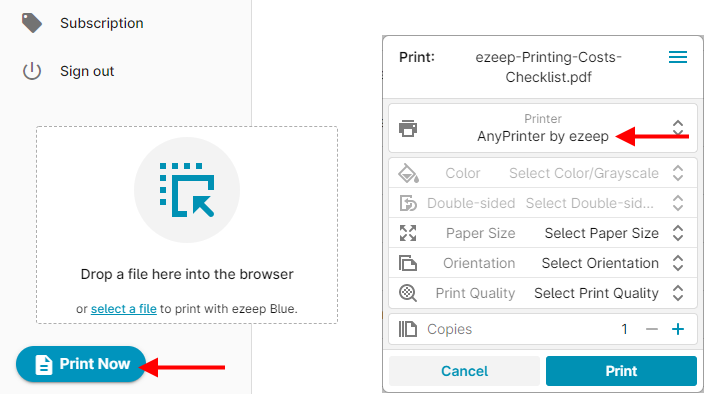
- As an alternative, you can also use the Print Now button in the ezeep portal (left arrow in illus.) and select AnyPrinter by ezeep there (right arrow in illus.).
- Or you can use the ezeep app on your smartphone and select AnyPrinter by ezeep as your printer (arrow in illus., example for Android).
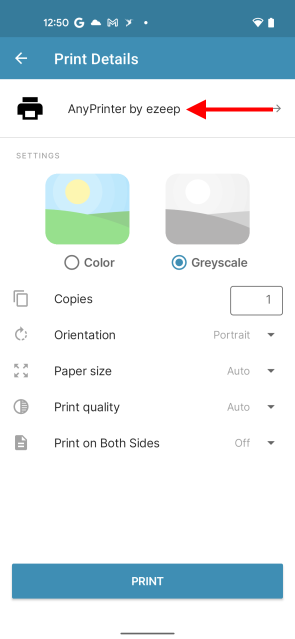
- Then tap on Print.
- The job will be stored in the secure print queue until you release it.
Step 2: Authenticating and releasing the print job
2a. Mobile device using QR Codes
- Now walk to the physical printer of your choice.
- Open the ezeep app in your mobile device (Android/iOS).
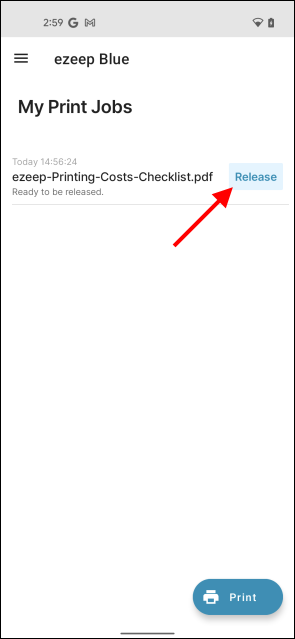
- Under "My Print Jobs" you will find the print job here.
- Tap on Release
- Now scan the QR code on your printer.
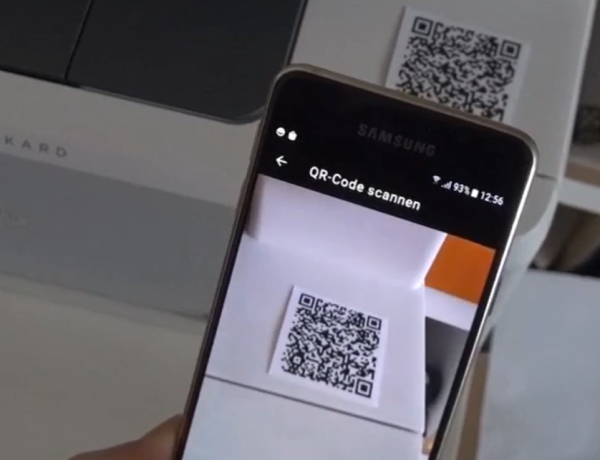
- The print job will then be printed.
2b. ezeep Release Station with NFC Card
- Now walk to the physical printer of your choice.
- Scan your NFC card on the release station card scanner (beeps once)
- The print job will then be printed
- NOTE: The jobs printed using Pull Printing will be stored in the ezeep cloud for 72hrs. After this time it will automatically be discarded.