
Print documents and images from an iPhone or iPad using the ezeep Print App. Choose an assigned cloud printer or a compatible local Wi-Fi printer. For installation, see ezeep Printer App for iOS.
Note: If you are printing to network printers, you must first need to assign the printers via the ezeep admin portal. or else you can print directly to wifi printers right away!
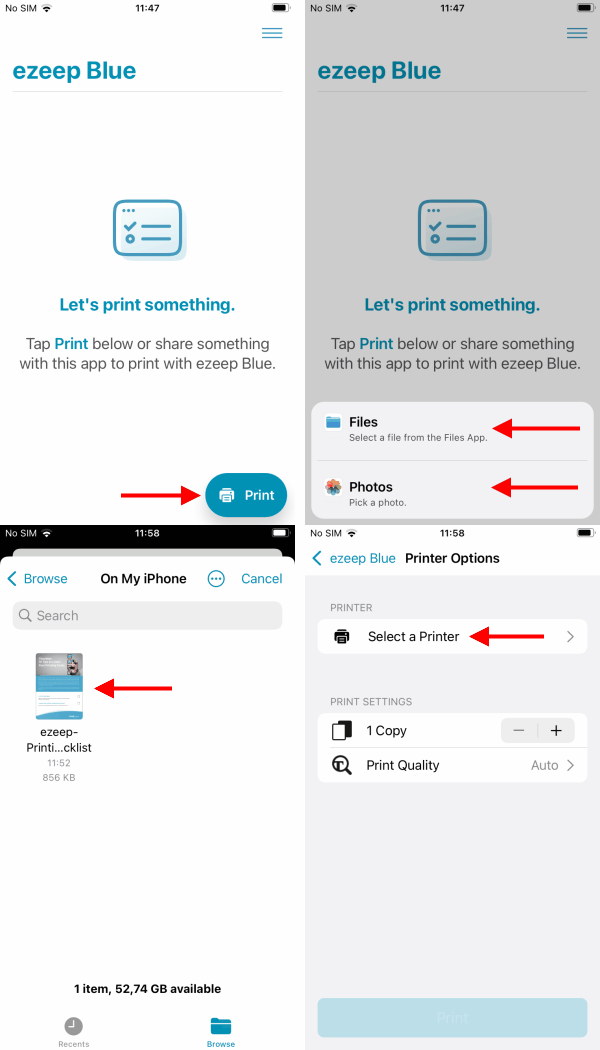
Select document and open printer options
- Open the ezeep app on your iOS device.
- Tap on Print
- Open Files or Photos app
- Select a document
- Tap Select a Printer at the top of the display
Select printer
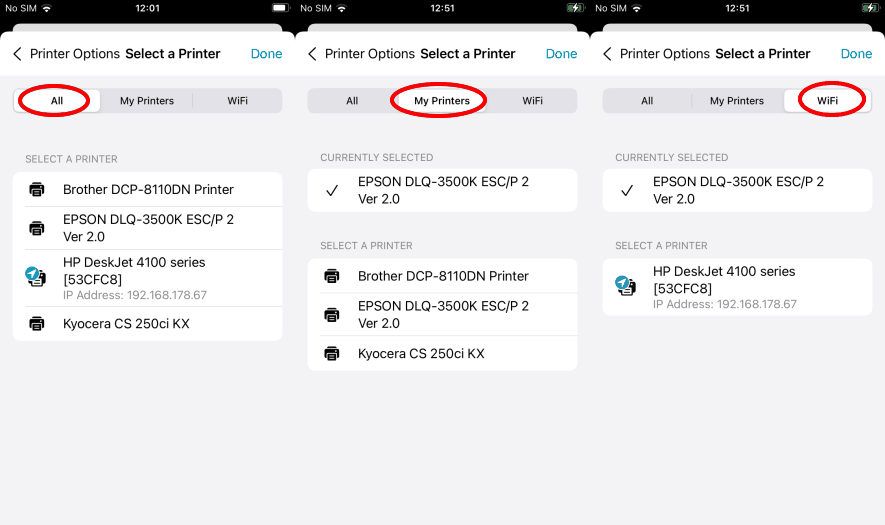
Here you can find a list of all available printers
My Printers
- Under My Printers you will find all company printers that have been made available to you by your administrator .
Wi-Fi Printers
- Under Wi-Fi you will find all printers that are shared in your Wi-Fi network
Before using a Wi-Fi printer for the first time, you must assign a printer model to the printer.
- To do this, select the printer and then tap Select Printer Model
- Find your printer model in the list and select it
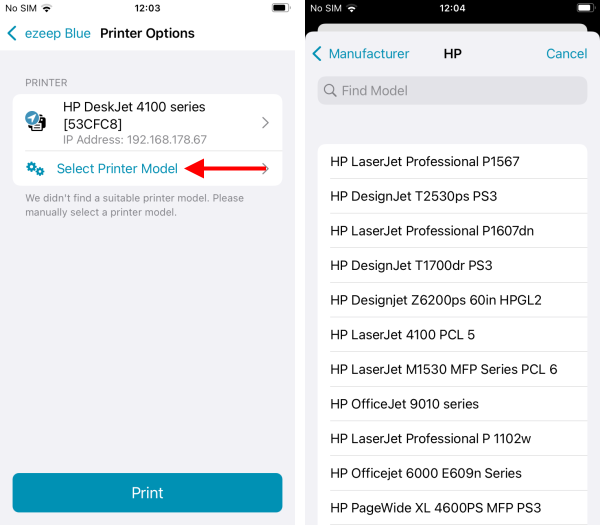
If your driver is not in the list click the "Request Support for Driver" link. Our development team will receive the request and will start working on the driver installation.
Print document
After selecting the printer, you can make further settings.
- Now select the number of copies you want to print and change other settings if necessary (color, orientation, paper size...).
- Then tap on Print