
Enable ezeep diagnostic logging on a Windows computer to investigate issues with the ezeep Print App or Connector. Restart the relevant service after enabling logging.
ThinPrint Diagnostic Utility
- Go to the website at thinprint.com/tpdu and download the utility
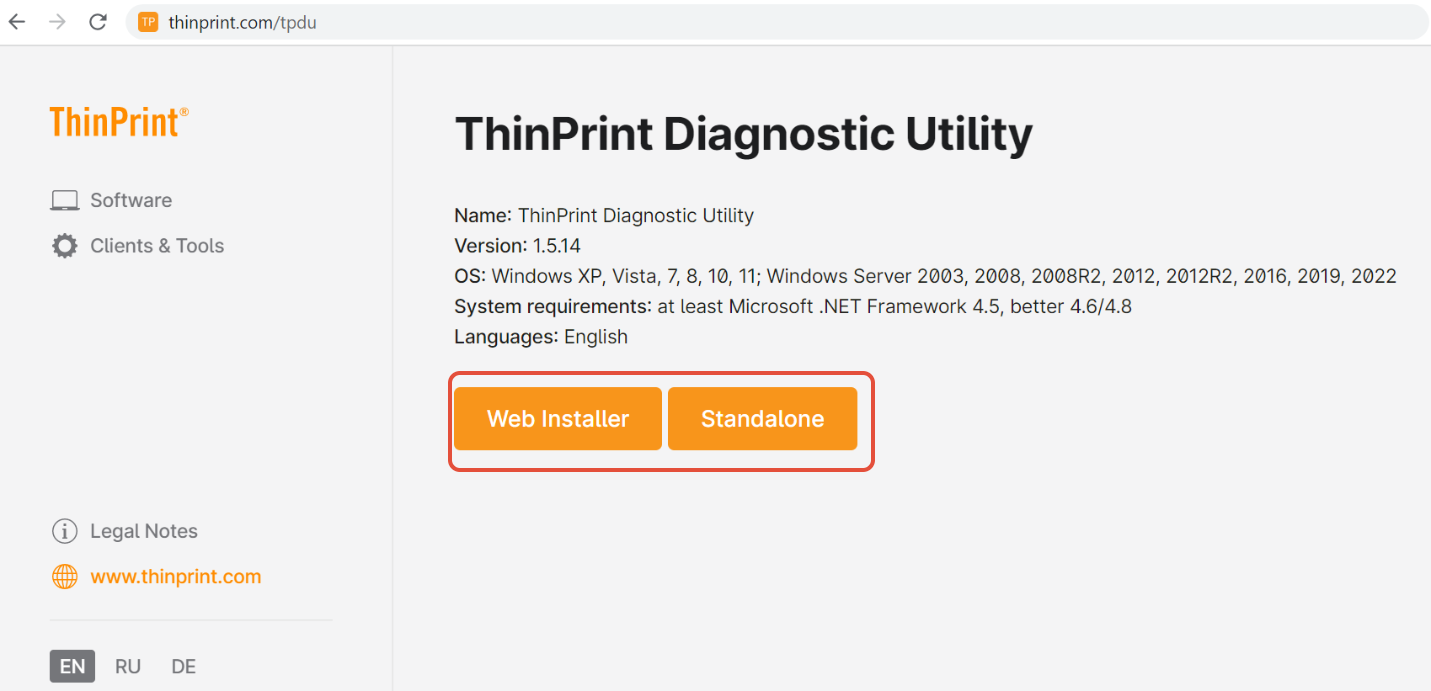
- Run the installer with Admin permissions
- Click the "ThinPrint Logging" tab
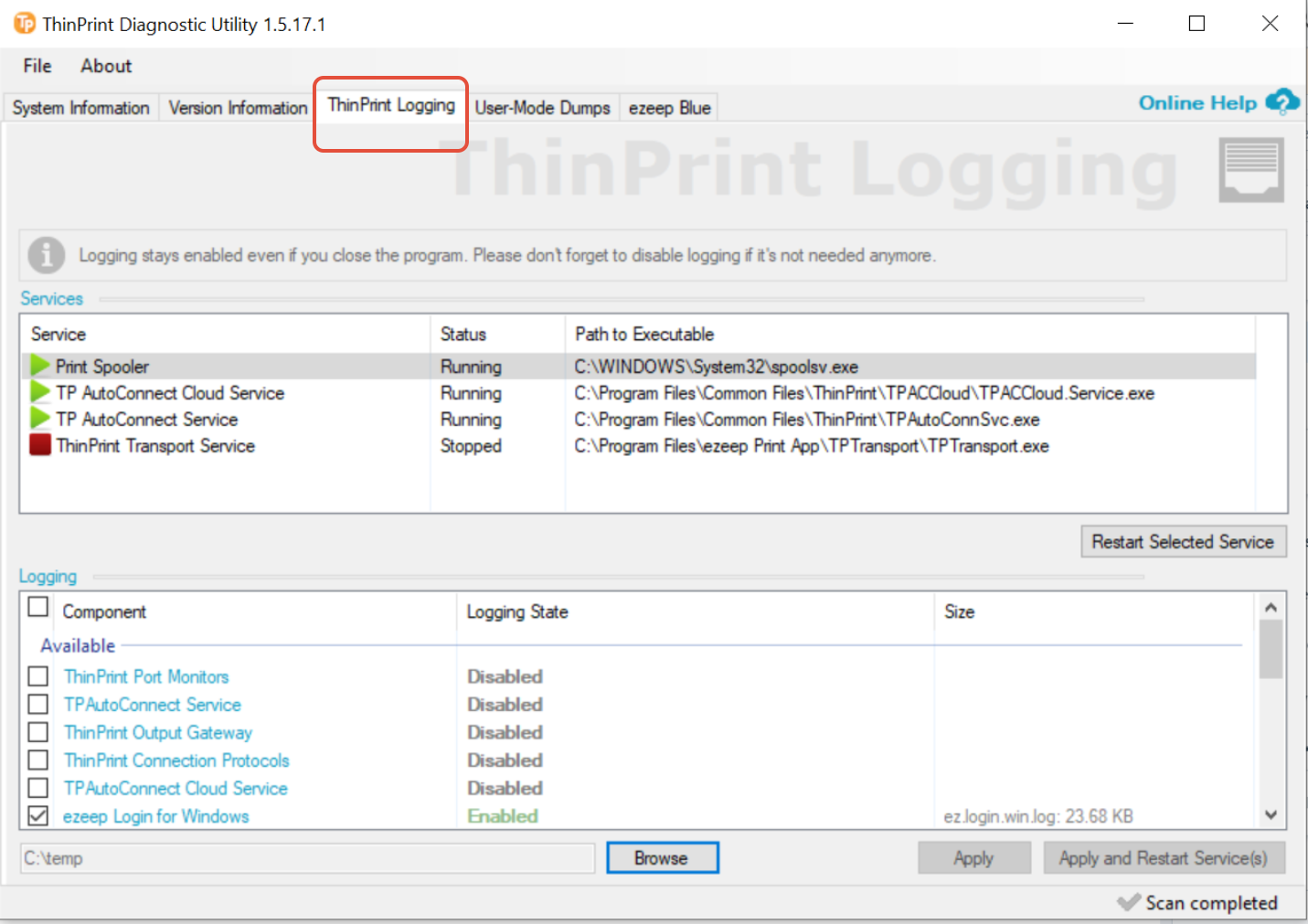
- The page is divided into two sections:
- Services
- Logging
Services Description
All related services are listed for the specific software component that is installed.
Note! After selecting logging for a specific component a restart of the relevant service is required for activating the logging.
To restart manually, you can select the respective services individually, and then manually restart them with the Restart Selected Service button.
Menu / Table column Description Service name of the Windows service Status status of the service Path to Executable path to .exe file that represents this service Restart Selected Service restart the highlighted service File→ Re-scan or F5 information is rescanned
Logging Description
Menu / Table column Description checkbox in the column header enable all available components globally for logging; see Enable all below checkbox for a single component select the component/s Component name of the component Available list of all ThinPrint or Personal Printing components installed on the local computer Unavailable list of components either not found or not installed locally Logging State logging enabled or disabled Size • size of the log file
• is highlighted in yellow if the file size exceeds 100 MByte
• is highlighted in red if the file size exceeds 300 MByte
Note: With increasing size – especially over 300 MByte – the performance of the component decreases.Browse • select log file path
• Note! All users must have the permissions for reading, writing and modifying the log files in the given path.
• if not selected, all log files are stored by default in the Temp folder of the user currently logged on – specifically inc:\Users\<user_name>\Appdata\Local\Temp\TPLogs\Apply • enable logging for the selected component/s
• disable logging for the selected component/s
Apply and Restart Services enable/disable logging and restart the relevant Windows service Enable all enable all available components globally for logging
(see checkbox in the column header, above)
Disable all disable all available components globally for logging Open log file location open the folder in which the relevant log file is located File→ Re-scan or F5 information is rescanned - Enable Logging
Set the path where you want to save the logs. Click browse and select folder.
- Note: Make sure that the users have modify permissions to this folder.
- Check the box to enable all components
- Click "apply and restart services".
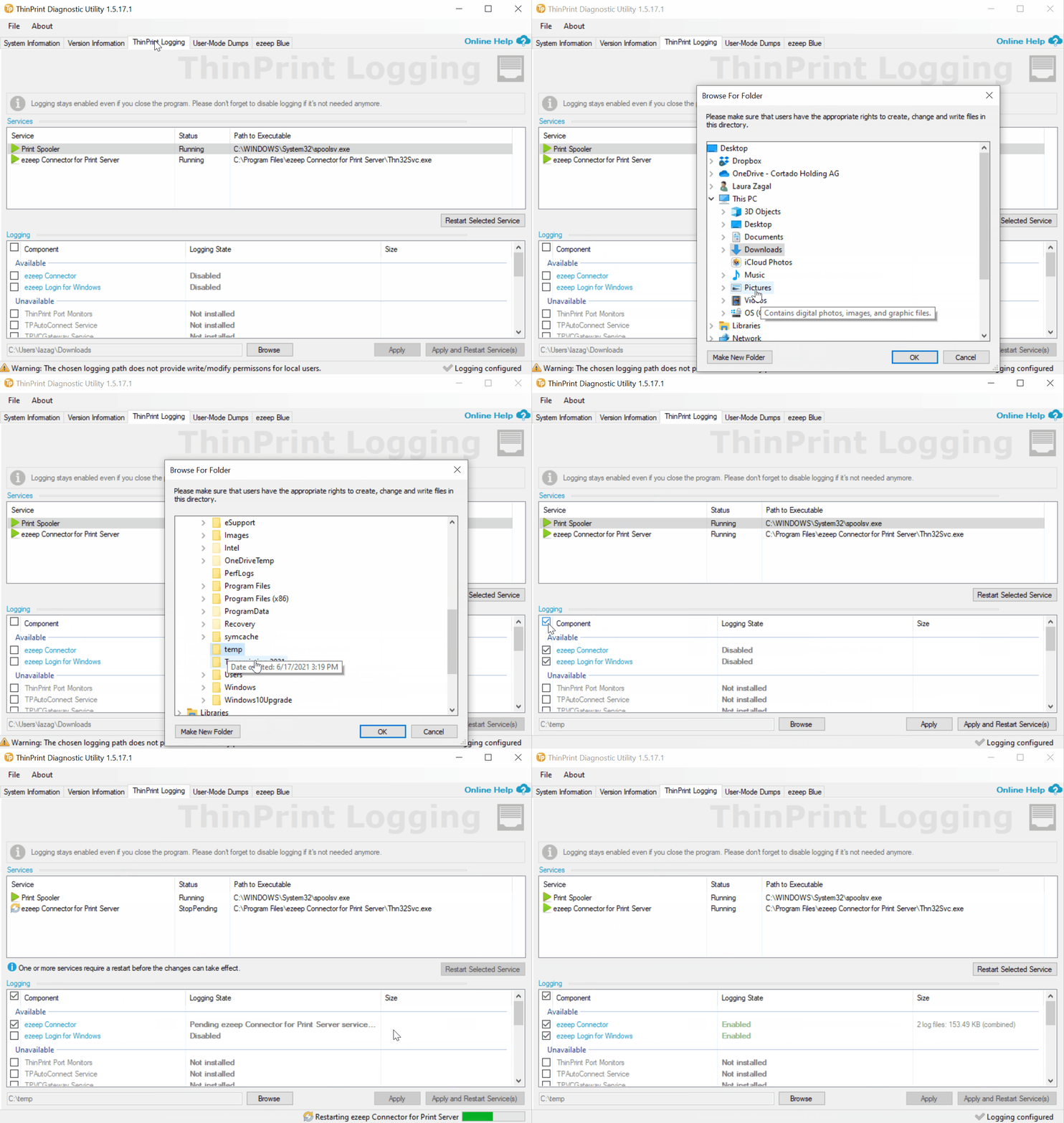
- Note: To disable logging uncheck the boxes of the components and click "apply and restart services
- You will find the set of logs in the path you have selected. You can zip them up and send them to your ezeep support engineer for further analyzing.