
Print Later holds jobs in the virtual AnyPrinter by ezeep queue until the user releases them at a printer. This guide explains how administrators enable the feature and prepare users for secure release.
Note: This feature is available in the Pro, Business and Enterprise Plans.
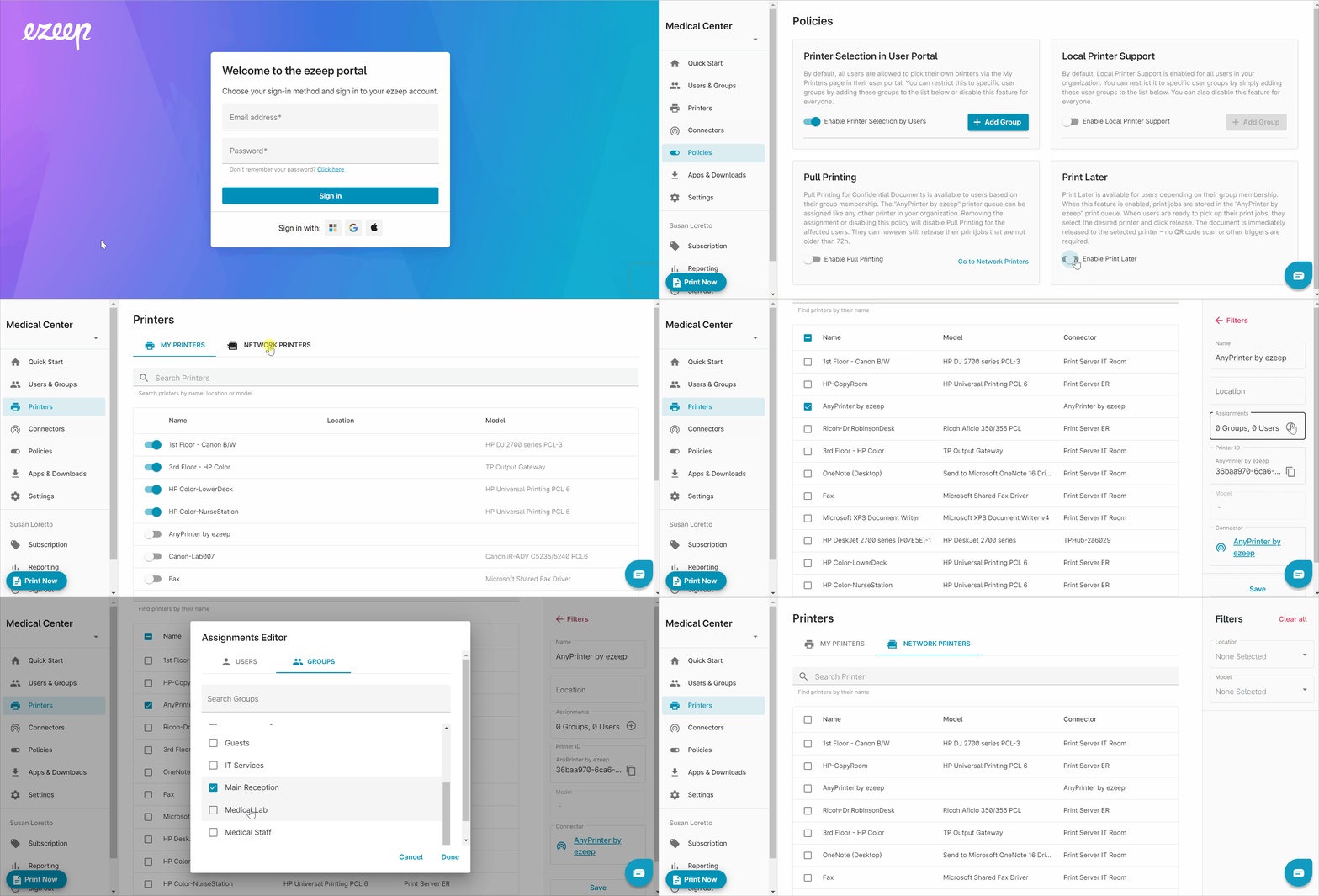
Step 1: Enable Print Later Policy
- Log into the ezeep portal with your admin credentials.
- Open the menu item "Policies" in the left pane.
- Find the policy "Print Later" and enable it by moving the toggle to the right.
Step 2: Assign the "AnyPrinter by ezeep" to the users or groups
- Go to "Printers" on the left pane.
- Click "Network Printers" on the top header.
- Find & Select the printer "AnyPrinter by ezeep".
- Click +"Assignments" on the right pane.
- Assign a "User" or"Group" by selecting the checkbox.
- Click "Done"
- Click "Save"
That's it! The users in that group are ready to print and collect print jobs later! To print using print later feature, follow steps in the next section: Printing using Print Later.