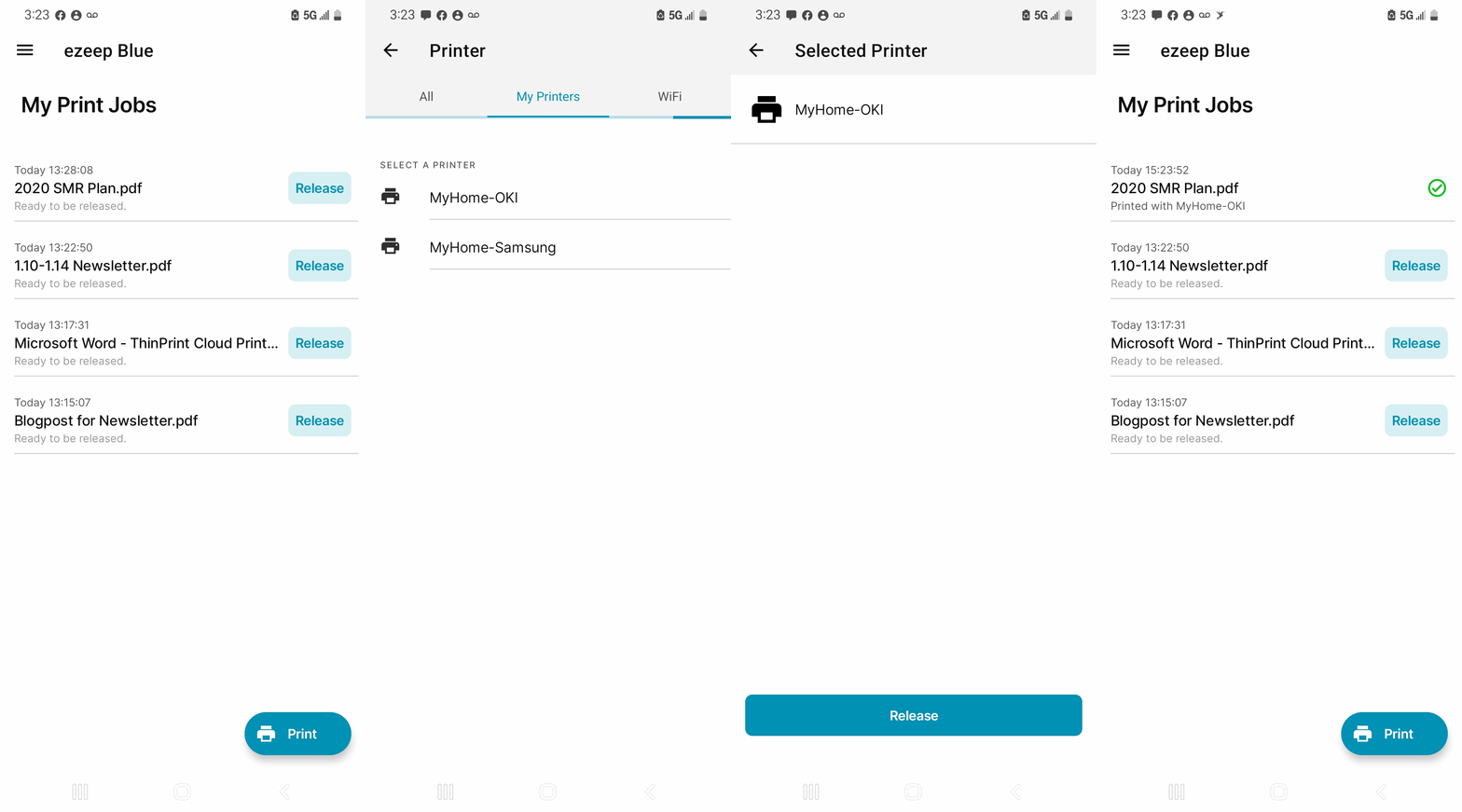
Use Print Later to send a job to the AnyPrinter by ezeep queue and release it from your mobile device when you are ready to collect it.
Note: This feature is available in the Pro, Business and Enterprise Plans.
Step 1: Printing adocument from any desktop or mobile device
- Select the document you want to print from any preferred VDI/desktop or mobile device where you have installed the ezeep Print App.
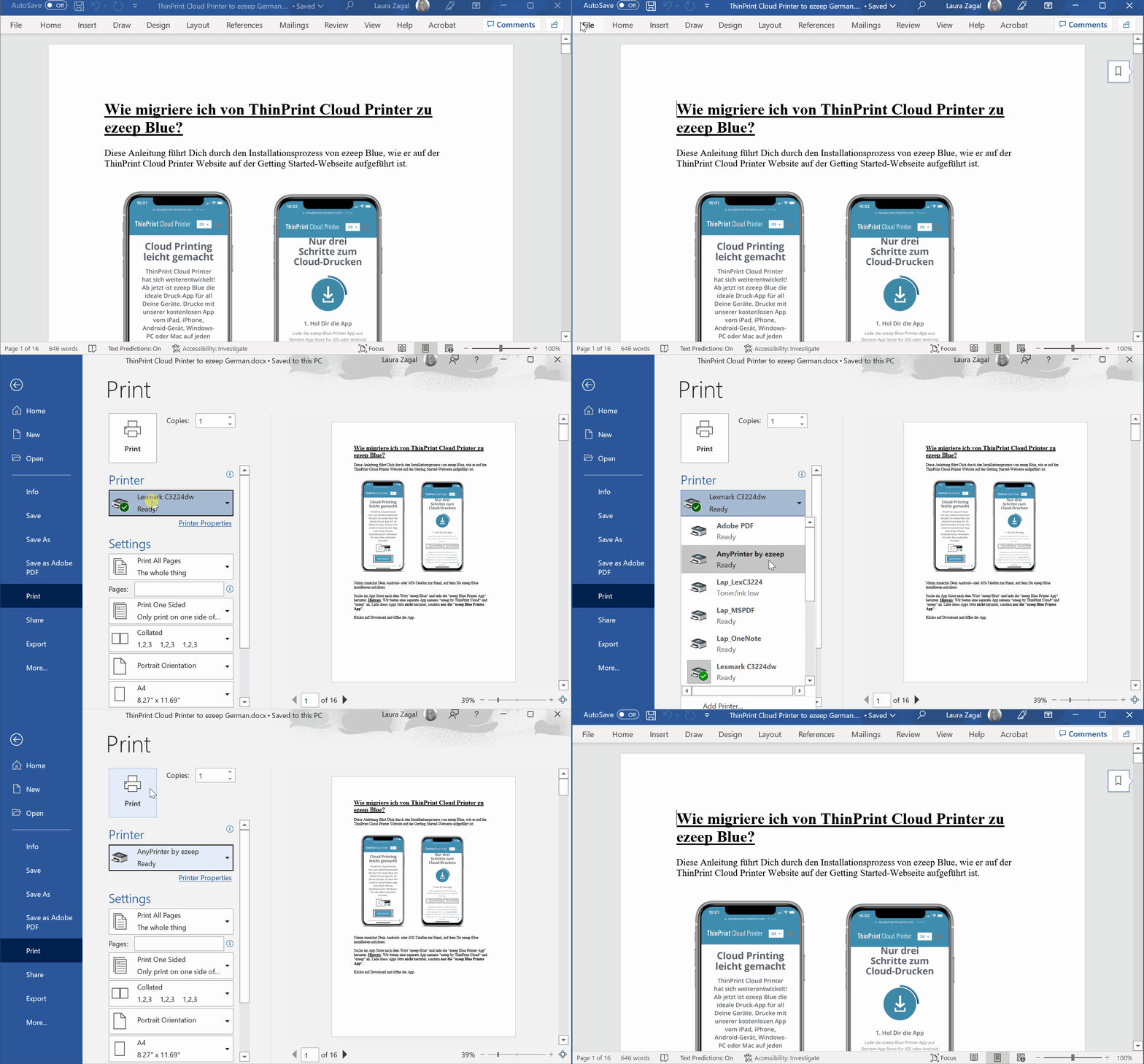
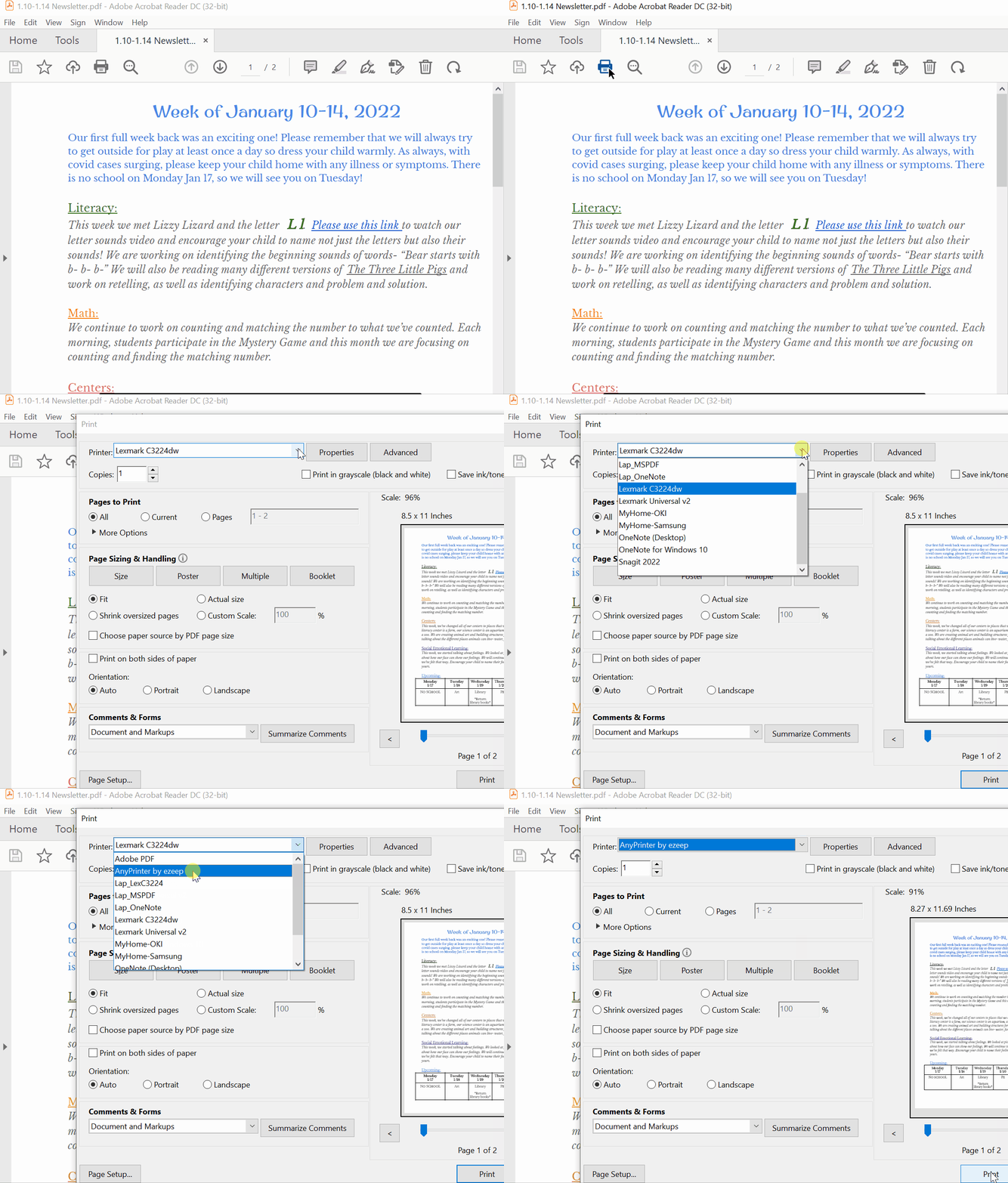
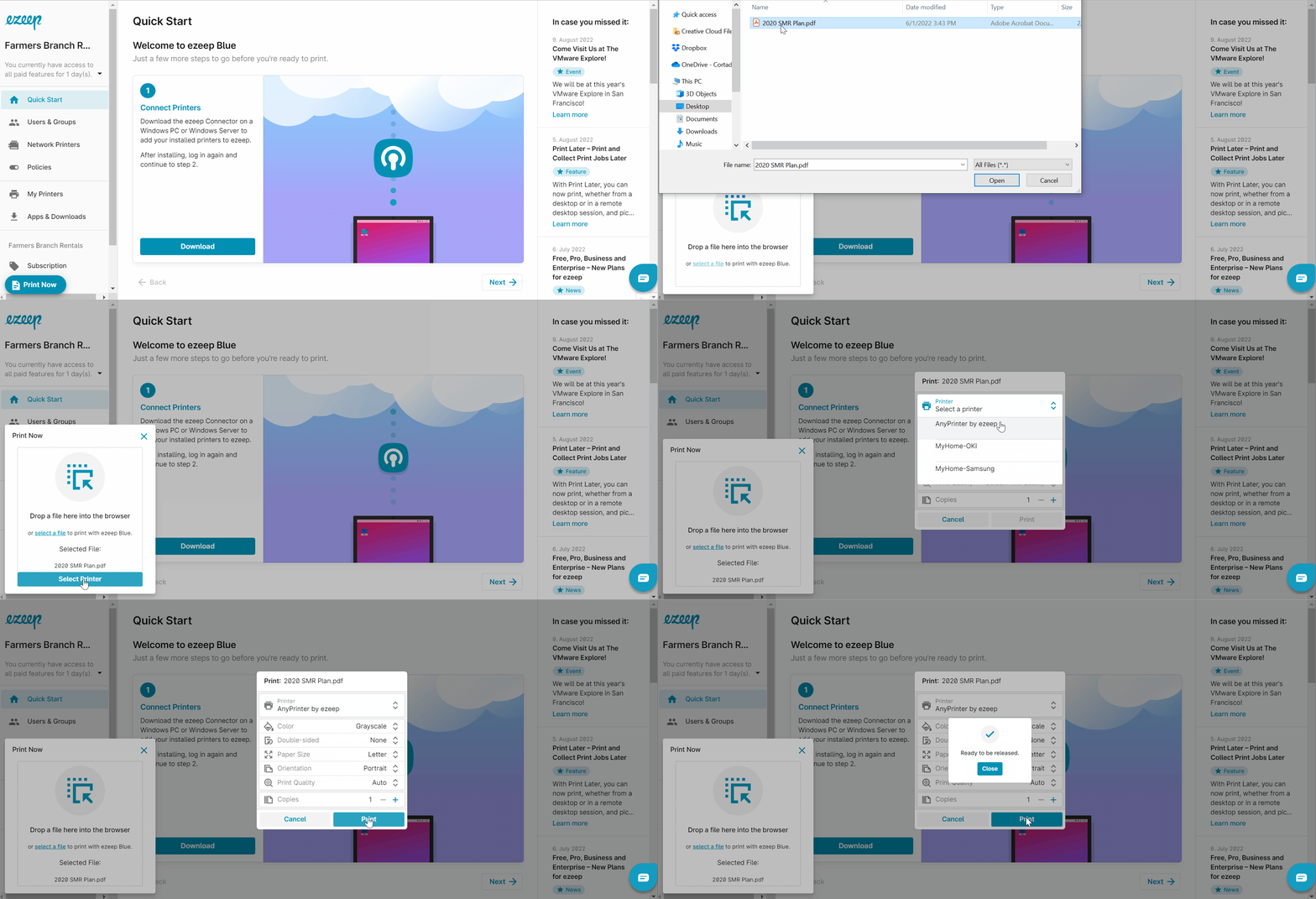
- Select the virtual printer "AnyPrinter by ezeep" from your printer list.
- See below examples using different document types.
Example using Word
Example using PDF
Example using "Print Now" from the ezeep Portal
Step 2: Release the print job
- Pick up your mobile device Android or iOS
- Open the ezeep app
- Under "My Print Jobs" you will find the list of print jobs.
- Tap on "Release" button and select your preferred printer.
- Thats it! Your print job is now available at the printer.