
Manage and configure an ezeep Hub with PowerShell commands.
Browse PowerShell commands1. Install ezeep PowerShell Module
Downloading module from the ezeep Hub and install on a windows machine that can access the hub locally.
- Access the ezeep hub console and download the PowerShell module TPHubPS.dll from the ezeep hub console login page.
Note: If you do not know the hub URL, then follow this link: Finding the ezeep Hub in the network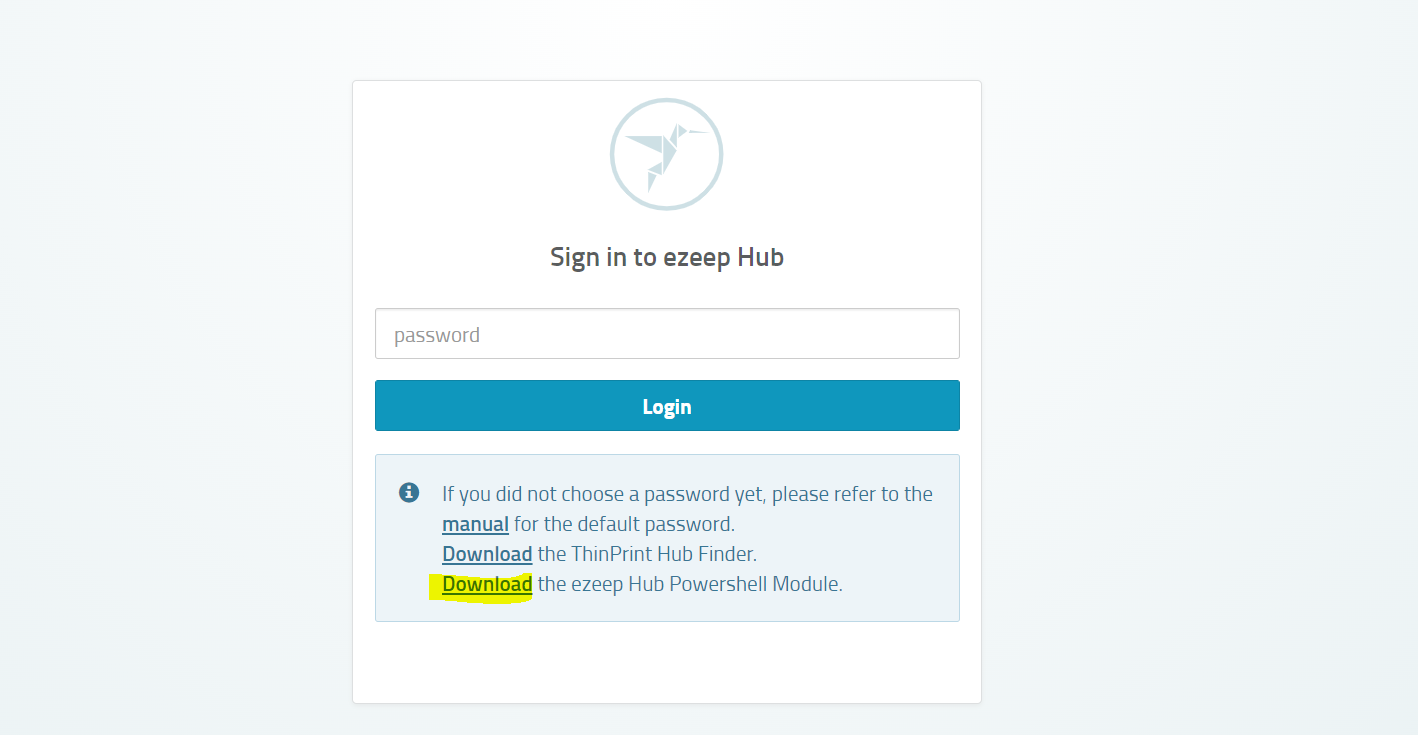
- The module will download to your default "Downloads" Folder.
- Open the TPHubPS.dll file’s properties and check or click on UNBLOCK to lift Windows’ automatic blocking of copied DLLs. Click OK to confirm.
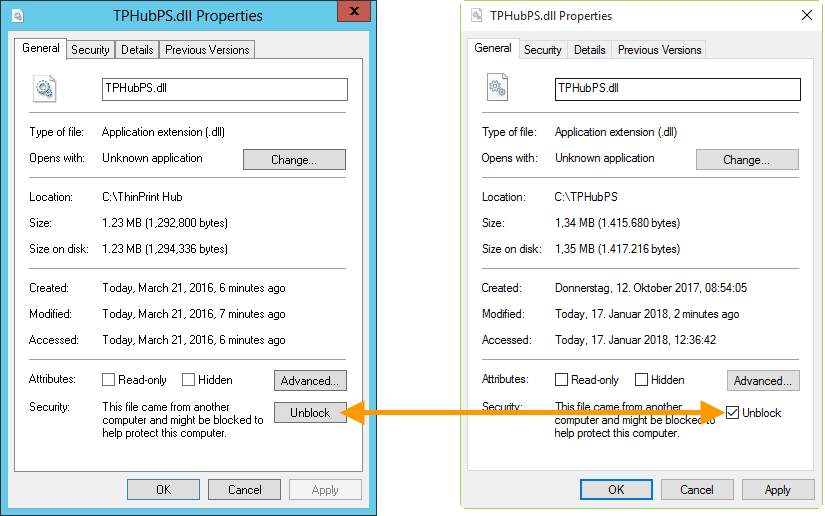
- Open Windows PowerShell as administrator, and run the command below to import the TPHubPS.dll module.
Import-Module .\TPHubPS.dll2. Initialize ezeep Hub
Initialize the hub to be able to use all cmdlets with a specific Hub. Run the commands below:
# Specifying the URL of the target HubSet-TPHubUri -Uri https://192.168.x .x# Accepting the web console’s certificate by the PowerShell moduleSet-TPHubServerCertificateValidation -Option AcceptAlways# Specifying the password of the target Hub (by default the password is print4life )Get-TPHubAuthentication -PlainPassword print4life3. List of available cmdlets
The following is an overview of the Hub’s PowerShell commands.
- The available cmdlets can be viewed using:
Get-Command -Module TPHubPSAvailable cmdlets for:
- Printers
- Find Printers
- Global SNMP Settings
- Network Settings
- Hub Monitoring
- Cloud Connect
- Remote Management (Firmware 1.16+)
- Pull Printing (Firmware 1.16+)
- Certificates
- System
- Restart, Reset & Backup
- Version Information & Update
- System Time & Logging
Printers
| Cmdlet | Brief description |
|---|---|
| Get-TPHubPrinter | Retrieves the printer list |
| Add-TPHubPrinter | Creates a new printer |
| Set-TPHubPrinter | Modifies an existing printer |
| Get-TPHubAvailableUSB | Imports the printers connected to the USB interfaces |
| Remove-TPHubPrinter | Removes a printer from |
| Remove-TPHubAllPrinter | Removes all printers |
| Get-TPHubDefaultPrinter | Reads the default (or the current) printer |
| Set-TPHubDefaultPrinter | Sets the default (or the current) printer |
Find Printers
| Cmdlet | Brief description |
|---|---|
| Set-TPHubFindPrintersSettings | Enables the search for printers in the local subnet of the hub and the automatic addition of found printers to the printer list |
| Get-TPHubFindPrintersSettings | Displays the settings whether to search for printers in the local subnet of the hub and whether these printers should be automatically added to the printer list |
| Get-TPHubFindPrinters | Searches for printers in the Hub’s local subnet |
| Set-TPHubDiscoveredPrinter | Enables searching printers in the Hub’s local subnet |
| Get-TPHubDiscoveredPrinter | Searches for printers in the Hub’s local subnet |
| Add-TPHubDiscoveredPrinterBlacklist | Marks printers as hidden |
| Remove-TPHubDiscoveredPrinterBlacklist | Removes the attribute hidden |
Global SNMP Settings
| Cmdlet | Brief description |
|---|---|
| Get-TPHubSnmpGlobal | Reads the SNMP configuration with which the printers are addressed |
| Set-TPHubSnmpGlobal | Selects and configures SNMP protocol with which the printers are addressed |
| Get-TPHubPrinterSnmp | Not provided |
| Set-TPHubPrinterSnmp | Not provided |
| Get-TPHubPrinterSnmpStatus | Not provided |
Network Settings
| Cmdlet | Brief description |
|---|---|
| Get-TPHubNetworkDesc | Reads the Hostname, Comments and Location description fields (and also the software internal Revision hash, to uniquely identify the configuration) from the Hub |
| Set-TPHubNetworkDesc | Modifies the Hostname,Comments and Location description fields of the Hub |
| Get-TPHubNetworkIPV4 | Reads the Ipv4 configuration from the Hub |
| Set-TPHubNetworkIPV4 | Modifies the Hub’s IPv4 configuration |
| Set-TPHubNetworkIEEE802.1X | Sets the configuration for EAP network authentication for Ethernet |
| Get-TPHubNetworkIEEE802.1X | Reads the configuration of the EAP network authentication for Ethernet |
Hub Monitoring
| Cmdlet | Brief description |
|---|---|
| Get-TPHubSnmpAgentV1 | Not provided |
| Set-TPHubSnmpAgentV1 | Not provided |
| Get-TPHubSnmpAgentV3 | Not provided |
| Set-TPHubSnmpAgentV3 | Not provided |
Remote Management (Firmware 1.16+ only)
| Cmdlet | Brief description |
|---|---|
| Get-TPHubEzeepCloudManagement | Checks the activation of the cloud management of ezeep |
| Set-TPHubEzeepCloudManagement | Enables cloud management of ezeep (prerequisite for Hub claiming) |
Cloud Connect
| Cmdlet | Brief description |
|---|---|
| Connect-TPHubEzeep | Connects the Hub to ezeep to allow printers installed on the Hub to also be used for cloud printing with ezeep |
| Get-TPHubEzeep | Displays the properties of the connection made with Connect-TPHubEzeep to ezeep |
| Disconnect-TPHubEzeep | Disconnects the Hub from ezeep |
Pull Printing (Firmware 1.16+ only)
| Cmdlet | Brief description |
|---|---|
| Get-TPHubPPConfiguration | Displays the Pull Printing settings |
| Set-TPHubPPConfiguration | Sets specific Pull Printing properties |
| Get-TPHubPPServerCheck | Tests the connection to the Pull Printing server. |
| Get-TPHubPPReader | Shows the current assignment of the card reader to the USB interface(s) |
| Set-TPHubPPReader | This cmdlet allows you to manually assign the card readers to the USB interfaces. Automatic recognition of the USB port assignment is only possible with the web console. |
| Get-TPHubPPLastId | Displays the identification number (ID) of the last card held to the card reader and the date and time of this event. |
| Get-TPHubPullPrintingConfiguration | Reads the Pull Printing configuration for ezeep |
| Set-TPHubPullPrintingConfiguration | Sets and configures pull printing for ezeep |
Certificates
| Cmdlet | Brief description |
|---|---|
| Add-TPHubCertificate | Uploads a certificate onto the Hub |
| Unlock-TPHubCertificate | If a certificate (just) loaded, with Add-TPHubCertificate, is protected by a password, then unlock it with this Cmdlet. |
| Get-TPHubUnconfirmedCertificate | This function can be used to check whether a password-protected certificate has been successfully unlocked with Unlock-TPHubCertificate after uploading |
| Remove-TPHubUnconfirmedCertificate | This Cmdlet has the same function as the Remove . It can only be used following the uploading of a certificate whose password has still not been sent to the Hub with Unlock-TPHubCertificate. |
| Remove-TPHubCertificate | Removes certificates that are not currently assigned a function with Set-TPHubSslConfig |
| Get-TPHubCertificate | Displays all the certificates uploaded with Add-TPHubCertificate – regardless of whether they have already been assigned a function with Set-TPHubSslConfig |
| Get-TPHubSslConfig | Indicates what function has been assigned to which certificate uploaded with Add-TPHubCertificate |
| Set-TPHubSslConfig | Applies one of three functions to certificates uploaded with Add-TPHubCertificate |
System
| Cmdlet | Brief description |
|---|---|
| Find-TPHubDevices | Searches for Hubs in the local subnet |
| Set-TPHubTemporaryNetworkConfig | Changes the IP address of a Hub (valid only up to the next system reboot of the device). |
| Set-TPHubUri | Defines web address of the Hub to be configured |
| Get-TPHubUri | Shows the current web address of the Hub to be configured |
| Set-TPHubProxy | Defines a proxy server for web access to the Hub to be configured |
| Get-TPHubProxy | Displays the current proxy server address |
| Set-TPHubServerCertificateValidation | Determines whether or not the web console certificate will be accepted by the PowerShell module |
| Get-TPHubServerCertificateValidation | Imports the current setting for accepting the web console certificate through the PowerShell module |
| Get-TPHubLanguage | Reads the current system language |
| Set-TPHubLanguage | Changes the system language back |
| Set-TPHubPassword | Changes the system password |
| Get-TPHubIsHidden | Shows whether the function Make Hub invisible for the Hub Finder is enabled, i. e. whether the Hub will become invisible to the Finder after five minutes |
| Set-TPHubIsHidden | After five minutes after a system reboot, the Hub will no longer appear in the Hub Finder |
| Get-TPHubAuthentication | Logs the current user into the Hub |
| Clear-TPHubAuthentication | Logs the current user out from the Hub |
Restart, Reset & Backup
| Cmdlet | Brief description |
|---|---|
| Start-TPHubReboot | Reboots the system |
| Start-TPHubFactoryReset | Resets the Hub to its factory default settings |
| Get-TPHubRequestTimeout | Reads the timeout from the Hub |
| Set-TPHubRequestTimeout | Reads the timeout from the Hub |
| Export-TPHubBackup | Saves the settings in a .json file |
| Import-TPHubBackup | Reads the saved settings from the .json backup file and writes them into the Hub |
| Get-TPHubTaskResult | Not provided |
Version Information & Update
| Cmdlet | Brief description |
|---|---|
| Get-TPHubVersions | Reads out the version information |
| Update-TPHubFirmware | Updates the firmware |
System Time & Logging
| Cmdlet | Brief description |
|---|---|
| Get-TPHubTime | Reads the Hub’s system time |
| Set-TPHubTime | Sets the system time if a time server is not specified and there is no internet connection |
| Get-TPHubTimeServer | Sends query to time server in the Hub |
| Set-TPHubTimeServer | Defines a time server |
| Export-TPHubLogFile | Saves the logs completely into a file |
| Get-TPHubLogVerbosity | Retrieves the log level |
| Set-TPHubLogVerbosity | Modifies the log level |
| Clear-TPHubLogFile | Removes all log files |
| Get-TPHubRemoteSyslogAddress | Reads the address of the syslog server |
| Set-TPHubRemoteSyslogAddress | Sets the address of the syslog server |
The ezeep Hub can also be controlled remotely (via the cloud).
- Download the module from the gallery: https://www.powershellgallery.com/packages/TPHubPS/1.19.23.1
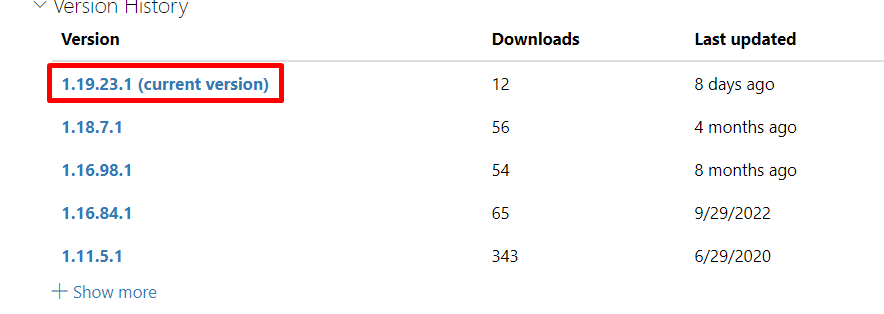
- Copy to your PC and unzip the package
- Get the mac address of the hub (e.g. b8:27:eb:2f:7a:a1)
- Start Powershell and run the following commands:
    Import-Module .\TPHubPS.dll

    Set-TPHubServerCertificateValidation -Option AcceptAlways

    Add-TPHubClaimEzpHub -Serial <hub mac>

    Get-TPHubAuthentication -PlainPassword print4life -ConnectorSerial <hub mac>
Now all hub powershell commands from the above table are available for normal use.