
Set up mobile authentication for Pull Printing so users can release queued jobs by scanning a printer's QR code with the ezeep mobile app.
Note: This feature is available in the Business and Enterprise Plan.
Step 1: Set up Mobile Device Authentication with QR Codes
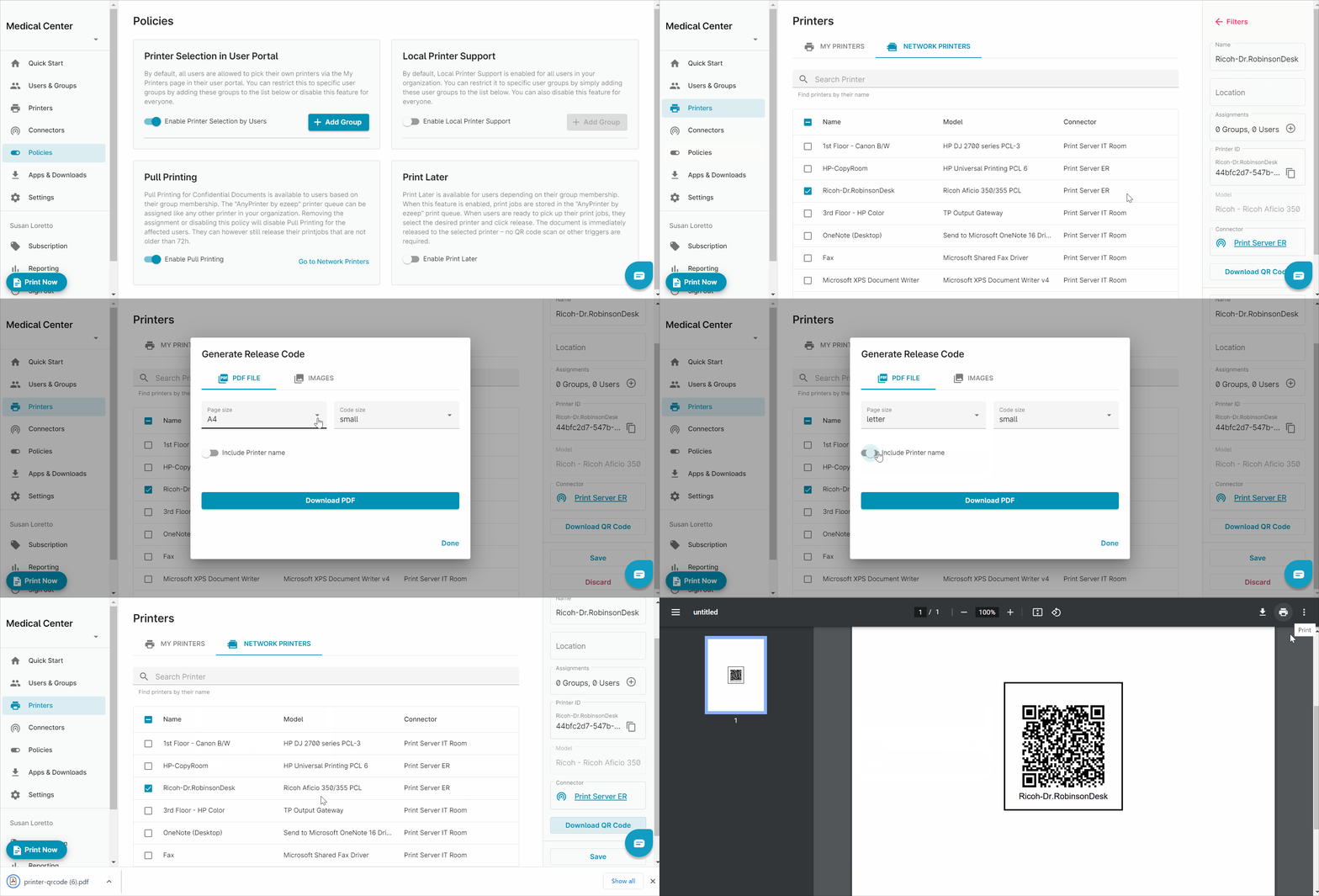
- Log into the ezeep portal with your admin credentials.
- Download & print QR codes for each physical printer.
- Click Go to the Network Printers.
- Select the physical printer.
- Click Download QR Code on the right pane.
- Select the desired options.
- Click Download PDF on the right pane.
- Open the PDF and print the QR code.
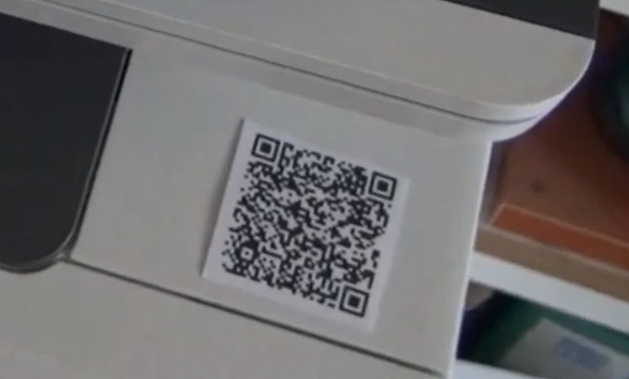
- Finally, attach the QR code printout to the printer.
Step 2: Assign the printer "AnyPrinter by ezeep" to users and groups
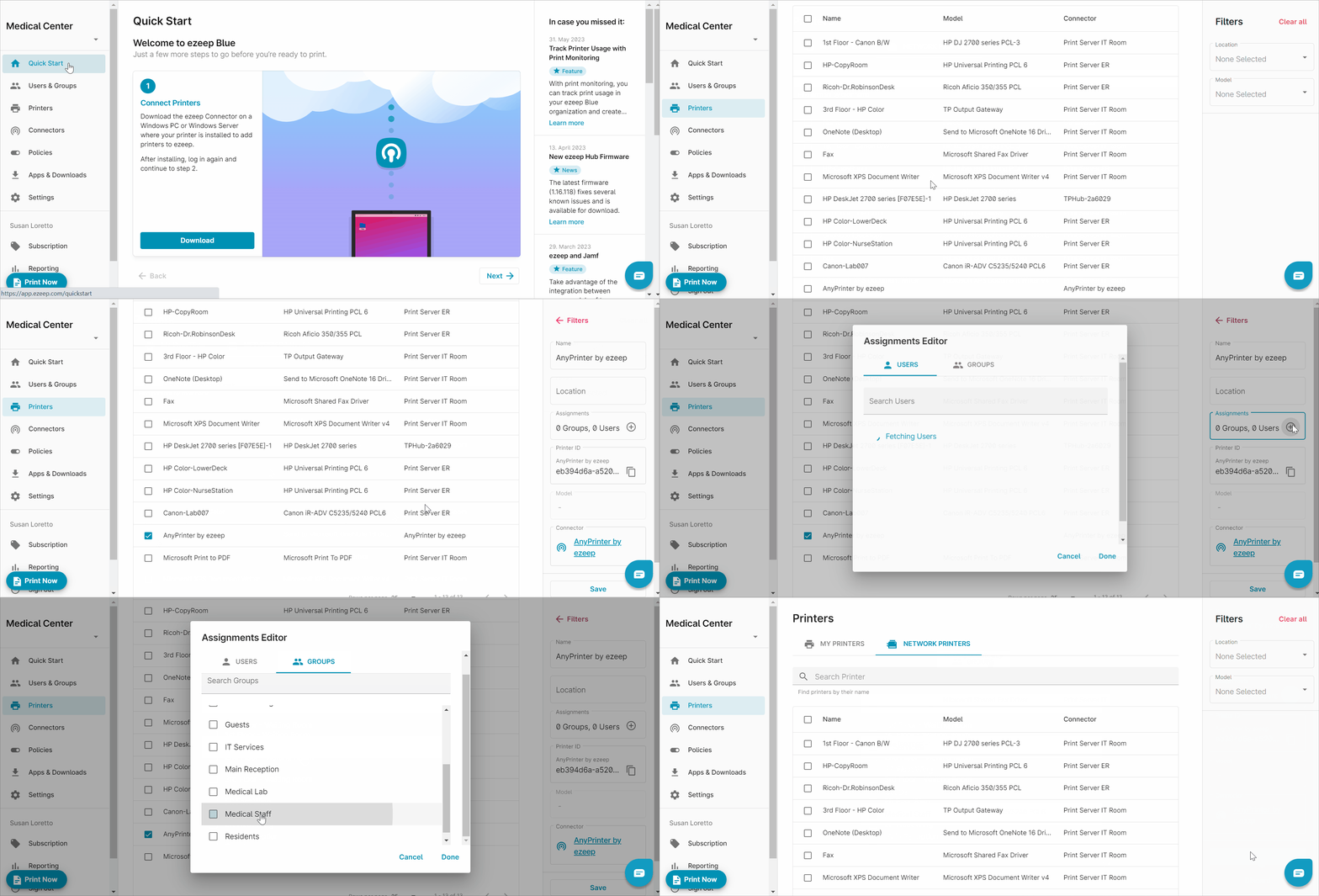
- Go to Printers in the left pane.
- Click Network Printers in the top header.
- Select the printer AnyPrinter by ezeep.
- Click +Assignments on the right pane.
- Assign to a User or Group.
- Click Done.
- Click Save on the right pane.
That’s it! The users in that group are ready to print securely using Mobile Authentication with Pull Printing. To print, follow the steps in the next section: Printing using Pull Printing.