
Connect ezeep with Make to automate print jobs triggered by events in other applications, such as incoming orders or completed invoices.
Prerequisites:
- An active ezeep Pro, Enterprise or Business subscription. Don't have one? start here:
- An active Make subscription https://www.make.com/en/register
- A ezeep user with assigned ezeep printers
Configure print automation with Make
- Log in to your Make account here.
- Click "Scenarios" on the left pane
- Click "+ Create a New Scenario" on the top header
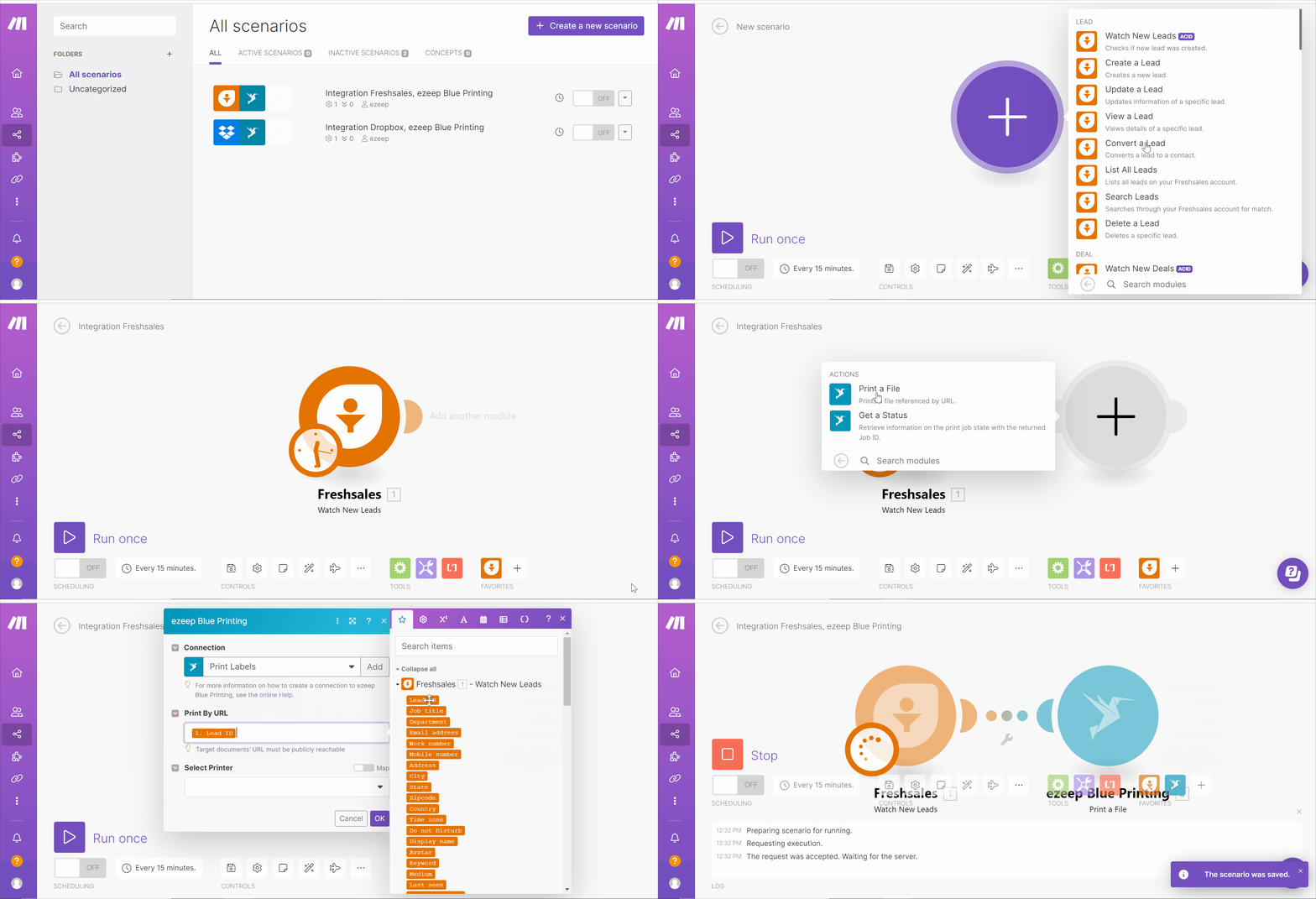
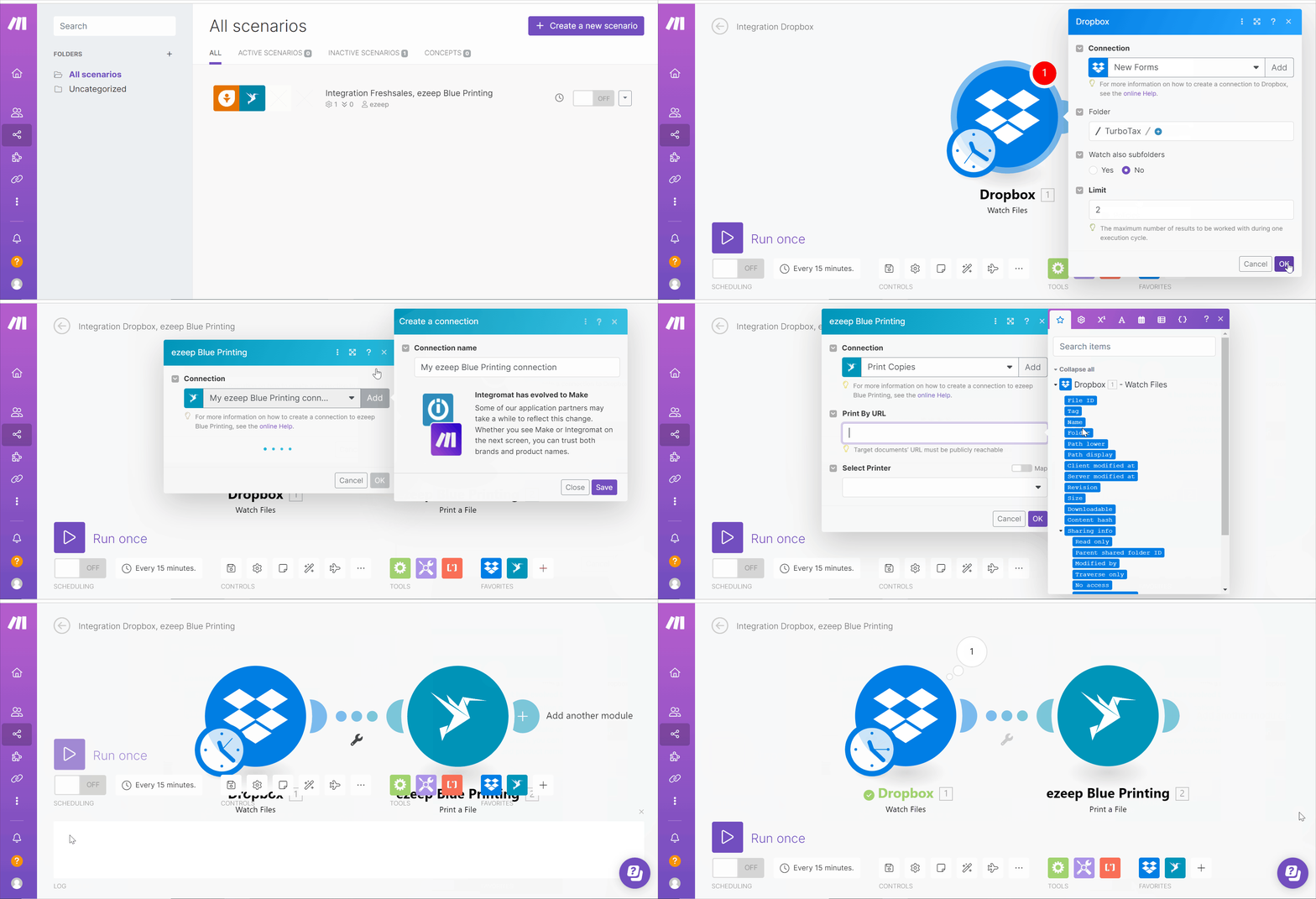
- Click the purple + icon and search for your action module app
- Select the action and click "Add" to connect the app and enter your app credentials
- Enter your settings and click "save".
- Click the + icon to add another module and search for "ezeep"
- Select ezeep app and choose "Print a file"
- Click "add" to connect the ezeep app and enter your ezeep account credentials
- Select the preferred settings such as the printer and click "Ok".
- To test the workflow select "Run once". Then Turn it "ON".
- That's it! The printing automation is ready!
Example use case: Automatically print shipping label as a new order is received in crm.
Example use case: Automatically print tax return copies for customer as they are saved in file storage.
For more information about Make and ezeep: