
Printer Profiles let you set default print options for a printer and assign those defaults to users or groups. Profiles set initial values; they do not prevent users from changing available settings.
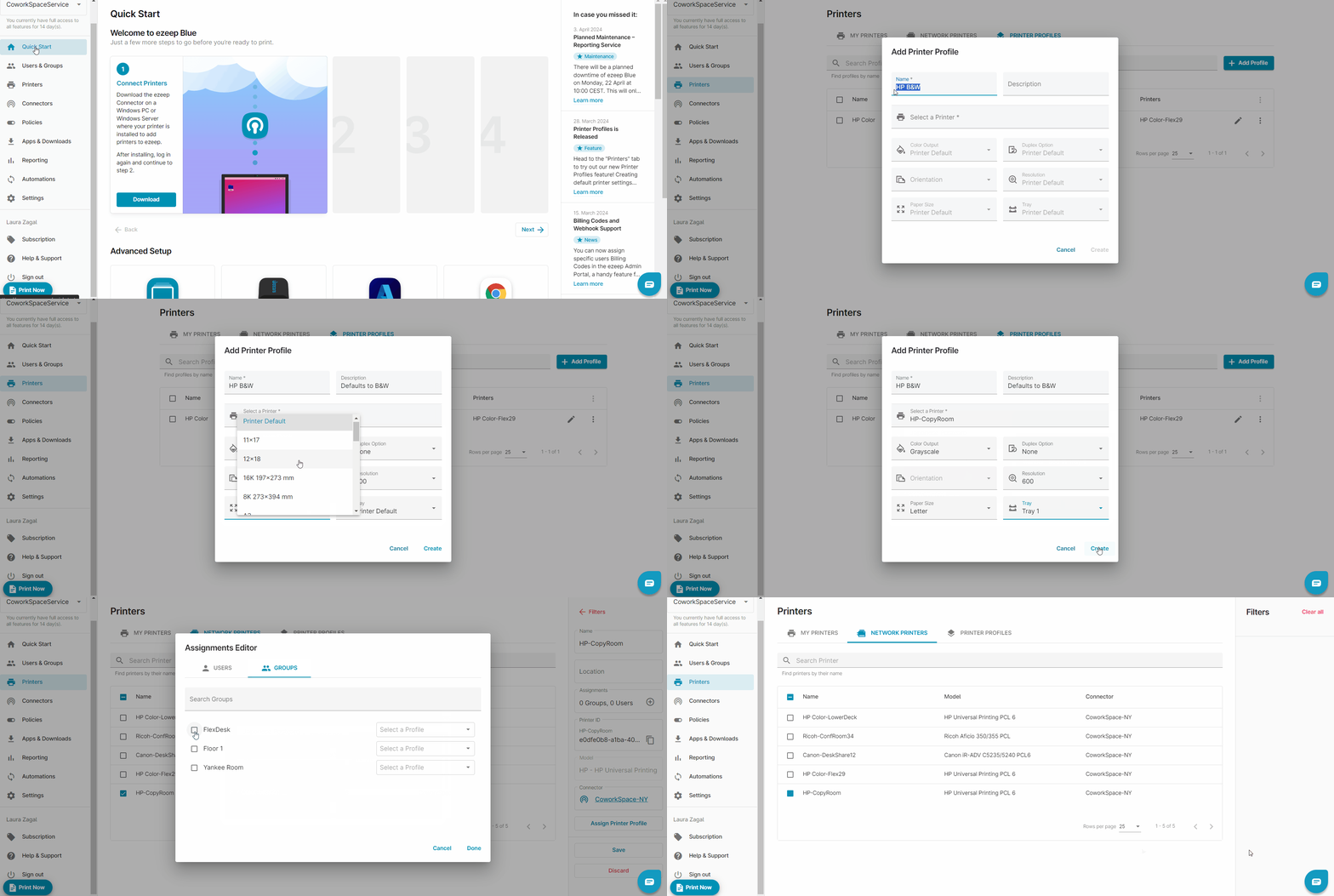
Create a Printer Profile
- Log in to the ezeep Admin Portal with your admin credentials
- Select "Printers" on the left pane.
- Select "Printer Profiles" tab in the header.
- Select "+Add Profile"on the right pane.
- Enter the profile name and description
- Select the printer
- Select the preferred defaults
- Color output
- Duplex
- Orientation
- Resolution
- Paper Size
- Tray
- Select "Create"
Assign the Printer Profile
- Select "Network Printers"
- Select the checkbox next to the printer you chose
- Select "Assign printer profile" on the right pane
- Assign the "User" or "Group" and the profile you just created.
Note: The printer profiles feature is designed to set the defaults on the printer, it will not restrict printer settings.