
Set up Pull Printing and local copy tracking on Lexmark devices.
View supported printersBefore you begin
- An active ezeep Business or Enterprise subscription with pull printing feature enabled
- A supported Lexmark printer (see below for list of supported models)
- RFID Pull Printing requires a card reader. If your printer does not include one, contact the printer manufacturer.
Set up Pull Printing
Set up Pull Printing with card authentication before configuring the app:
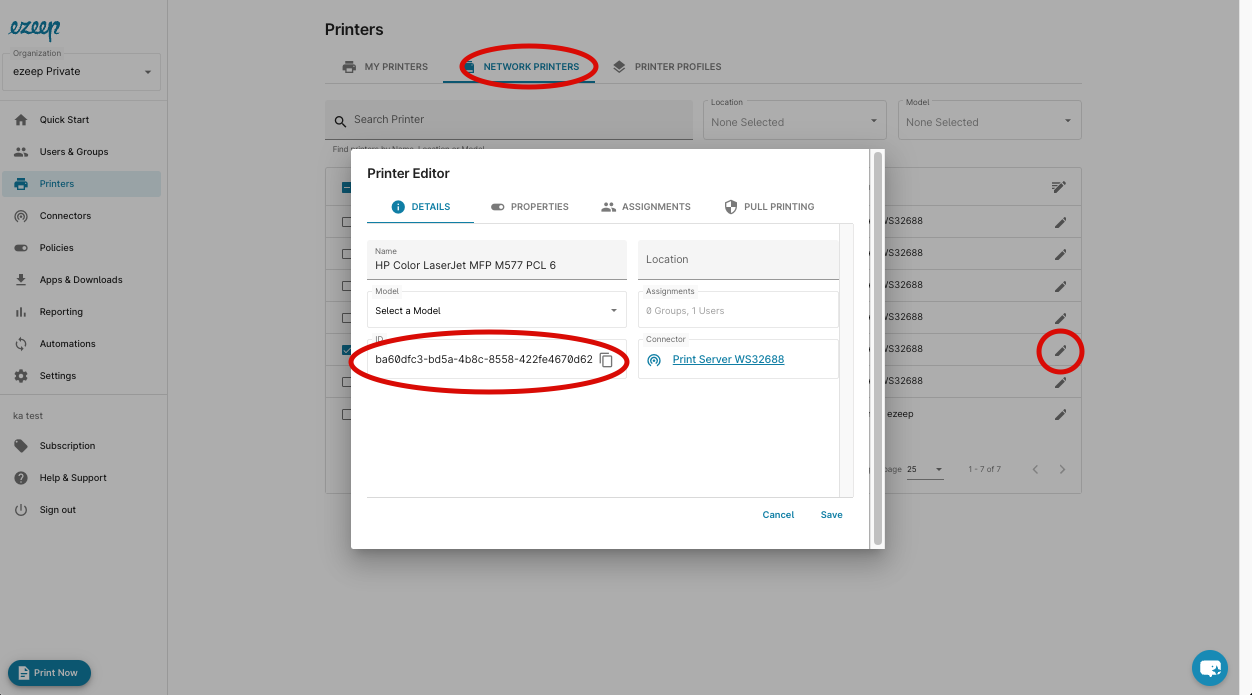
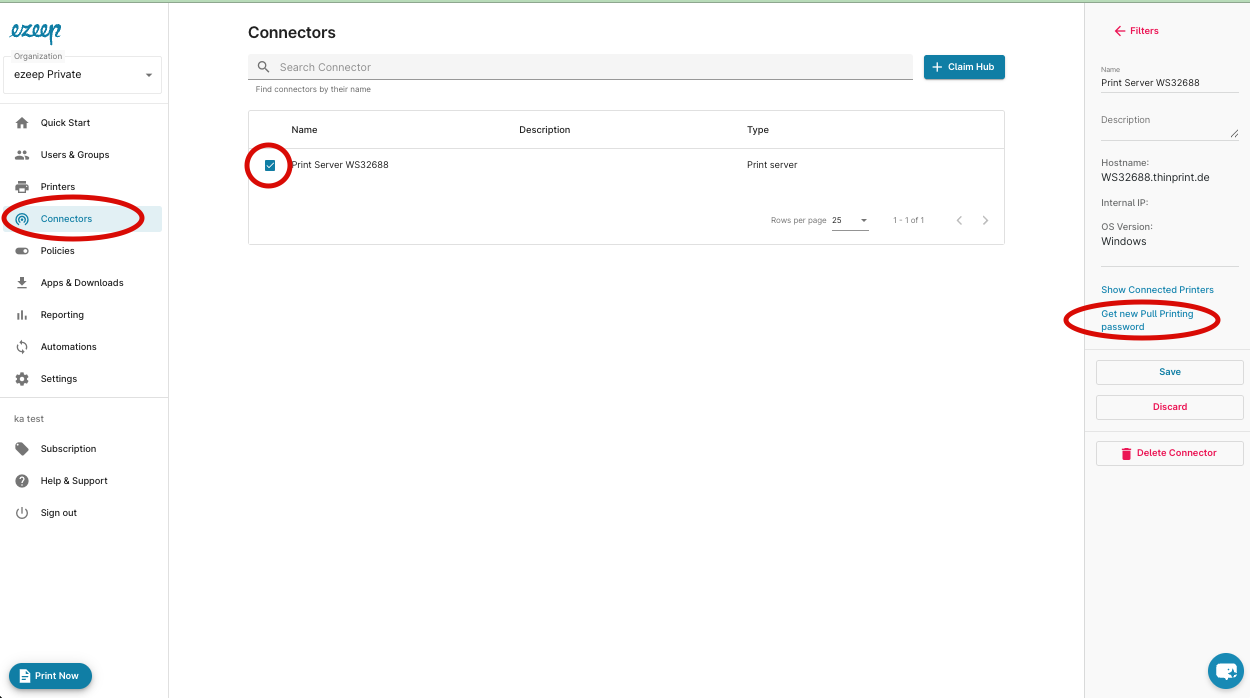
Copy the Pull Printer’s printer ID and Pull Printing password from the ezeep Admin Portal. You’ll need both in the next steps.
a. In your ezeep portal, go to Printers > Network Printers, and edit the printer. You'll find the printer's ID here, and you can copy it:
b. Next, go to Connectors, and get the Pull Printing password.
Print a document to pull it later. See:
Printing using Pull Printing
Install the ezeep App for Lexmark
Check your Lexmark device and card reader for compatibility and get the corresponding driver (See attached PDF for Lexmark's list of recommended drivers).
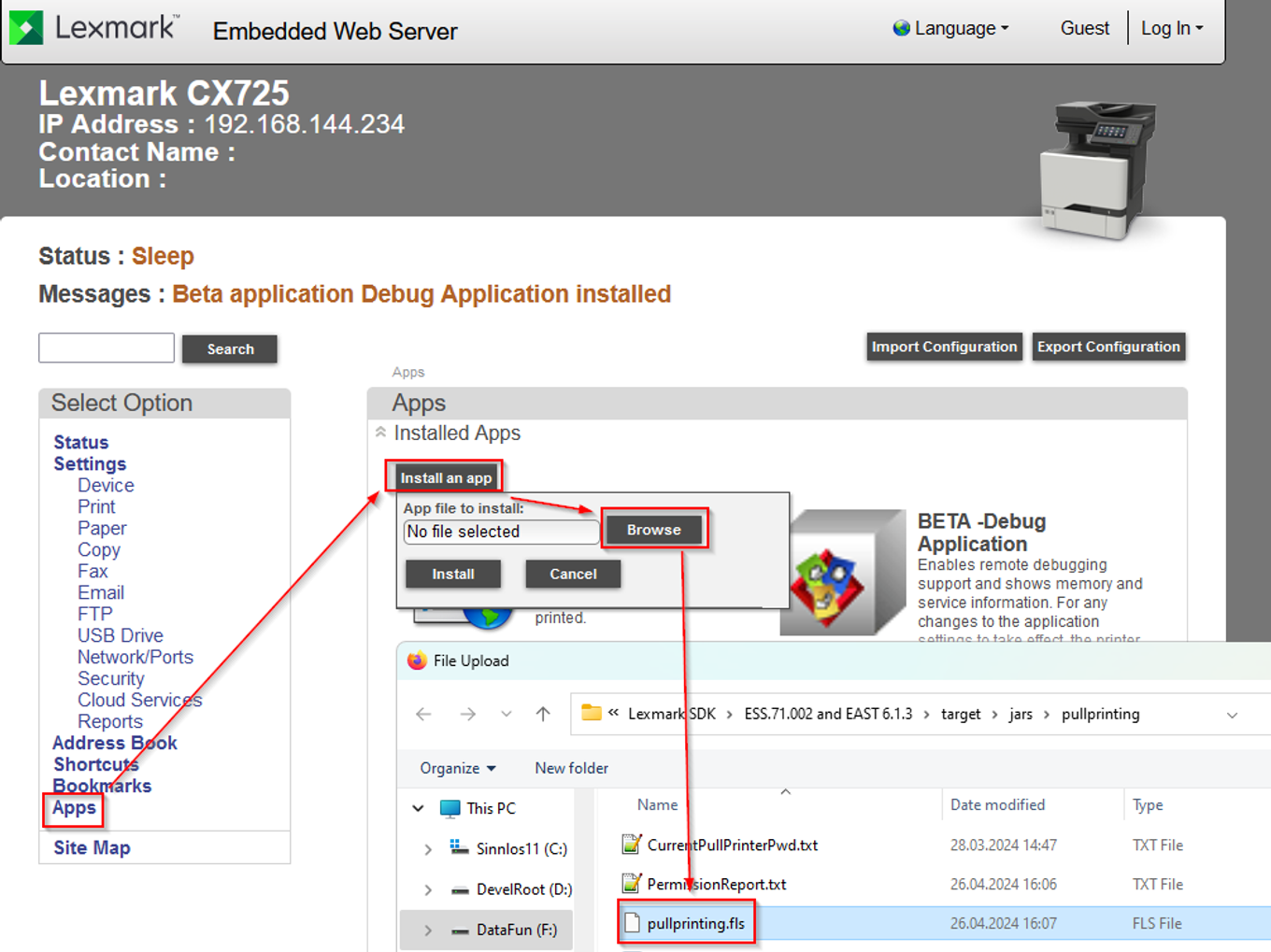
In the Lexmark web interface, open Apps → Install an app → Browse. Select the keyboardreader-###.fls driver file and install it.
Restart the device.
Download the installation bundle of the ezeep Client from the ezeep Admin portal "My Downloads"
Again, navigate to “Apps”, click on “Install an app”, followed by the “browse” button, and select the file. Click on "Install":
Configure the app
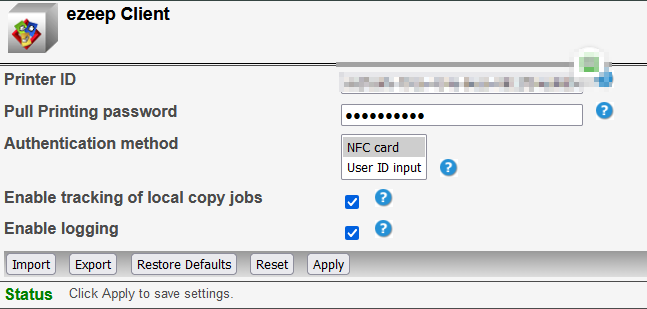
Find the newly installed ezeep Client in the list of installed apps and open its configuration
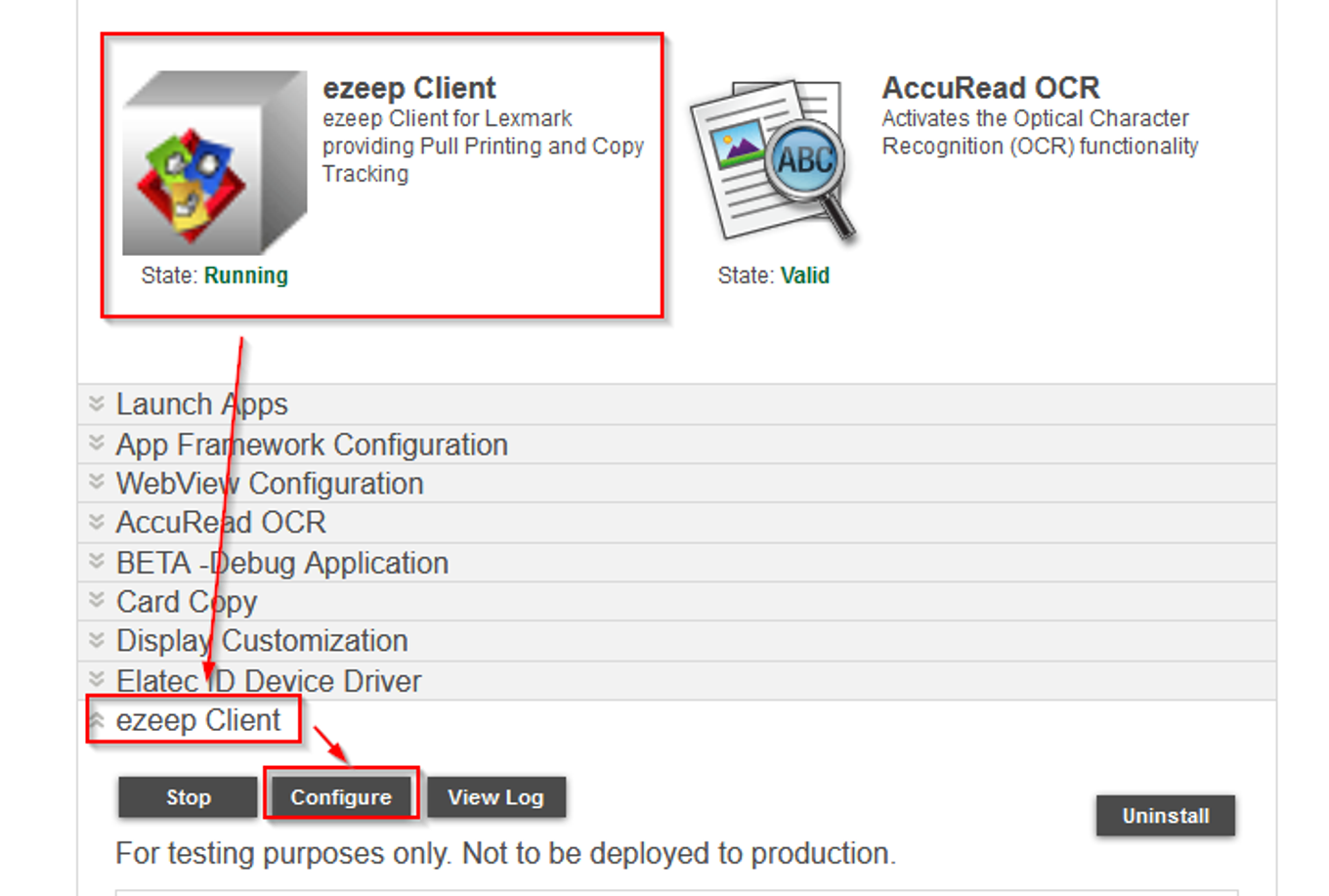
Enter the
Pull Printer’s ID and
Pull Printing password and click "Apply".
Release a print job
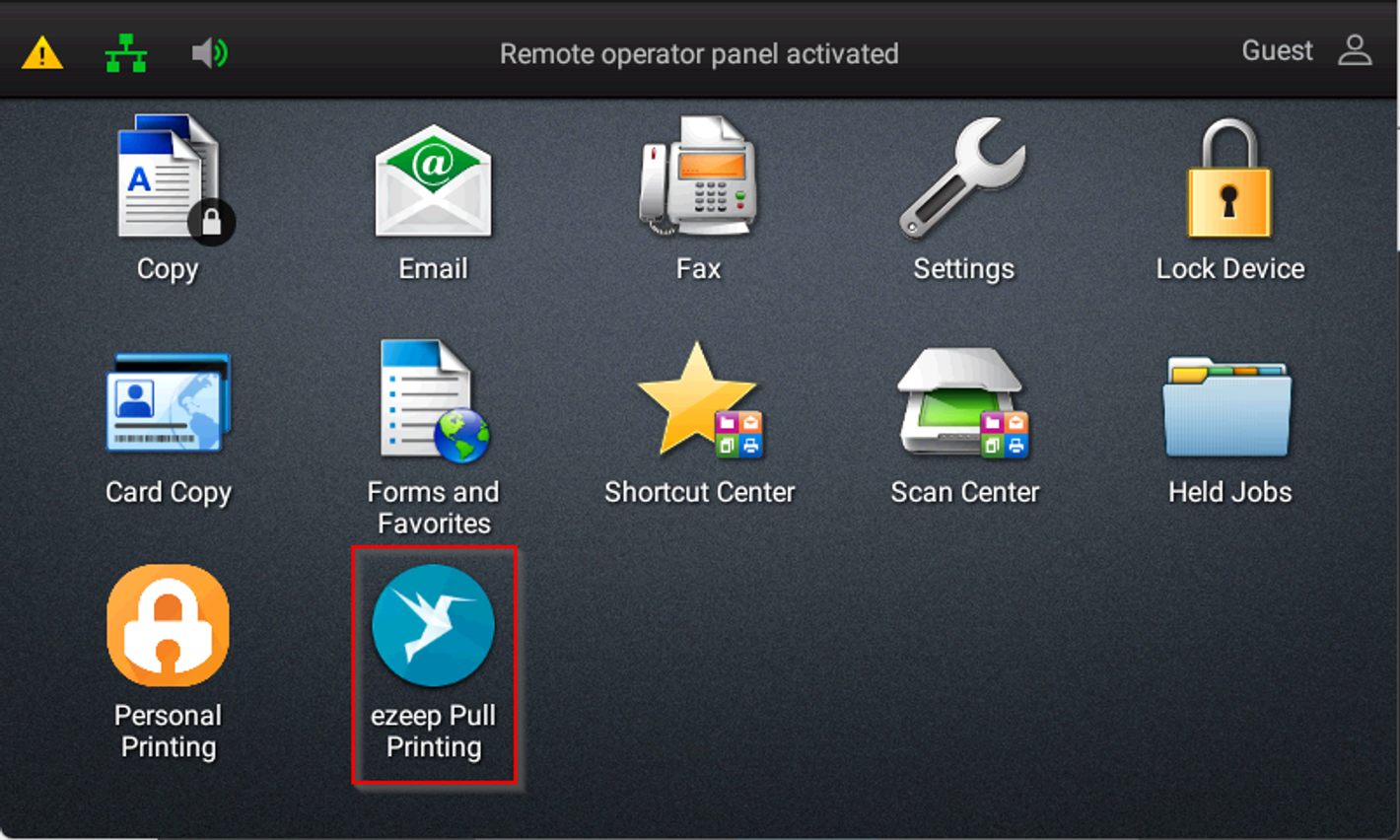
Select the ezeep Client’s Pull Printing app on the touchpad of your Lexmark device
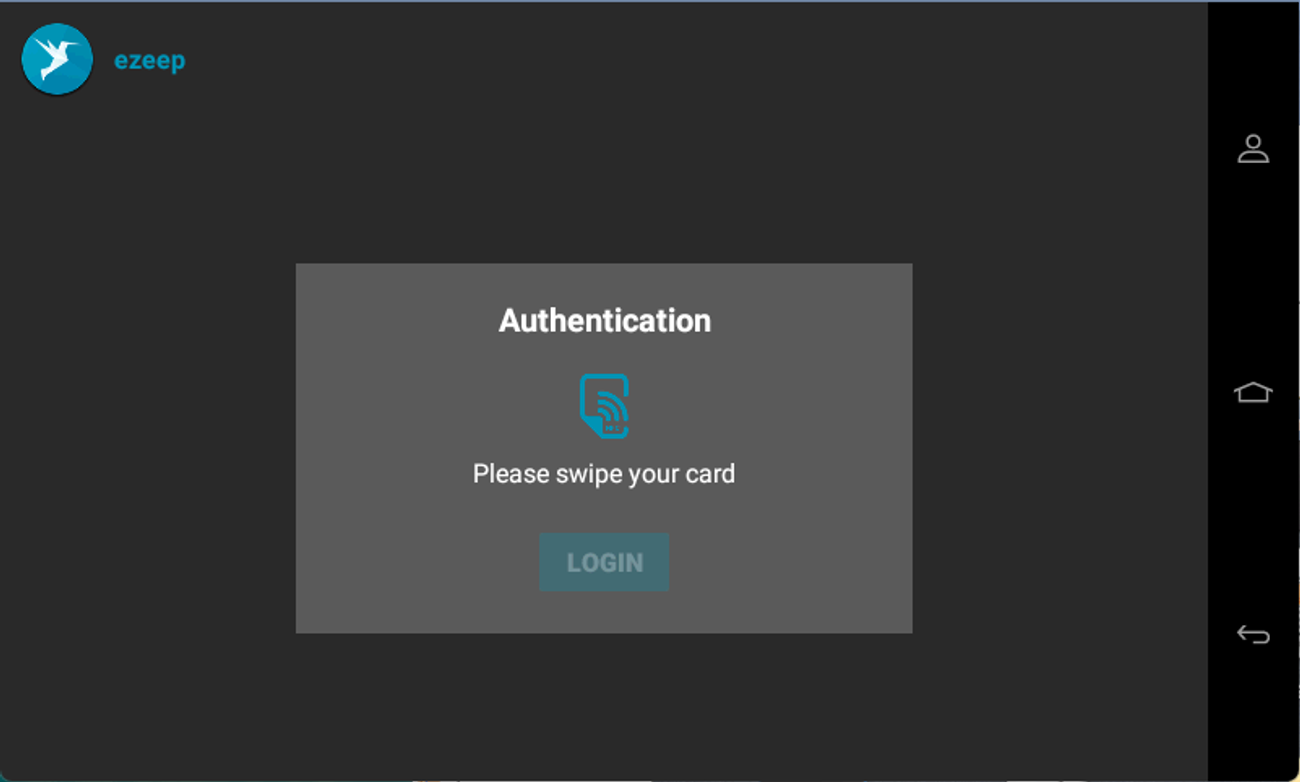
Swipe your card or token to authenticate (scanner purchased separately, contact the printer manufacturer).
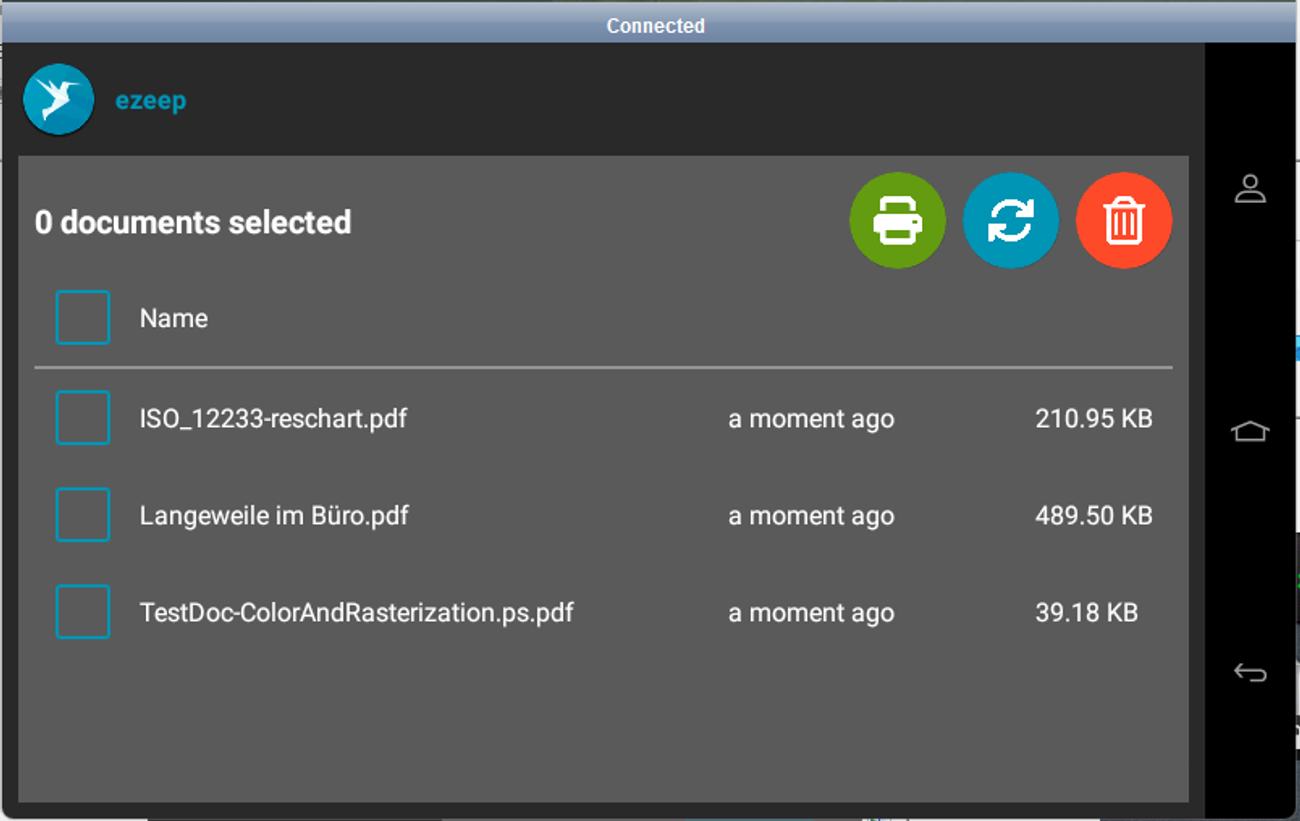
Select the document from the print-job list, then select the Print icon to print it.
Enable tracking for local copies
Install and configure the ezeep client for lexmark as described above.
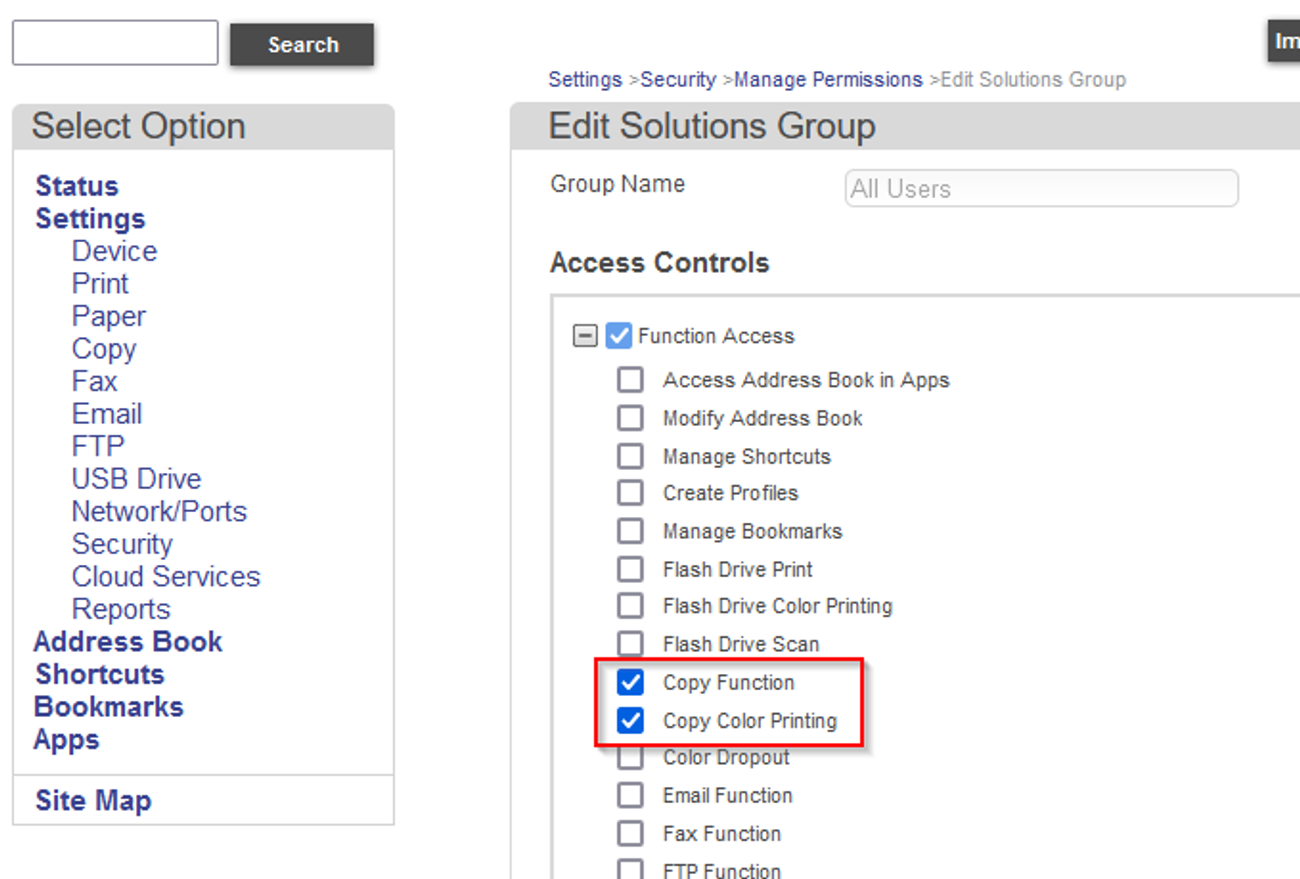
Go to the ezeep client’s configuration section, on the Lexmark device’s web console and make sure that tracking is enabled:
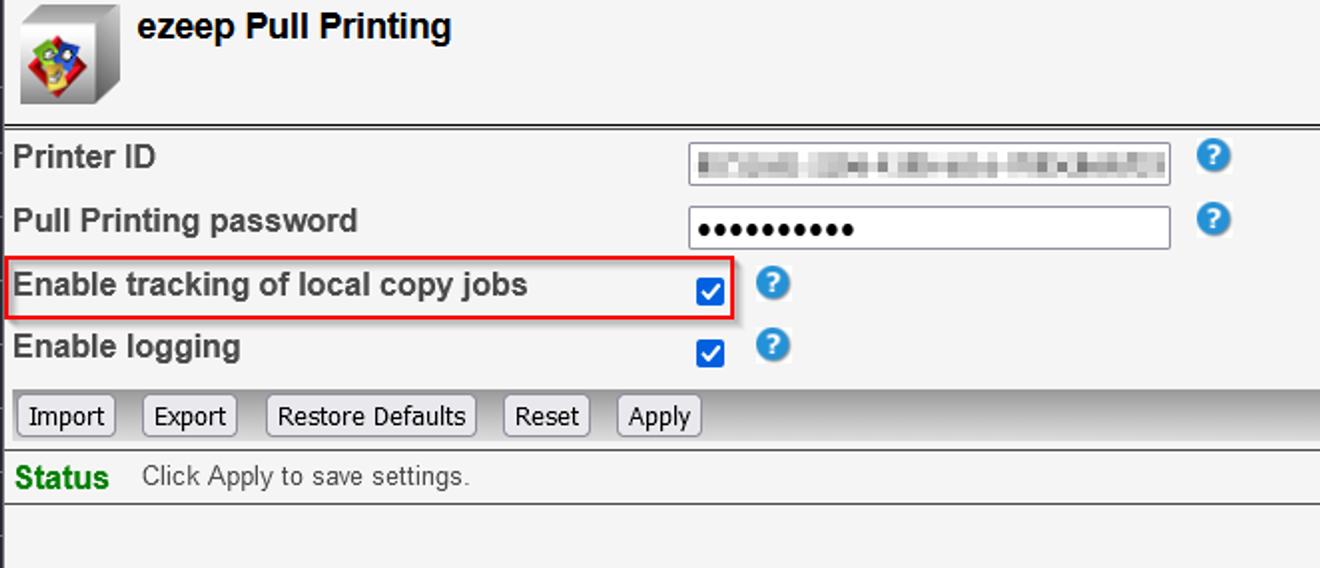
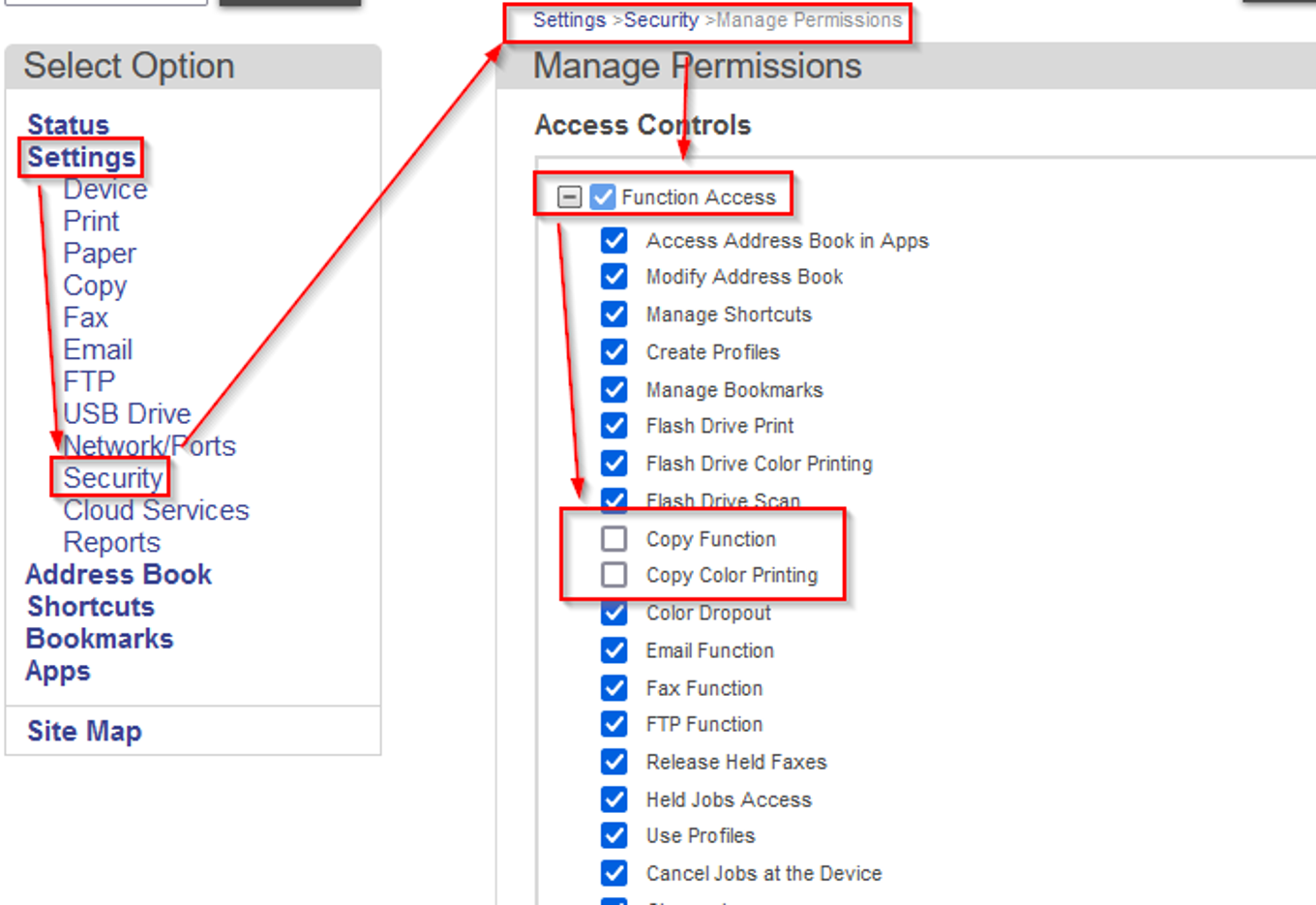
In the device’s web console navigate to “
Settings → Security → Login Methods → Public → Manage Permissions”
-In the section “
Access Controls” expand the “
Function Access” listing
-Remove the check mark at “
Copy Function” and “
Copy Color Printing” so that unauthenticated user are not allowed to do local copies anymore
-Save changes
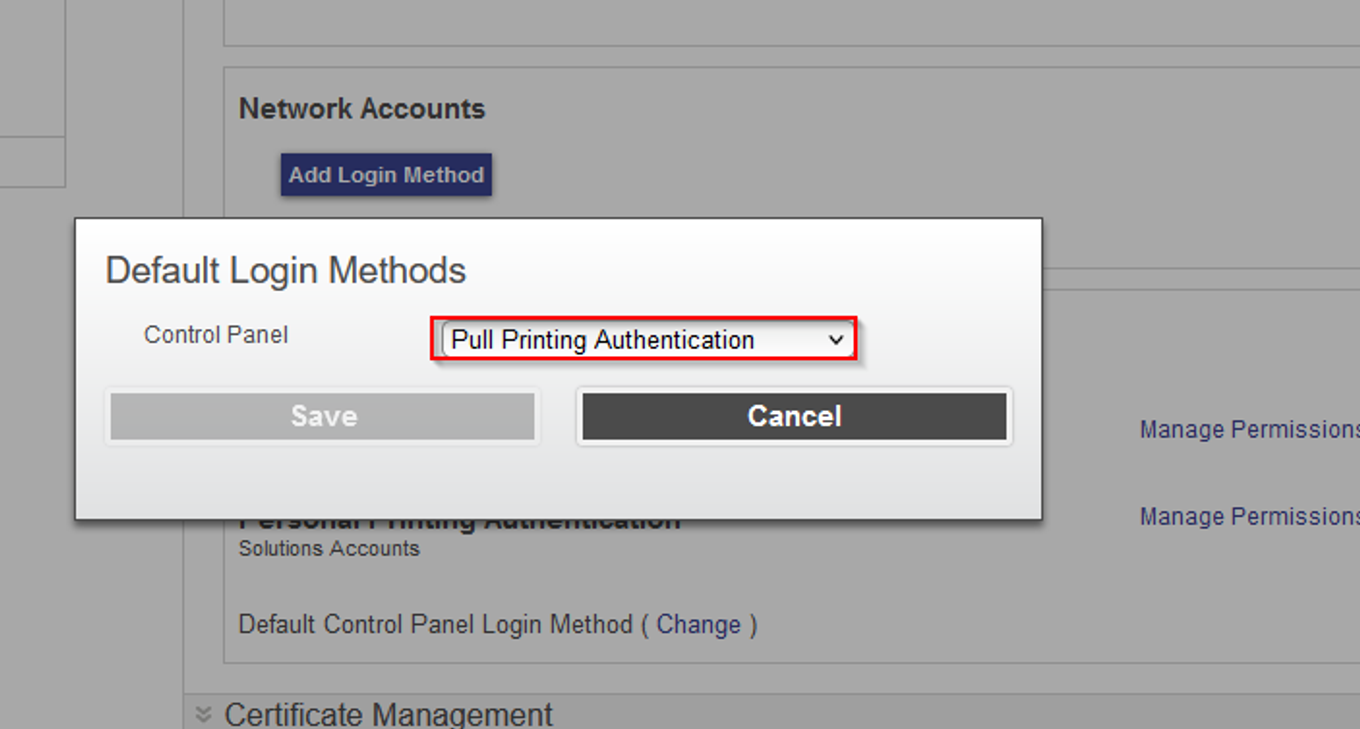
Navigate back to “
Settings → Security” and scroll to the “
Additional Login Methods” section
-Change the “
Default Control Panel Login Method” and set it to “
Pull Printing Authentication”
-Save changes
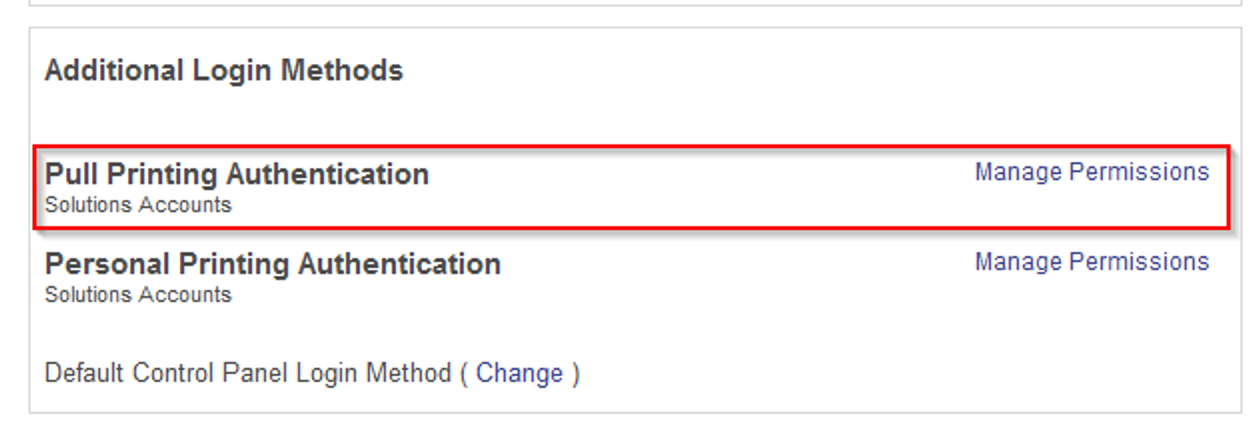
Back at the “
Additional Login Methods” section
-Choose manage permissions for the “
Pull Printing Authentication”
-On the upcoming page, click “
All Users” (
click on the text label!!!)
-Again, expand the “
Function Access” listing and enable the function you disabled previously, in the public function access permissions
-Save Changes
Track your copies
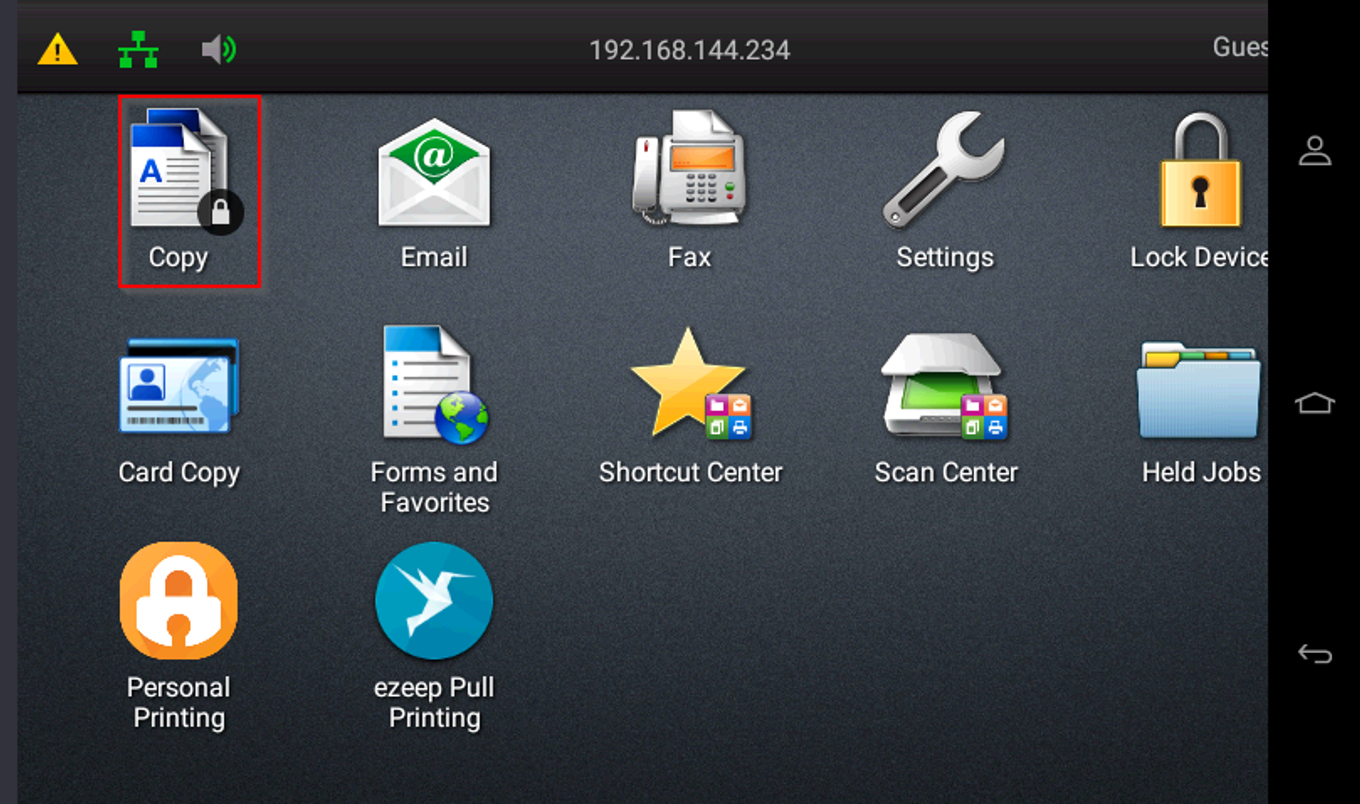
Press the Copy function icon.
Authenticate with your ezeep credentials.
Every page/sheet copied will be tracked. You can access the ezeep report via the ezeep admin portal.
To view ezeep Tracking Reports, see:
Tracking & Reporting
Supported Lexmark printer models
The ezeep App for Lexmark supports the following printer models:
80 supported models · Use your browser’s Find function to locate a model
- Lexmark CS632dwe
- Lexmark CS725
- Lexmark CS730de
- Lexmark CS735de
- Lexmark CS820
- Lexmark CS921de
- Lexmark CS923de
- Lexmark CS943de
- Lexmark CS963de
- Lexmark CX522
- Lexmark CX532adwe
- Lexmark CX622ade
- Lexmark CX622adhe
- Lexmark CX625ade
- Lexmark CX625adhe
- Lexmark CX635adwe
- Lexmark CX725
- Lexmark CX730de
- Lexmark CX735adhe
- Lexmark CX820
- Lexmark CX825
- Lexmark CX833dse
- Lexmark CX833dxse
- Lexmark CX860
- Lexmark CX921de
- Lexmark CX922de
- Lexmark CX923dte
- Lexmark CX923dxe
- Lexmark CX924dte
- Lexmark CX924dxe
- Lexmark CX930dhe
- Lexmark CX931dse
- Lexmark CX931dtse
- Lexmark CX942adhe
- Lexmark CX943adtse
- Lexmark CX943adxse
- Lexmark CX944adtse
- Lexmark CX944adxse
- Lexmark CX950g
- Lexmark CX950se
- Lexmark CX951g
- Lexmark CX951se
- Lexmark CX960dse
- Lexmark CX961dse
- Lexmark CX961dtse
- Lexmark CX962dse
- Lexmark CX962dtse
- Lexmark CX963dse
- Lexmark CX963dxse
- Lexmark M3350
- Lexmark M5255
- Lexmark M5270
- Lexmark MS622de
- Lexmark MS622dte
- Lexmark MS632dwe
- Lexmark MS822de
- Lexmark MS824de
- Lexmark MS826de
- Lexmark MX432adwe
- Lexmark MX522adhe
- Lexmark MX532adwe
- Lexmark MX622ade
- Lexmark MX622adhe
- Lexmark MX622adthe
- Lexmark MX632adwe
- Lexmark MX721ade
- Lexmark MX721adhe
- Lexmark MX722ade
- Lexmark MX722adhe
- Lexmark MX822ade
- Lexmark MX822adxe
- Lexmark MX826ade
- Lexmark MX826adxe
- Lexmark MX931dhe
- Lexmark XC9525
- Lexmark XC9535
- Lexmark XM3350
- Lexmark XM5370
- Lexmark XM7355
- Lexmark XM7370