
Connect one printer to ezeep and send a test page.
[Step] 1. Connect your printer through Windows or claim an ezeep Hub
Option A: Windows Connector
- On the Windows computer with the printer installed, open Apps & Downloads in the portal and download ezeep Connector for Windows.
- Install it and sign in as an ezeep administrator.
- Under Connectors, confirm its status shows Online. Your printer should appear under Printers → Network Printers.
Option B: ezeep Hub
- Connect the Hub to power and Ethernet, and connect your printer.
- In the portal, open Connectors → +Claim Hub and enter the Hub’s MAC address and administrator password.
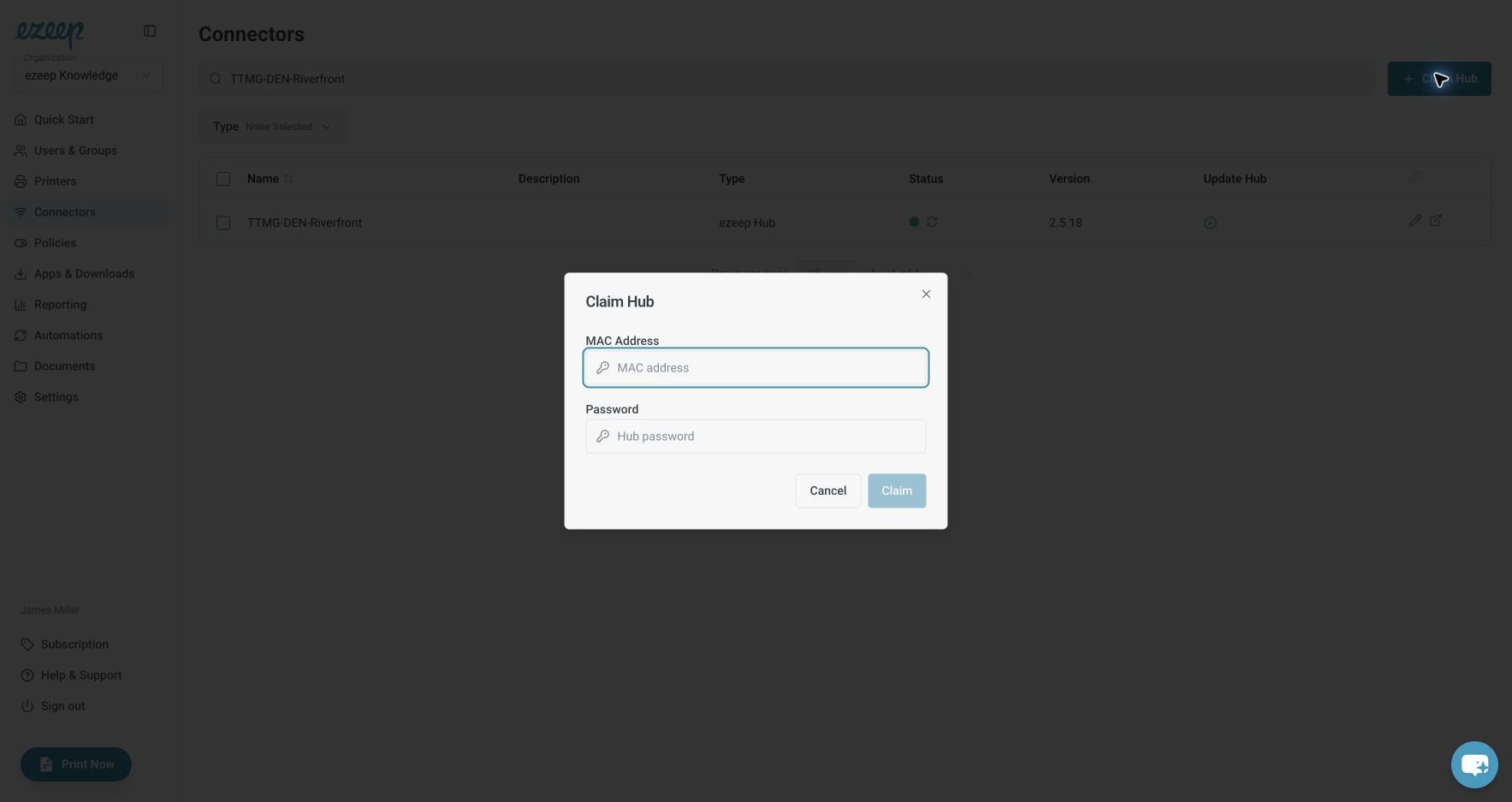
Enter the Hub’s MAC address and administrator password to claim it. - Under Connectors, select Show connected printers for the Hub. Network Printers opens, filtered to that Hub. Edit the printer, choose the matching Model, and select Save.

Connecting the Hub over Wi-Fi? Use the Hub setup guide.
[/Step]
[Step] 2. Edit the printer’s Assignments, select yourself or your group and save
Open Printers → Network Printers and edit the printer. Open Assignments, select Users or Groups, choose your account or a group you belong to, and select Save.

[/Step]
[Step] 3. Upload a file in Print Now, continue to print options, choose a printer and print
- Select Print Now.
- Drop a file into the upload area, or select one from your device.
- Select Continue to print options.
- Choose your printer and select Print.
[/Step]
Printing on A4 or Letter paper? Set your organization’s default paper format.