
Choose an update that supports your Hub hardware and currently installed firmware.
On this page
Before updating
- Open the Hub console and check the installed version under Info.
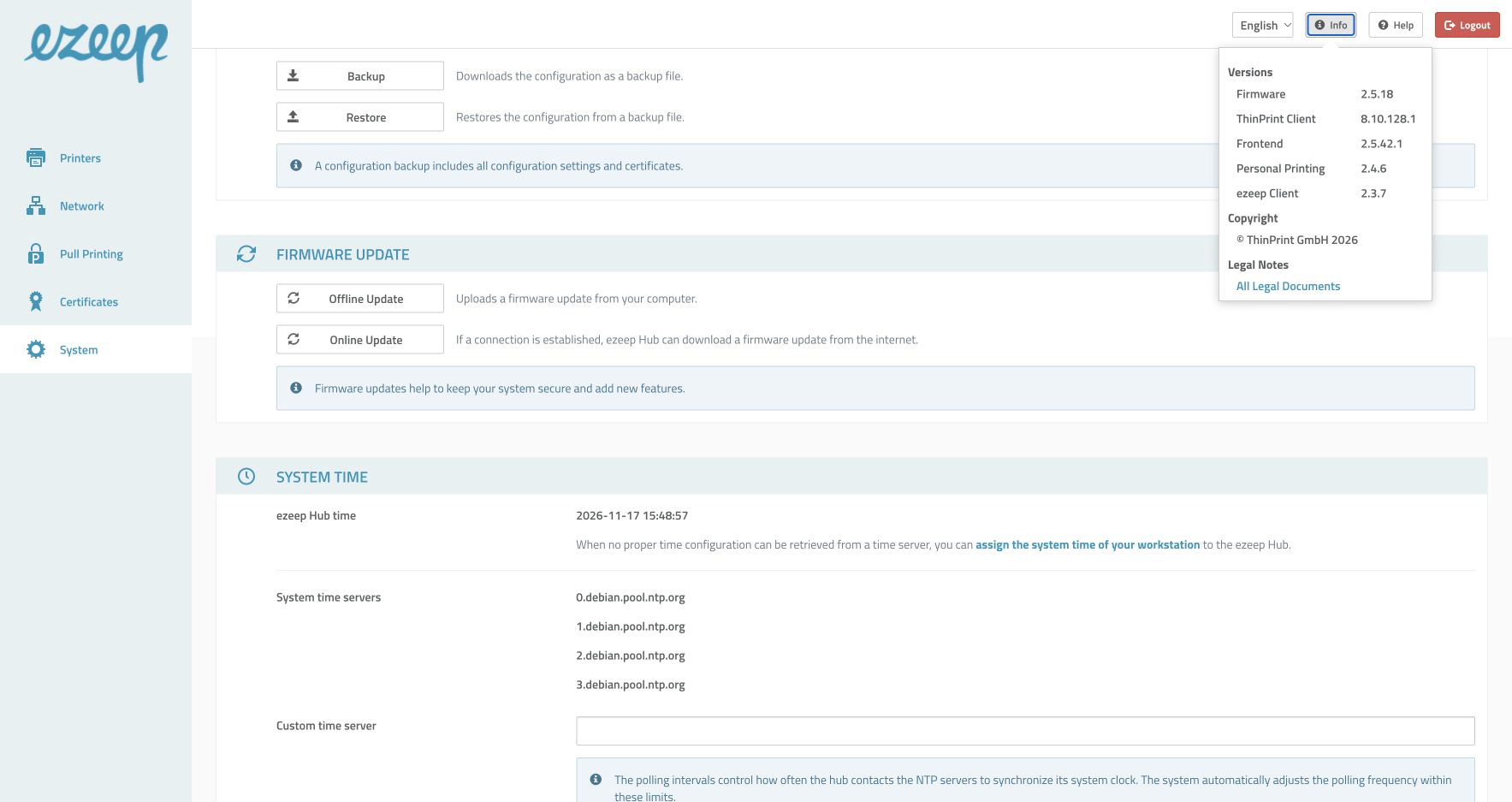
Open Info and read Firmware to check the installed firmware version. - Back up the Hub settings.
- Download Hub Finder before the update if you use DHCP. The Hub can receive a different IP address after it reboots.
- Keep the Hub connected to power and the internet during the update.

For a move from firmware 1 to firmware 2, read the separate upgrade instructions below before continuing.
[Step] 1. Select System → Download Firmware and confirm the online update
- In the Hub console, open System.
- Select Download Firmware.
- Select Download, then Confirm.
- Allow the installation and automatic reboot to finish.
- Reopen the console and check the installed version. If its address changed, find it with Hub Finder.
[/Step]
[Step] 2. Select System → Update Firmware and install the matching .tgz package
- In the ezeep portal, open Apps & Downloads and download the appropriate ezeep Hub Firmware package. You can also use the Hub Firmware downloads.
- In the Hub console, open System > Update Firmware.
- Select the downloaded .tgz package.
- Select Confirm and allow the installation and automatic reboot to finish.
- Reopen the console and verify the version.
[/Step]
[Step] 3. Check firmware-2 eligibility, back up and install the migration package
This is a major platform upgrade. The published migration package requires firmware 1.19.24, compatible Hub hardware and an active internet connection through DHCP throughout the update.
- Open Hub Firmware downloads and choose the package explicitly labeled for upgrading from 1.19.24 to firmware 2.
- Check the device eligibility and prerequisites in the linked firmware 2 upgrade information. Do not use a package whose starting-version or hardware requirements your Hub does not meet.
- Download a fresh migration package. It must be installed within seven days of download.
- Back up settings, ensure internet access through DHCP, and install the package through System > Update Firmware.
- Allow 30–60 minutes for the migration. Keep power and network connected throughout.
- Verify the new version, then check printer connectivity, remote management and logging settings. Check the downloads page for further compatible updates.
The migration removes Stratodesk NoTouch Center management. The initial firmware 2 release also lists a remote PowerShell limitation; check the release information for the version you will install if you rely on that feature.
[/Step]
After any update
Print a test page. If you use card-based release, test that too. Restore the intended log level if it changed.
If an update or recovery does not complete, contact ezeep support through the website chat.