
Use Pabbly Connect to automate ezeep printing from events in other applications, such as invoice or shipping-label workflows.
Prerequisites:
- An active Pabbly subscription - https://www.pabbly.com/connect/integrations/ezeep-blue-printing/
- An active ezeep subscription
- A ezeep user with assigned ezeep printers
Configure Pabbly
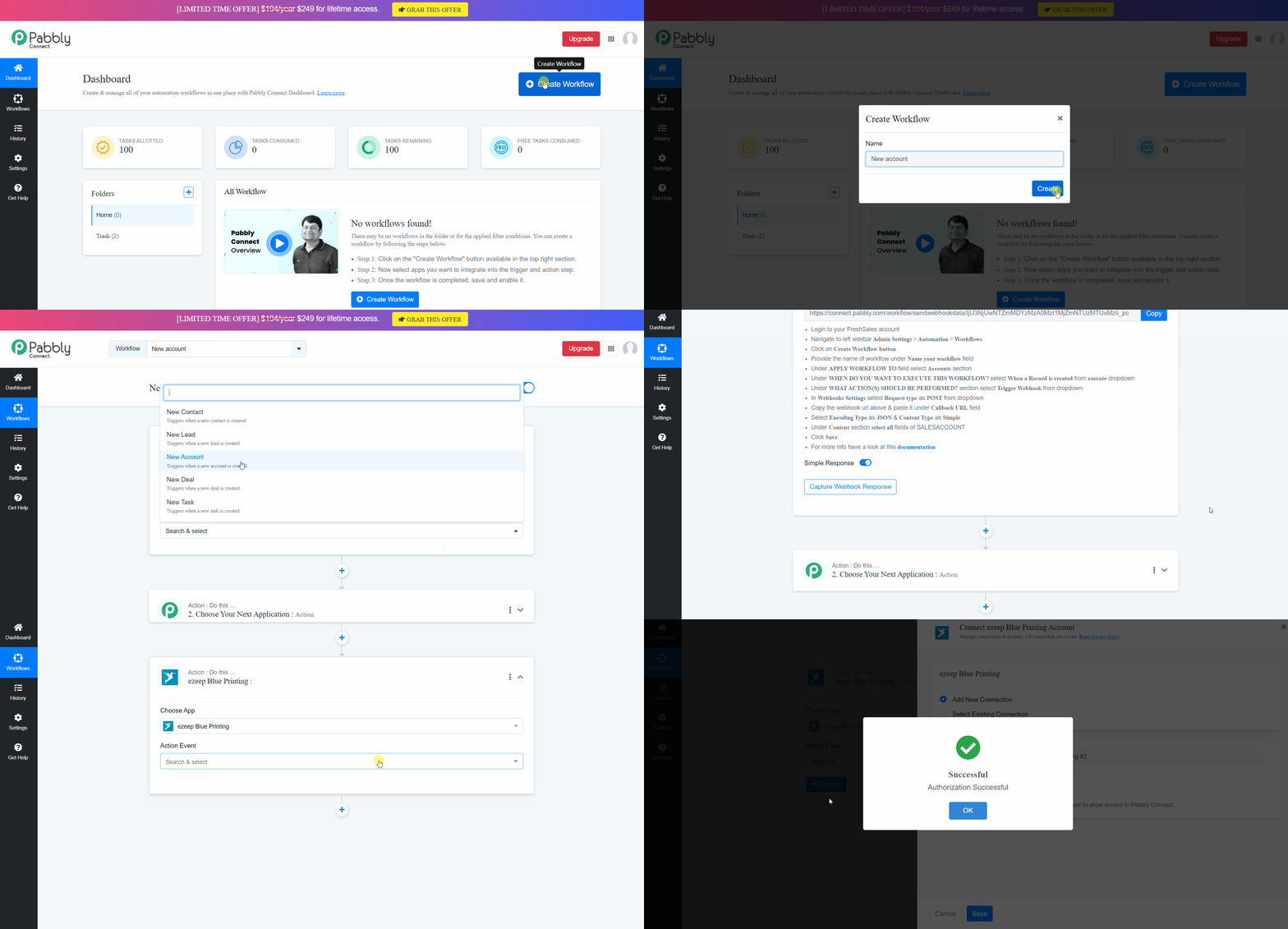
- Log in to Pabbly and click "Create Workflow" from the dashboard.
- Type a name for the workflow and click "Create".
- Search and Select the Trigger app (i.e FreshSales).
- Follow the Directions for the webhook.
- Click the next "Action" pane and search for ezeep.
- Select to "Print File" and click "Connect".
- Select "Add New Connection".
- Type the "New Connection Name".
- Click "Connect with ezeep Printing".
- Sign in to ezeep with the admin credentials and "Save".
- Select other print dialog settings:
- File URL
- Printer ID
- File Type
- Print and Delete
- Paper size
- Enable Color
- Number of copies
- Orientation
- Duplex
- Resolution
- At the end click "save and test request".
From the Pabbly Dashboard you can enable the workflow!