Install the ezeep Print App for Windows to print from physical PCs, Windows on ARM devices, supported Windows 365 Cloud PCs, Azure Virtual Desktop, Citrix, and other compatible virtual desktops.
Note: At this point you should have an existing ezeep account and printers assigned to users.
For Technical Requirements, see link:
Download
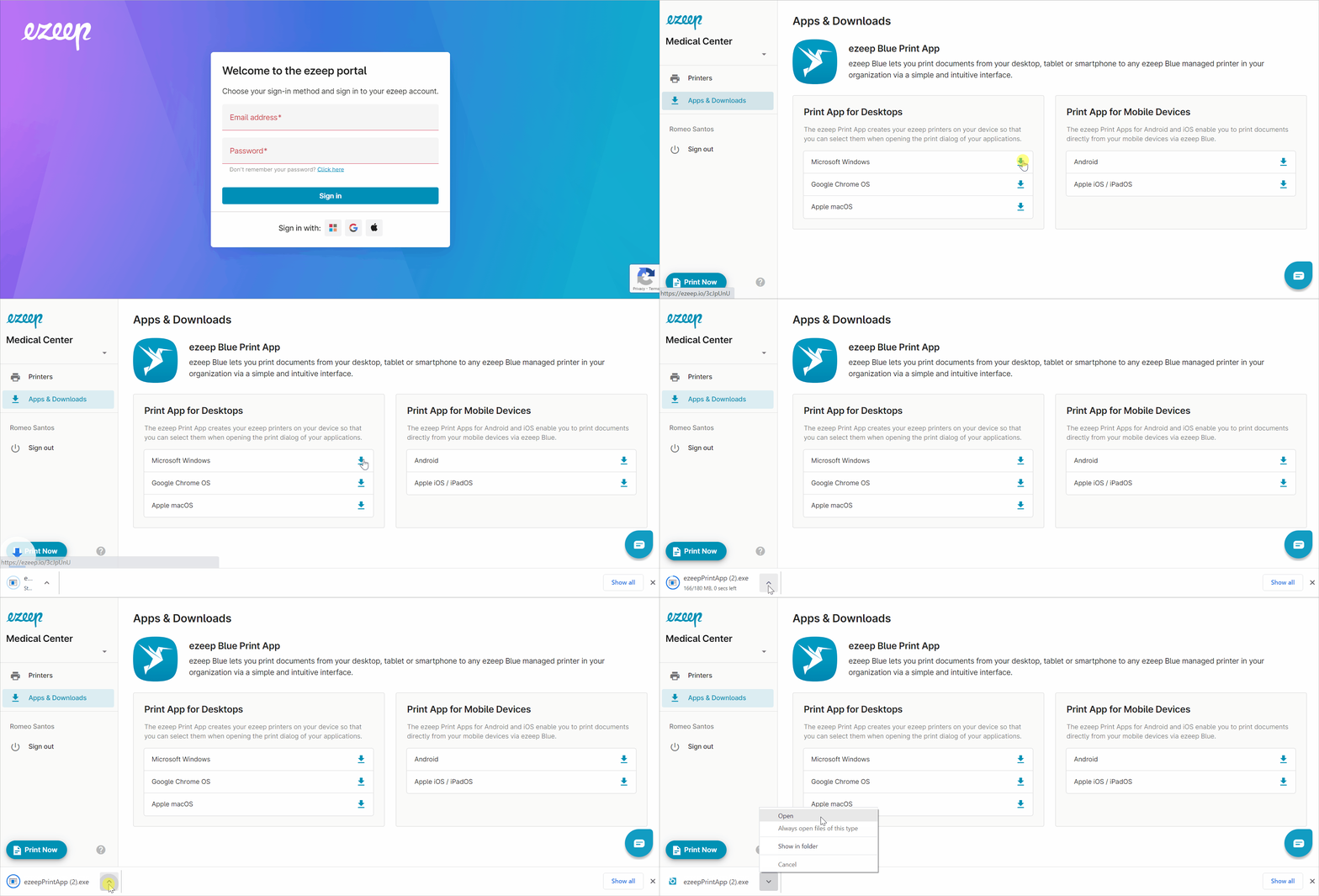
- Log in to the ezeep Portal
- On the left pane, select "Apps & Downloads."
- Under "Print App for Desktops," click the download arrow on "Microsoft Windows." The software will download to the "Downloads" folder.
Install
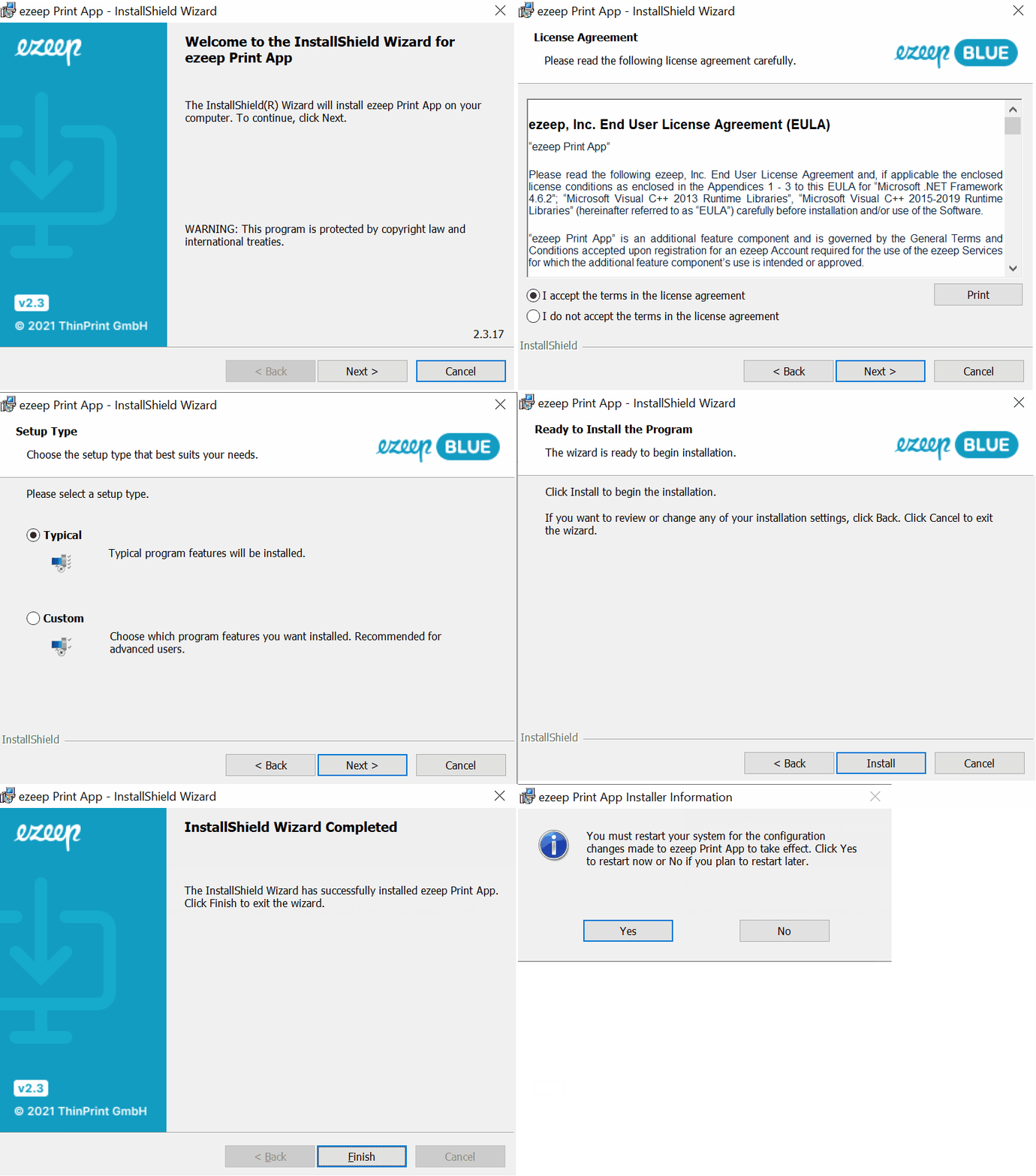
- Run the ezeep Print App executable as Admin and follow the prompts.
- Click "Next"
- Select "I accept the terms in the license agreement" and click "Next."
- Select "Typical" and click "Next."
- Click "Install"
- To complete the installation, click "Finish."
- A reboot of the machine is required. Click "Yes."
- After the reboot, the ezeep login page will automatically open for you to log in. Enter your ezeep credentials.
- You are ready to start printing!
Are you ready to print? See link: Printing from Windows
Upgrade
- Log in to the ezeep Portal and download the latest software version.
- On the left pane, select "Apps & Downloads."
- Under "Print App for Desktops," click the download arrow on "Microsoft Windows." The software will download to the "Downloads" folder.
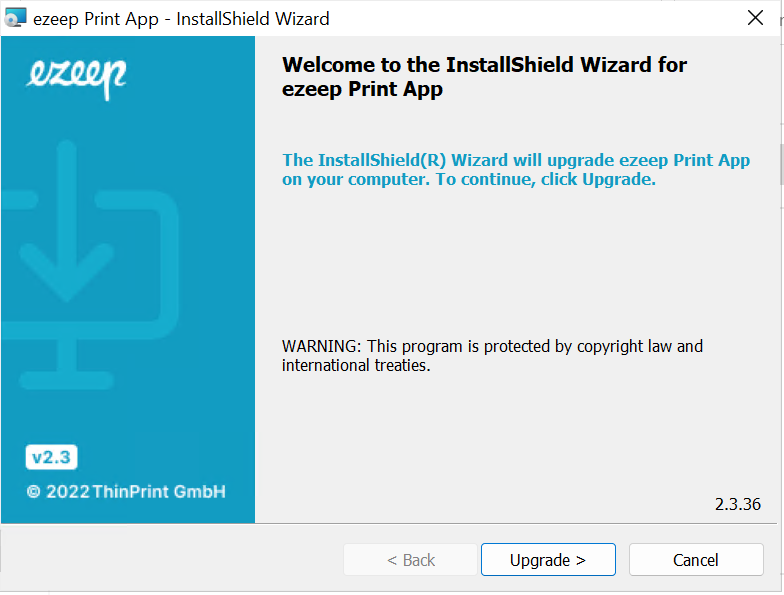
- Run the ezeep Print App executable as Admin and follow the prompts.
- Click "Upgrade"
- Select all the defaults at the next prompts.
- To complete the installation, click "Finish."
- A reboot of the machine is required. Click "Yes."
- After the reboot, you are ready to start printing!
Uninstall
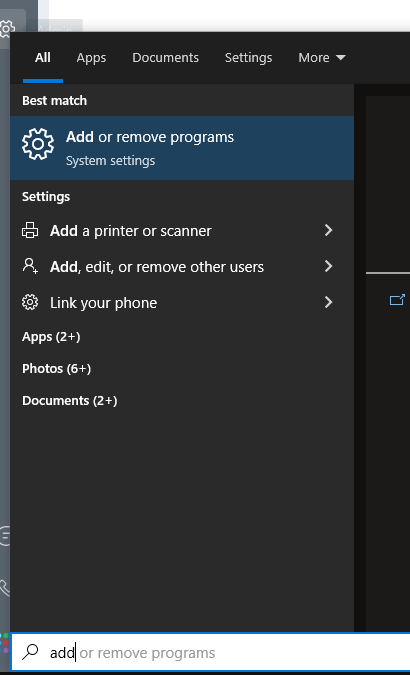
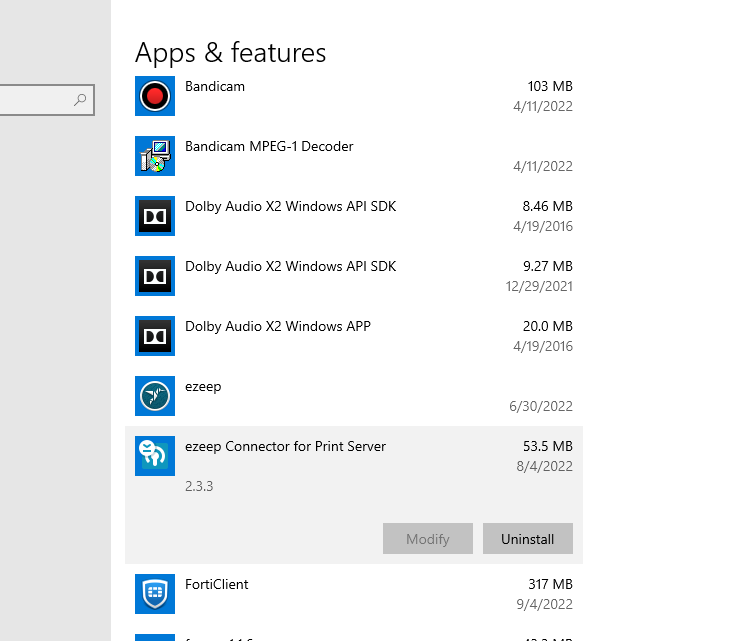
- Uninstall the application via "Add or Remove Programs" in Windows: