
Download and configure the ezeep Print App for macOS to print from your Mac using your assigned ezeep printers.
For Technical Requirements, see link:
Download
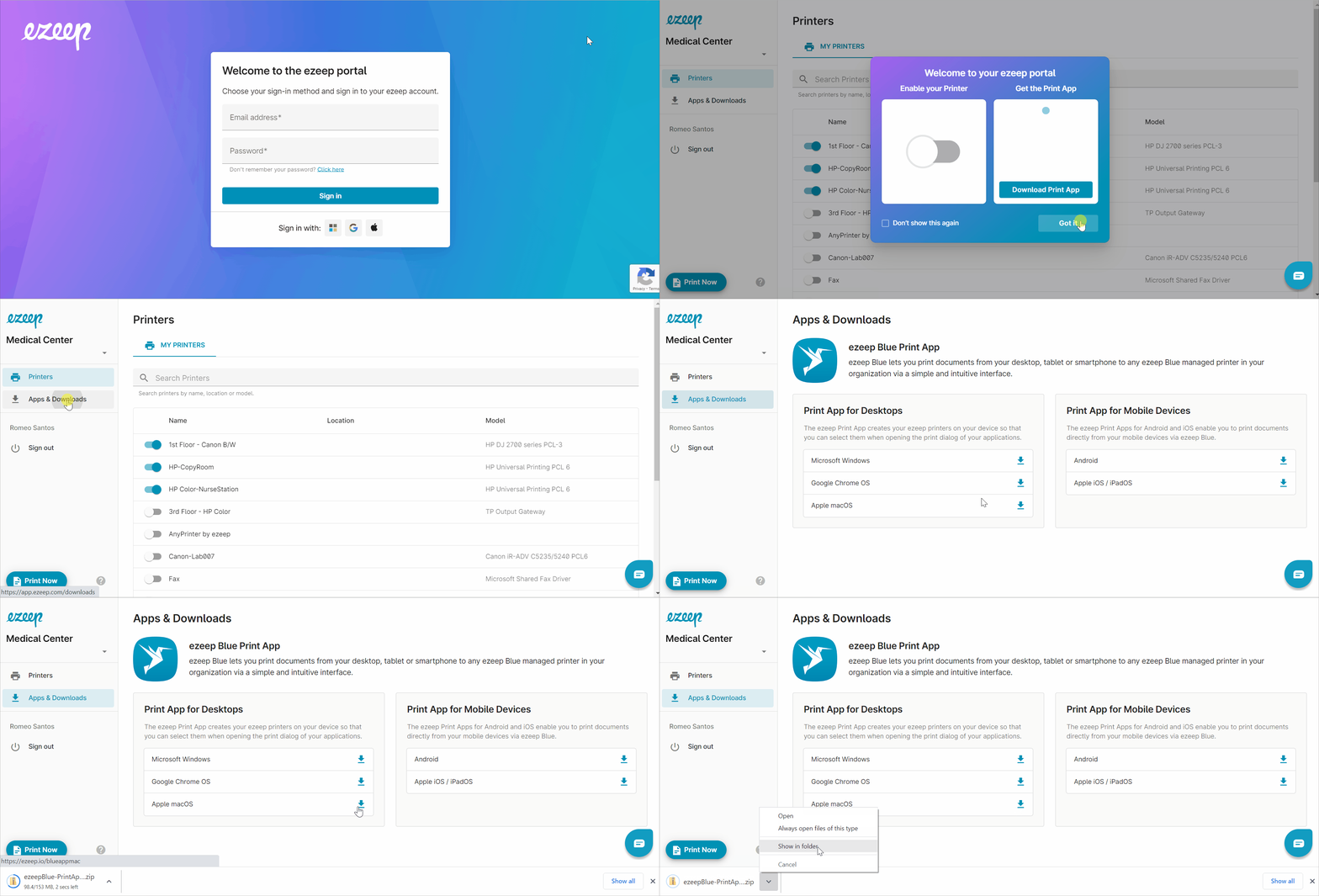
- Log in to the ezeep Portal
- On the left pane, select "Apps & Downloads."
- Under "Print App for Desktops," click the download arrow on "Apple macOS." The software will download to the "Downloads" folder.
Install
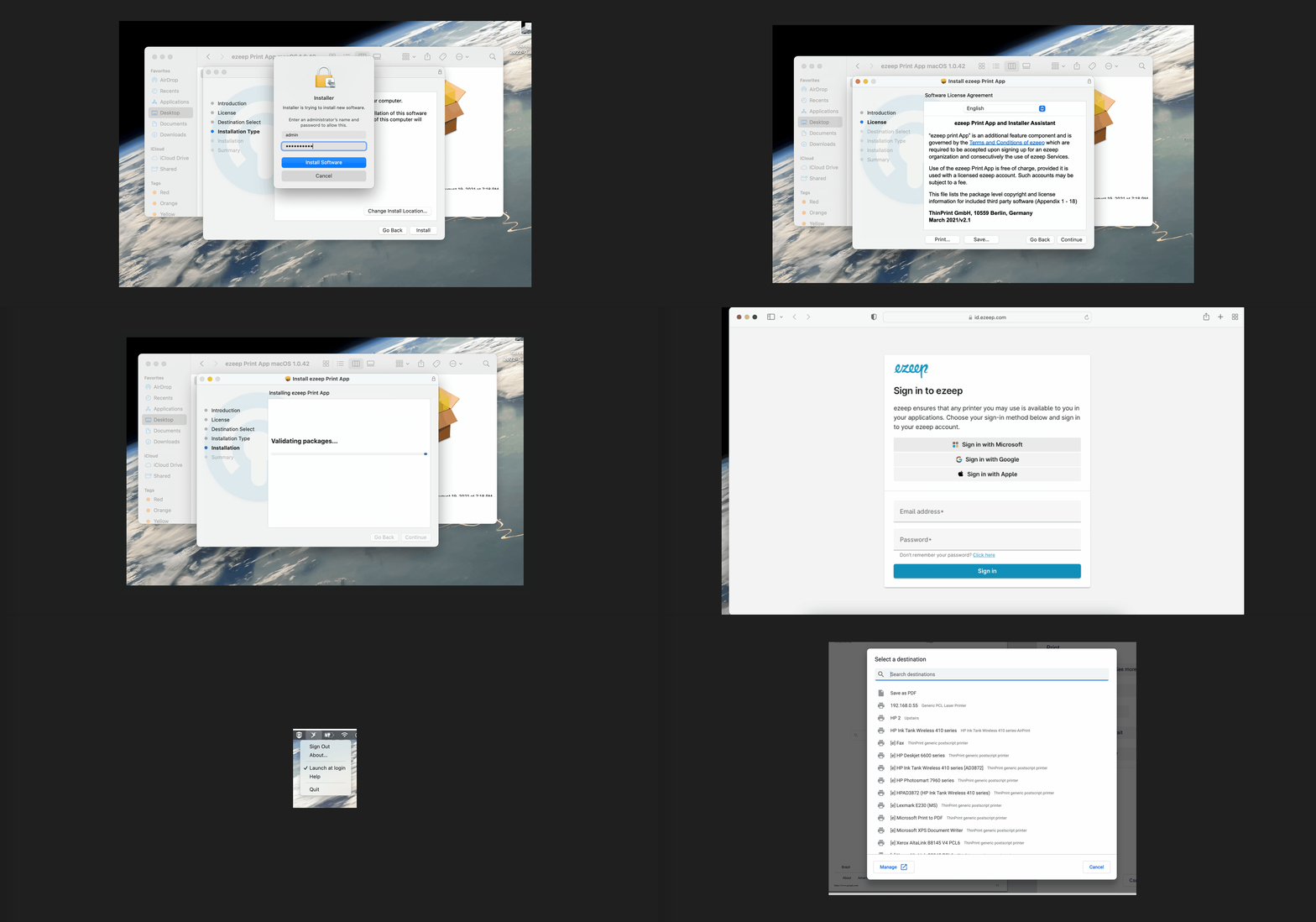
- Look for the zip file in the downloads folder
- Extract the zip file
- Run the .pkg
- Enter admin credentials when prompted
- Wait for the installer to finish
- Enter your ezeep credentials when prompted
- Now, when you go to print from an application, you will see your ezeep printers listed with [e] in front of the name
- You are ready to start printing!
Are you ready to print? See link: Printing from MacOS
Uninstall
Locate the app in the "Finder". Most apps can be found in your Applications folder, which you can open by clicking Applications in the sidebar of any Finder window. Or use Spotlight to find the app, then press and hold the Command (⌘) key while double-clicking the app in Spotlight.
- Drag the app to the Bin, or select the app and choose "File" > "Move to Bin".
- If you’re asked for a user name and password, enter the user name and password for an administrator account on your Mac. This is probably the user name and password you use to log in to your Mac.
- To delete the app, choose "Finder" > "Empty Bin".