After connecting your physical printers to ezeep, assign them to users or groups so they appear in the appropriate printer lists. If you have not connected the printers yet, use one of the setup guides below.
Add Printers from a Windows Machine
Once your printers are connected to the cloud, you have two options to assign the network printers so that the users can have access to them and be able to print.
- Log in to the ezeep Admin Portal with your admin credentials
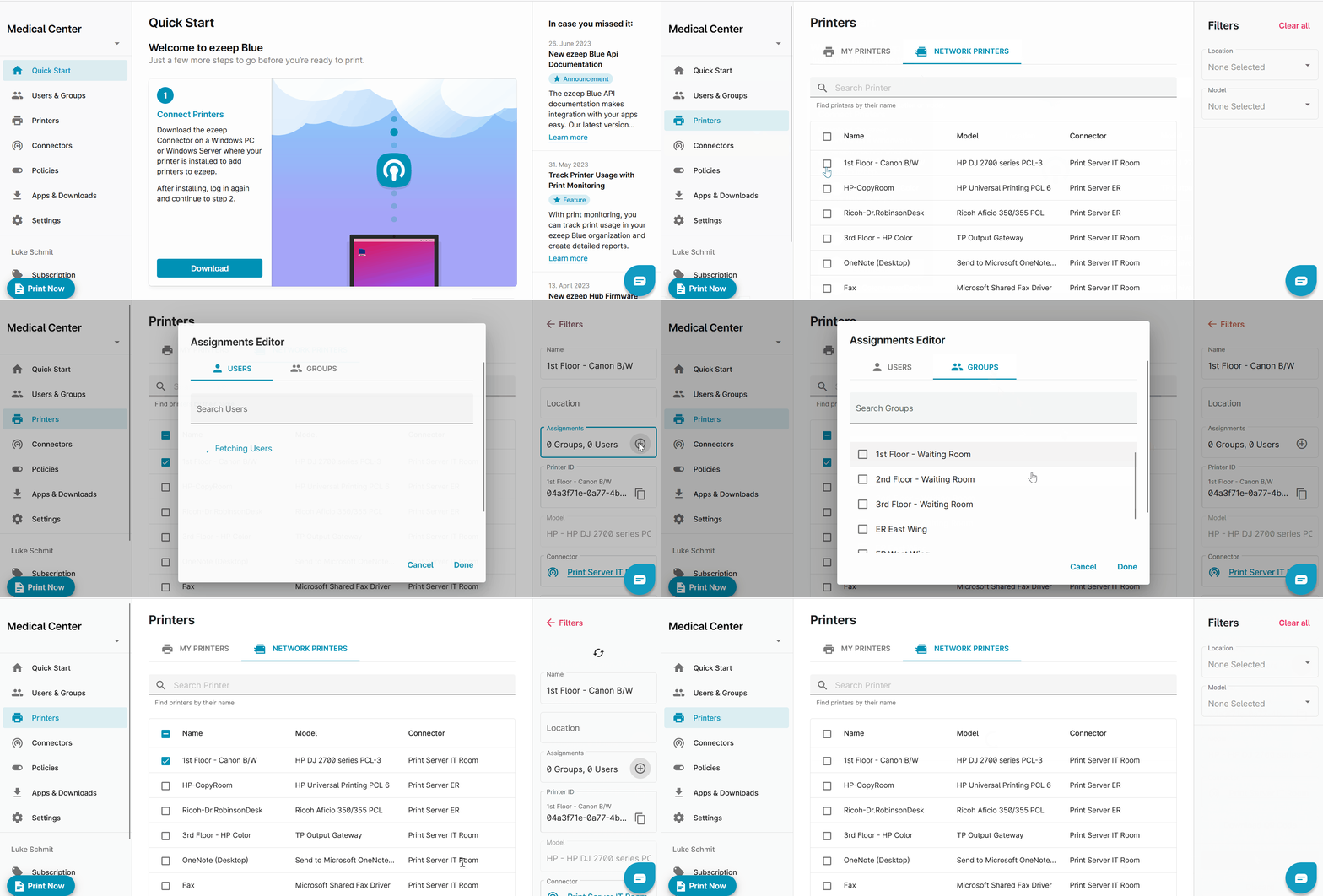
Option 1 - Assigning printers via the Network Printers menu
- Select "Printers" on the left pane.
- Select "Network Printers" tab in the header.
- Select the printer(s) you want to assign.
- Select "+Assignments" on the right pane.
- Select the "User" or "Group" you want to assign.
- Select the group(s) you want to add.
- Select "Done" to finish.
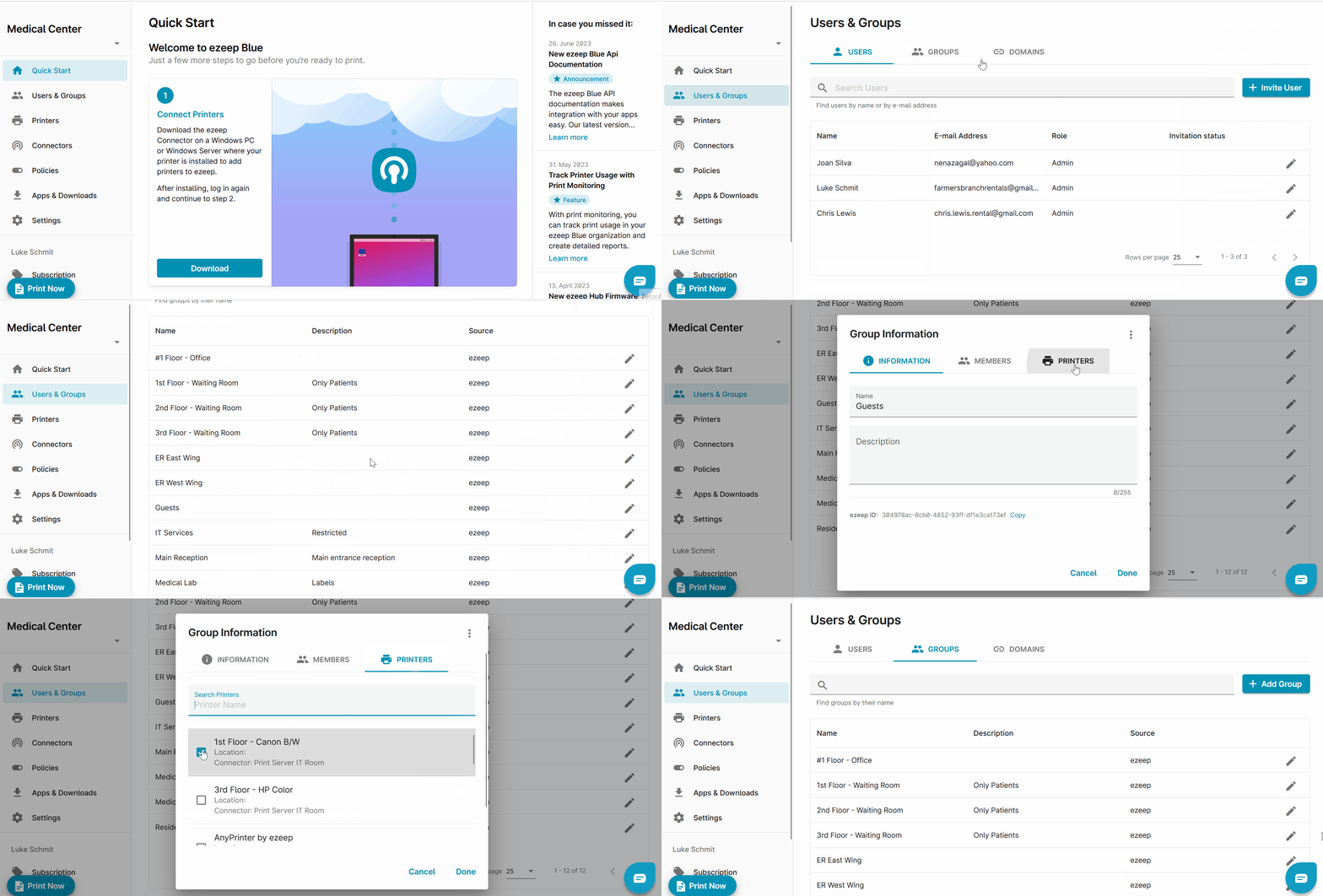
Option 2 - Assigning Printers via the Users & Groups menu
- Select "Users & Groups" on the left pane.
- Select "Groups" tab in the header.
- Find the group you want to edit and select the pencil icon.
- In the Group Information window, select the "Printers" tab.
- Select the printers you want to add to the group.
- Select "Done".