Checklist

Windows Protected Print Mode: The IT Admin Readiness Checklist

Microsoft is replacing the Windows print stack. This checklist helps you audit your environment, plan the transition, and avoid printer failures when Microsoft cuts off third-party driver support in July 2027.

Windows Protected Print (WPP) is Microsoft's print mode for Windows 11 and Windows Server 2025. It blocks third-party printer drivers and routes printing through the built-in IPP Class Driver, so only Mopria-certified printers keep working without changes. This checklist walks IT admins through auditing, testing, and planning a WPP-ready rollout, and it covers the driverless solution that skips per-device remediation entirely.

IT Administrators
Sysadmis
IT Managers
Infrastructure Managers
windows-print-mode-checklist

What You'll Learn:

  • Audit every printer by driver type (V3, V4, or IPP/Mopria) and flag what isn't WPP-compatible

  • The local-admin risk on Windows 11 24H2, where a single user can enable WPP and remove every managed print queue on that endpoint

  • How to pilot WPP through Group Policy and validate finishing, secure release, and quota systems before rollout

  • Whether to refresh non-Mopria hardware (20 to 50% of a typical fleet) or change your print architecture instead

  • A suggested cutover timeline mapped to Microsoft's deadlines, complete by Q1 2027
Frequently Asked Questions

Curious about how it all works? Here's everything you wanted to know about ezeep's cloud printing solution.

How do I know if my printers are WPP-compatible?

Inventory every printer with its driver type (V3, V4, or IPP/Mopria), then check each model against the Mopria certified-products directory at mopria.org/certified-products. Mopria-certified models keep working under WPP through the IPP Class Driver. In a typical fleet, 20 to 50% of devices are not WPP-compatible today, so a full fleet audit and migration plan is where the work starts.

Do I need to buy new printers for WPP?

Not necessarily. WPP requires Mopria-certified printers or an IPP-capable path, and 20 to 50% of a typical fleet is not WPP-compatible today. You can replace those devices, or you can keep them and move the print driver off the endpoint with cloud rendering. Cloud rendering makes any printer work under WPP, Mopria-certified or not, without a hardware refresh.

What is the best solution for Windows Protected Print?

There are two broad approaches. One is to make the fleet WPP-native: refresh non-Mopria printers, manage a Print Support App for each manufacturer, and confirm the IPP Class Driver covers your finishing and secure-release needs. The other is to remove print drivers from the endpoint with cloud rendering, so printers work whether WPP is on or off. ezeep uses the second approach, which avoids a hardware refresh.

What is the deadline to be WPP-ready?

Microsoft's driver-servicing plan runs on set dates. No new third-party drivers have reached Windows Update since January 15, 2026. Windows defaults to the IPP Class Driver from July 1, 2026, and Microsoft ends third-party driver support in July 2027. A practical target is to complete production cutover on eligible endpoints by Q1 2027.

What happens if a user enables WPP before we are ready?

On Windows 11 24H2, any user with local admin rights can turn on WPP from Settings. The moment they do, every managed print queue on that endpoint is removed. Audit local admin rights on 24H2 devices before you start planning, because an early, unmanaged cutover is the failure mode most teams do not see coming.

Can I avoid the WPP migration entirely?

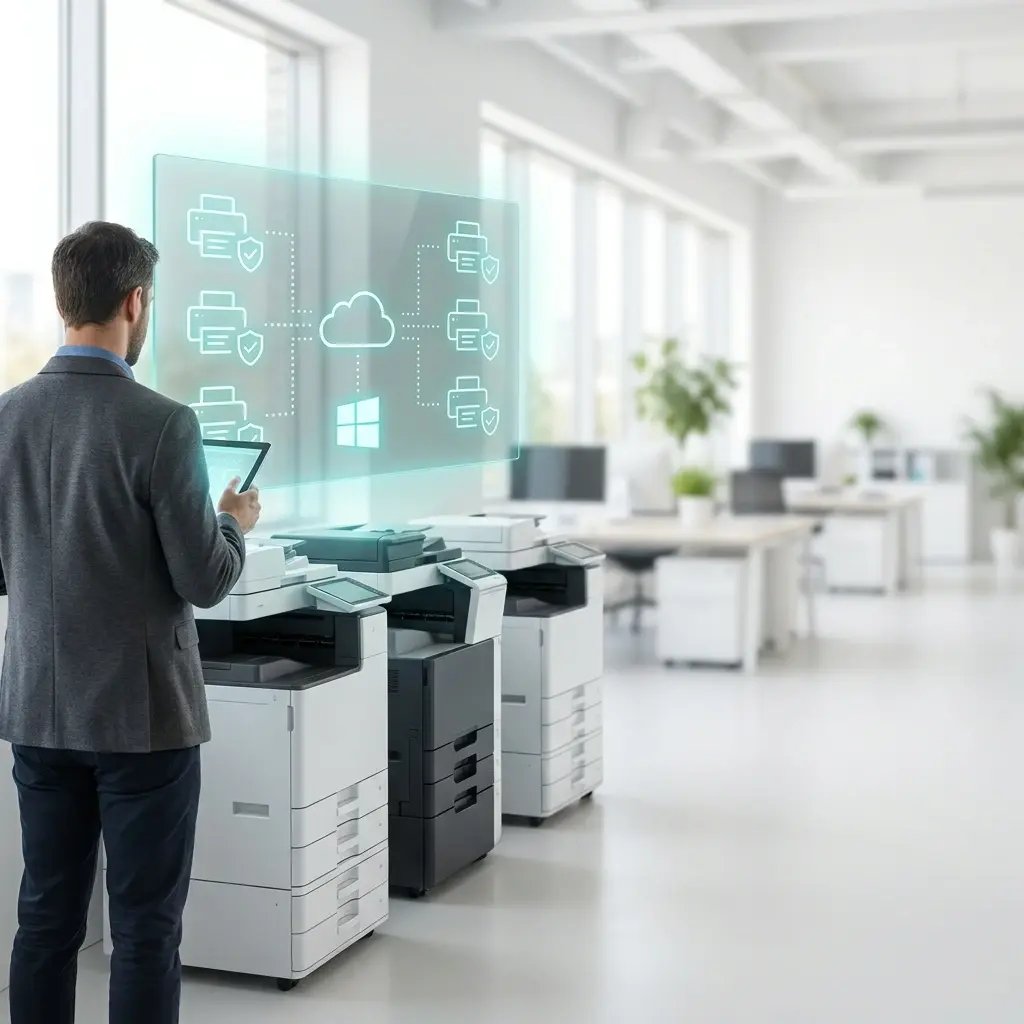
Yes, if you remove print drivers from the endpoint. Cloud rendering keeps drivers off every device, so printing works the same whether WPP is on or off, with no hardware refresh and no per-manufacturer Print Support Apps to manage. ezeep works this way, which turns the WPP migration into a non-event.

Back to top
Related Articles

Dive Into the World of ezeep

Simplify Printing Across Your Entire Organization

Replace print servers, eliminate driver management, and give every user a consistent printing experience from any device.

ezeep-chart (1)