By Henning Volkmer on July 3, 2026

TL;DR
Yes. Windows Protected Print Mode (WPP) is a per-machine setting, not a per-organization one, so enabling it applies to every user profile on that PC, not just the person who turned it on. There's no way to scope it to a single user, and once it's on, the machine only prints to Mopria-certified printers, so any non-Mopria printers disappear for everyone who uses it. One person can only change their own PC. Rolling WPP out across the organization is a separate step an IT admin makes through Group Policy or Intune, and on shared or hot-desk machines the safe move is to lock it centrally so a local admin can't flip it by accident.
Windows Protected Print Mode is a security feature in Windows 11 version 24H2 and later. It restricts a PC to printing through the built-in Microsoft IPP class driver to Mopria-certified printers, and it blocks third-party print drivers. WPP is the strict enforcement mode of Windows Ready Print (WRP), the broader IPP-based print platform that still allows a legacy driver fallback. When WPP is on, that fallback is gone.
Is Windows Protected Print Mode per user or per machine?
Windows Protected Print Mode is a per-machine setting, enforced at the OS level on the client. The moment it's enabled through Settings, Group Policy, or Intune, it governs how the print spooler loads drivers for the whole machine, and every user profile inherits the same rules. There's no way to enable it for one profile and leave another on legacy printing. WPP applies to the client itself, not to individual printers or individual users.
What happens to printers and drivers when you enable WPP?
Enabling WPP changes the machine's print setup in four ways:
- Every printer that relies on a third-party driver is uninstalled, and its driver is removed from the driver store.
- Non-Mopria-certified printers can't be reinstalled from any account while WPP is active.
- Mopria-certified printers can be reinstalled, but they come back on Windows Ready Print instead of their old driver.
- Any printer a user adds while WPP is on has to be Mopria-certified to install.
Will enabling WPP affect other people on a shared PC?
Yes. Every profile on that machine is subject to the same rules, so a coworker who logs into the same PC loses the same printers, even if they never touched the setting. That makes shared Windows clients the riskiest place to flip WPP. Hot-desk setups (reception desks, lab workstations, retail back-office PCs, manufacturing terminals) and shared-account machines (library terminals, classroom computers, conference-room PCs) all run multiple people through one print configuration. The same constraint traps admin testing: an administrator can't limit a WPP test to their own profile, because enabling it changes the print setup for every user who logs in afterward.
How do you test Windows Protected Print Mode without affecting other users?
Test WPP on hardware nobody else logs into. Use a dedicated test workstation, or scope the rollout through Group Policy or Intune to an OU that contains only test machines. Per-user GPO scoping won't help, because WPP is a computer-side policy that applies to the machine regardless of who signs in. Enabling WPP from Settings also shows a warning that incompatible printers will be removed and asks you to confirm, so you can back out before committing on a machine you're unsure about.
How do you lock Windows Protected Print with Group Policy?
Lock WPP with the "Configure Windows protected print" policy under Computer Configuration > Administrative Templates > Printers. The policy has three states:
- Enabled turns WPP on and prevents it from being switched off locally.
- Disabled turns WPP off across the machine and stops a local admin from switching it on in Settings.
- Not Configured leaves the toggle in users' hands. This is the default.
In Intune, the equivalent is the ConfigureWindowsProtectedPrint policy CSP.
Pick the direction that matches your security baseline. Where WPP is part of the baseline, lock it enabled, so a local admin can't disable it to recover a non-Mopria printer. Where the fleet isn't ready, lock it disabled, so nobody enables it on a shared workstation by accident. The rule of thumb: don't leave WPP toggleable from local admin Settings on shared or hot-desk machines.
How do you turn off WPP if it was enabled by mistake?
If WPP was turned on by mistake and printers have gone missing for other users, there are two ways back:
- If it was set locally, disable WPP in Settings or reverse the Group Policy, then manually reinstall any non-Mopria printers that were removed. Printers that were installed while WPP was on keep using Windows Ready Print after you disable WPP, unless you remove and reinstall them.
- If it was enforced by Group Policy and you can't change it on the machine, the admin who set the policy has to update the OU scope or the GPO itself. Local changes won't override an enforced policy.
Does ezeep work with Windows Protected Print Mode?
Yes, ezeep renders print jobs in the cloud and sends print-ready data to the output device, so it doesn't depend on the Windows client loading a printer driver. That's the exact thing WPP restricts, and it's the part ezeep works around. The physical printers ezeep talks to don't need Mopria certification, because the rendering and the delivery to the device happen outside the Windows driver model. On a shared workstation where WPP is enabled, printing through ezeep stays available to every user profile on that machine, and the cloud rendering path forwards jobs to the printer regardless of the machine's WPP state.
It's a small question in the scheme of WPP, but a useful diagnostic. If your shared workstations print through ezeep, those keep working across a WPP transition. The legacy-driver printers sitting next to them don't.
Talk to an expert about your WPP setup
Send us a contact request, and we can talk together through your setup and how ezeep can help you continuing printing with Windows Protected Print mode toggled on.
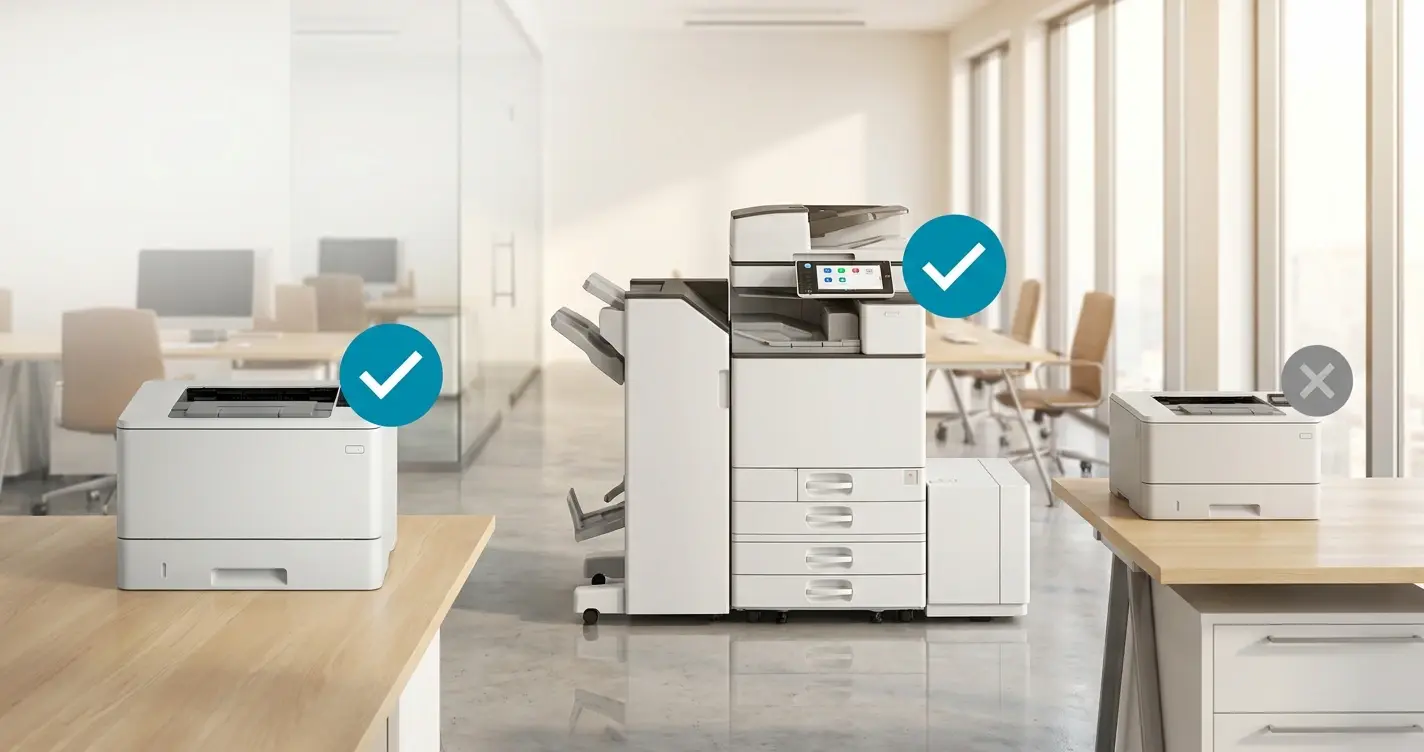
How To Check If a Printer is Mopria-Certified (for WPP)
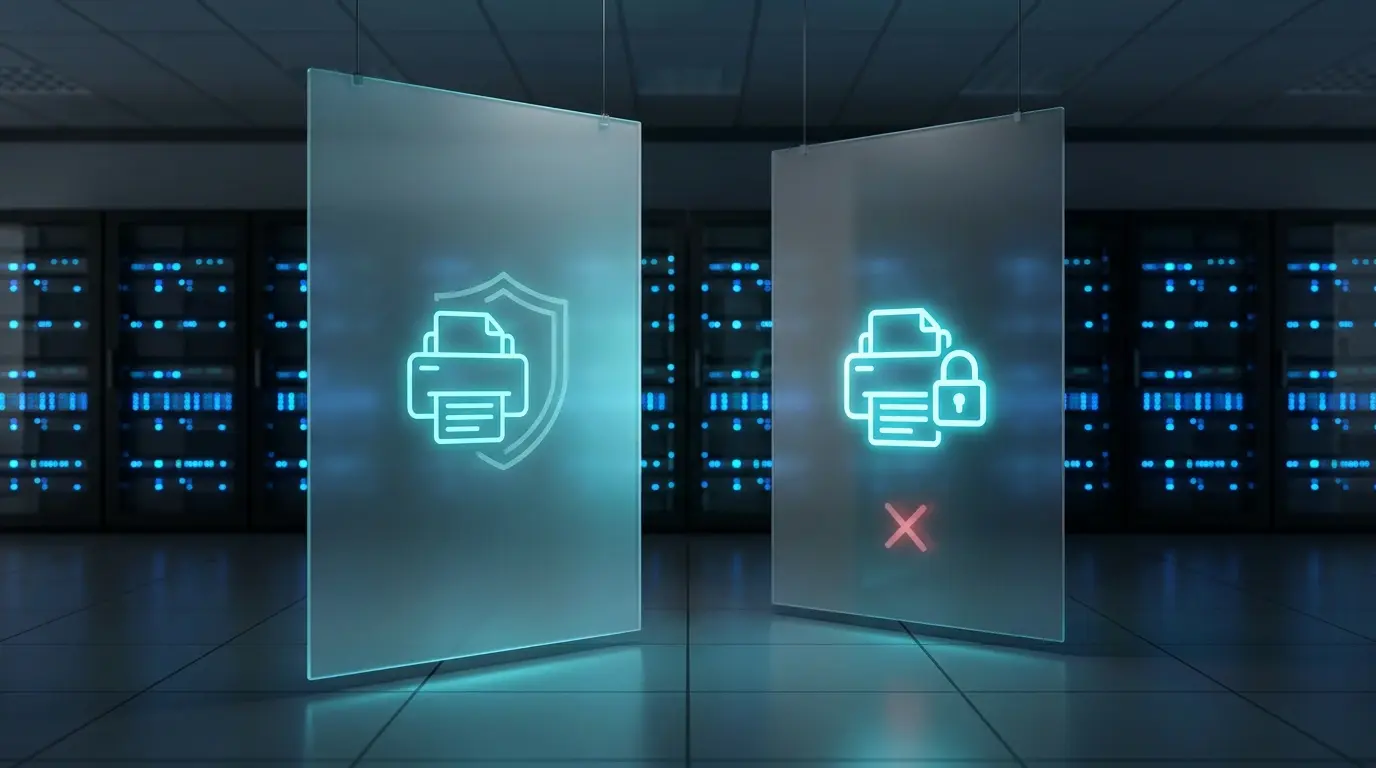
Windows Protected Print vs. Windows Ready Print: What Changed