By Charles Ian Pritchard on March 27, 2023
Admins can now manage printers and assignments more efficiently within the ezeep Admin Portal. Recent updates simplify menus and enhance the assignment editor, making it faster to organize print resources and allocate them to users or groups. These enhancements prepare the portal for future major updates by improving daily management tasks for IT professionals.
What's New in the Printers Menu?
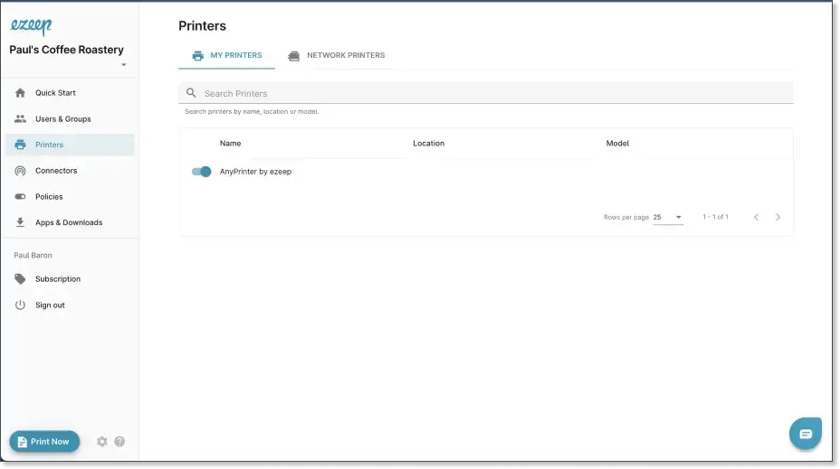
Your printers now have a central home in a new, simplified menu. The updated Printers menu consolidates previously separate Network Printers and My Printers sections. This means admins see all organizational printers at a glance and can easily check printers assigned to them.
How to Use the Improved Printer Assignments Editor
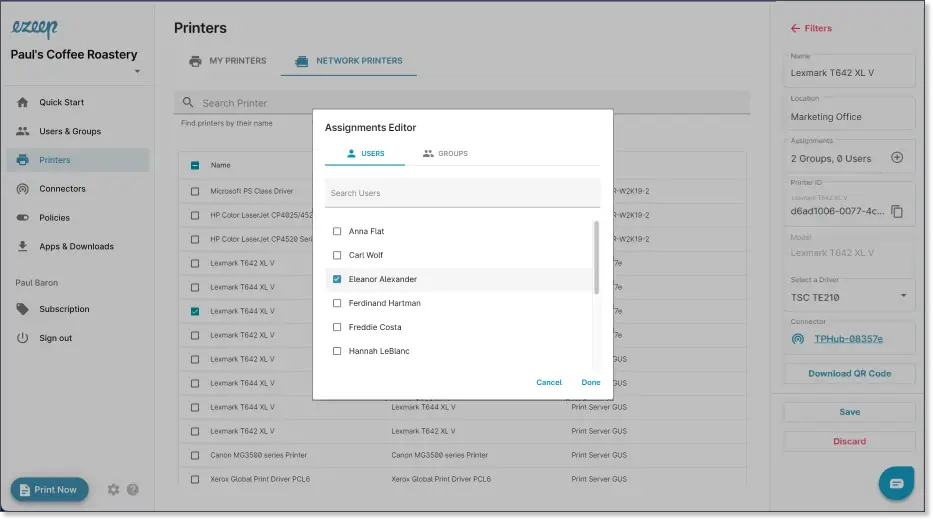
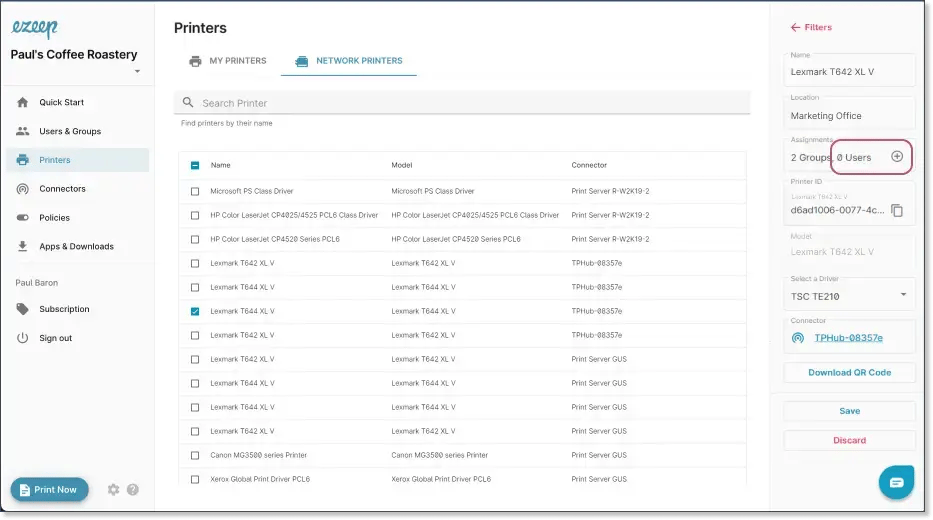
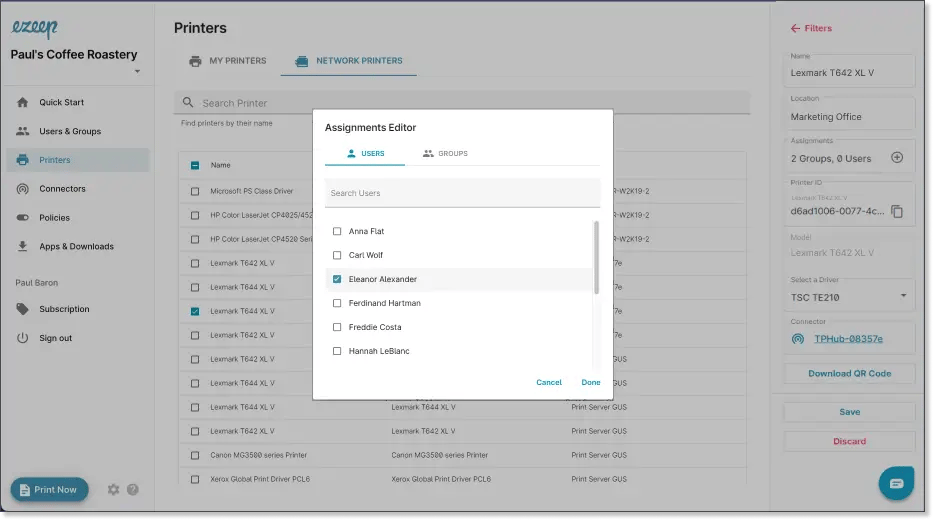
When you select a printer from the Network Printers tab, a redesigned menu appears on the right. This menu summarizes crucial information like the printer's driver, connector, and current assignments. To assign the printer to a user or group, select the plus button next to Assignments.
A new window opens, showing current assignments. From here, you can easily select additional users or groups for the printer.
Discover the New Connectors Menu
Beyond the Printers menu, you'll find a new Connectors menu. This section lists all ezeep Hubs, print servers, and PCs linked to ezeep via the connector software. Select a connector to view more details and information in the tab on the right.
Ready to Explore the ezeep Admin Portal?
These updates make managing printers and users quicker and more efficient.
If you already use ezeep, you will see these changes in your admin portal. New to ezeep? You can start using ezeep for free today.
Automate User Group Assignments
ezeep: A Powerful Alternative to Papercut Pocket