By Henning Volkmer on July 22, 2026
Cloud print rendering moves the step where a document becomes printer-specific data off the user's device or a print server and into a cloud service. The user's application produces a document. The document travels to the cloud. The cloud selects the correct driver for the destination printer, renders the job against that printer's real capabilities, and sends print-ready data to a local connector, which passes it to the printer.
The endpoint never holds a printer driver. That single fact is what everything else in this article follows from, and it is the difference between cloud printing and merely managing a print server through a browser.
Why does it matter where rendering happens?
Rendering is the only step that requires knowledge of the specific printer, so wherever rendering happens is where the driver has to be.
In a traditional environment, rendering happens on the endpoint or on the print server. So the driver has to be on the endpoint or the print server. Everything IT teams dislike about printing follows from that: the driver deployment, the driver conflicts, the driver testing against every Windows update, the spooler that loads the driver as SYSTEM, and the print server that exists largely to distribute drivers.
Move rendering to the cloud and the driver moves with it. The printer driver library still exists. It just is not on any machine you own and have to manage.
What are the stages of the cloud print rendering pipeline?
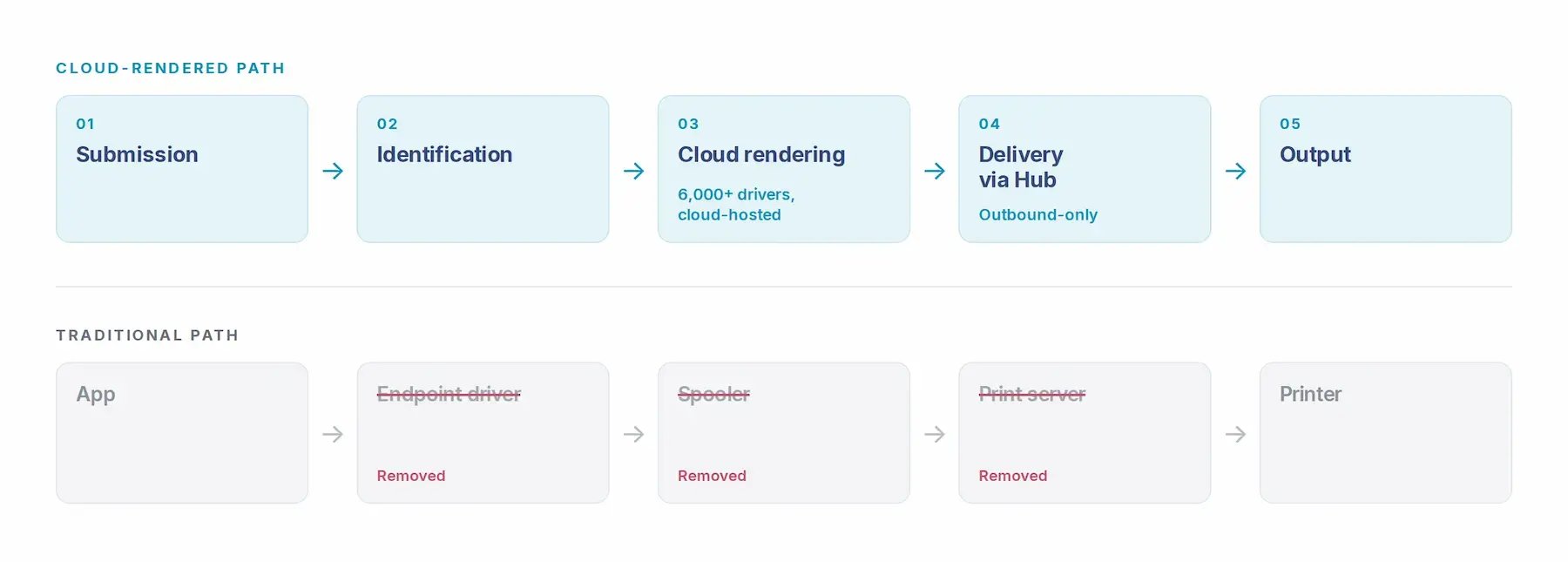
Cloud print rendering runs in five stages: submission, identification, rendering, delivery, and output.
Stage 1: Submission
The user prints from Windows, ChromeOS, MacOS, iOS, or Android. What leaves the device is the document plus job metadata (which printer, how many copies, duplex, color). It is not yet a printer-specific data stream, because nothing on the device knows how to make one.
Stage 2: Identification
The cloud platform identifies the destination printer and looks up its capabilities: page description language, paper sizes, duplex support, available trays, finishing options, color handling.
Stage 3: Rendering
This is the step that matters. The platform selects the matching driver from its cloud library and renders the job against the target device. ezeep maintains a library of over 6,000 manufacturer-specific drivers for this purpose. The output is data the printer can process directly, respecting the printer's real capabilities rather than a lowest-common-denominator approximation of them.
Stage 4: Delivery
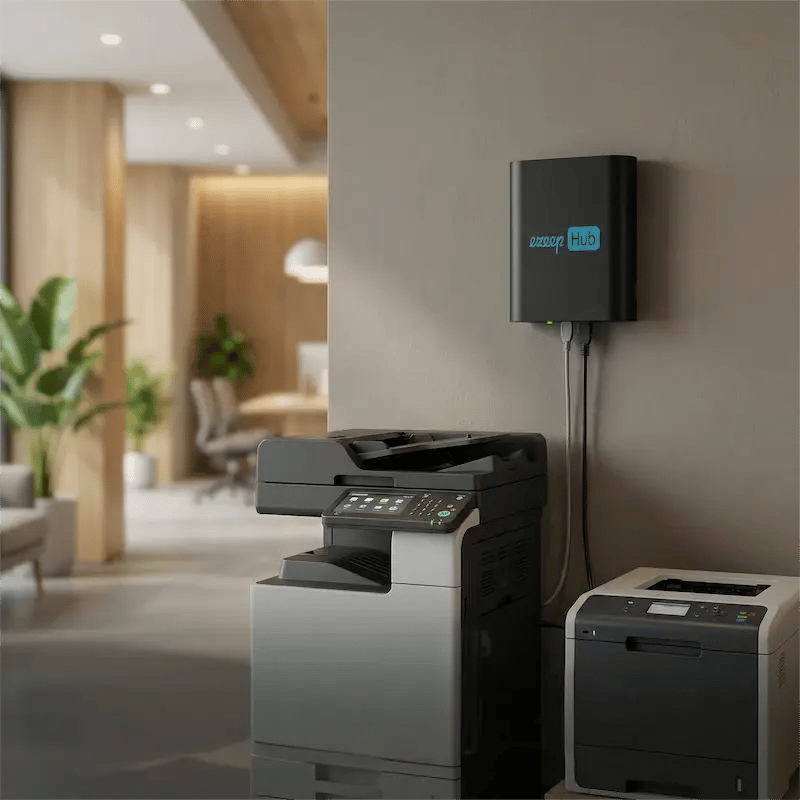
The rendered job is delivered to the ezeep Hub at the printer's location. The Hub holds a persistent outbound-only connection to the cloud, so it pulls the job rather than receiving an inbound connection. Nothing needs to be opened in the firewall.
Stage 5: Output
The Hub passes the print-ready data to the printer over the local network or USB. The printer processes it immediately, because it is already in a format the printer understands. No cloud capability, no firmware change, and no Mopria certification is required on the device itself.
How is cloud print rendering different from cloud-managed printing?
This distinction is the one buyers get wrong most often, and vendors are not motivated to clarify it.
Cloud-managed printing means the print server, or the drivers on the user's machine, still exist and you administer them from a web console. The spooler still runs. The drivers still deploy to endpoints. The Windows machine still needs patching. What moved to the cloud is the management interface.
Cloud-rendered printing means the rendering step itself happens in the cloud, so there is no print server, no endpoint driver, and no local spooler in the path.
The test is a single question: is there still a Windows machine running the print spooler with printers installed on it? If yes, that is a print server, whatever the vendor calls it, and you still own its patching, its failure modes, and its CVE exposure.
This applies to Microsoft's own product too. Universal Print eliminates print servers only for printers that natively support it. Everything else requires the Universal Print connector, which runs on an always-on Windows machine with printers installed locally on it, feeding the Windows print spooler. That is a print server with a new name.
What does cloud print rendering remove from the print environment?
Trace what disappears when rendering leaves the endpoint:
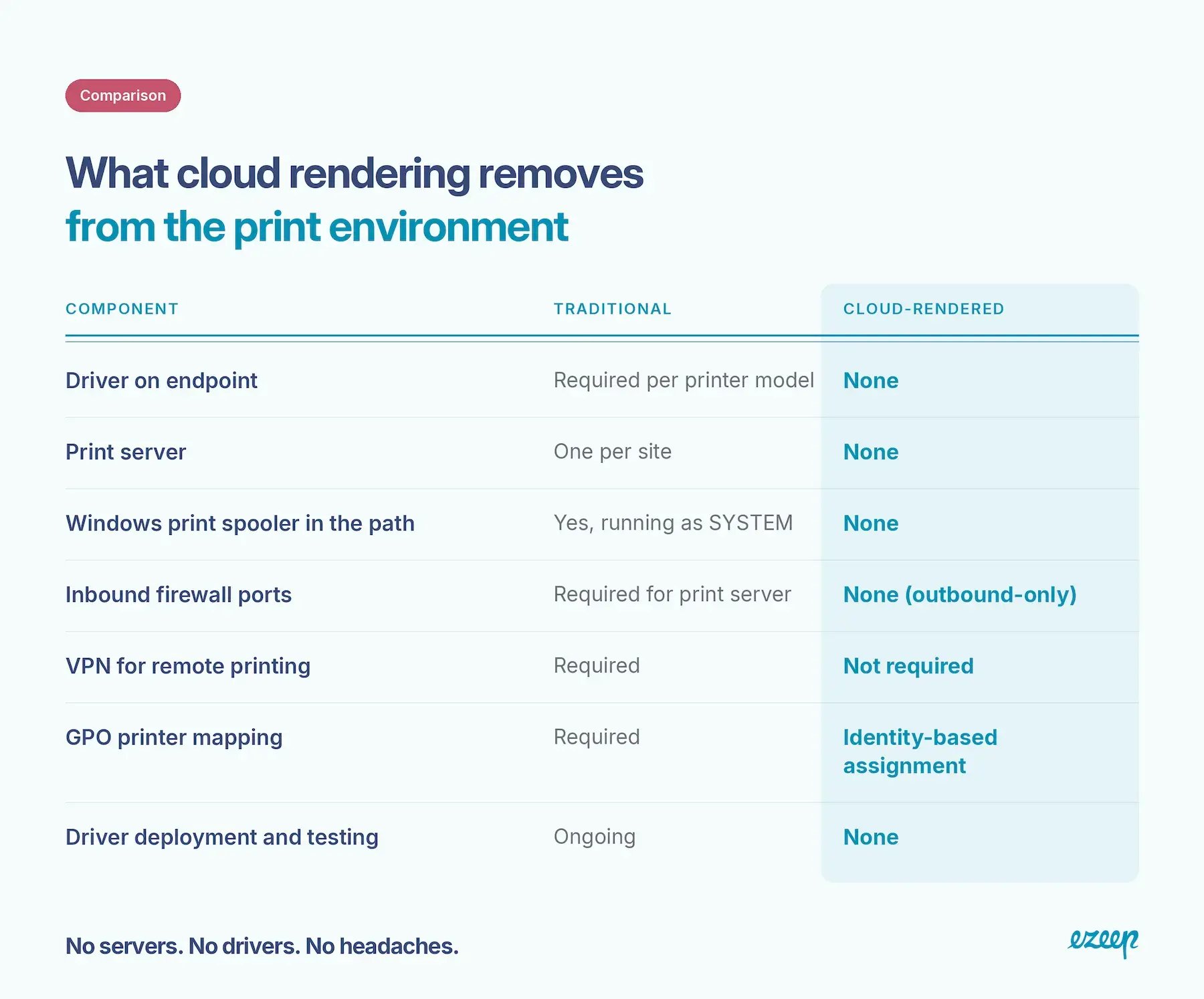
The security consequence is worth stating precisely. Microsoft attributes 9% of the Windows security issues reported to its Security Response Center to the print stack, and around 53 print spooler vulnerabilities have been disclosed since PrintNightmare in 2021. Removing the spooler from the print path removes that class of exposure rather than patching it.
Windows Protected Print makes this a near-term question rather than a theoretical one. WPP blocks third-party drivers on the endpoint and works only with Mopria-certified printers. A cloud-rendered architecture does not require the printer to negotiate IPP with Windows, because the Hub delivers print-ready data regardless of the device's certification status. Non-certified MFPs, label printers, and older devices keep working.
What are the trade-offs of cloud print rendering?
There are two, and they should be named rather than glossed over.
Connectivity. Cloud rendering requires a connection to the cloud. If the internet is down, printing is affected. This is inherent to the model and true of every cloud print service, Microsoft's included, whose documentation states plainly that a user cannot print if the device is not connected to the internet. Whether that is acceptable depends on how critical printing is when the link is down, and it is a fair question to interrogate any vendor on.
The job leaves the building. The document is rendered in the cloud, which means it travels to the cloud. Print data is encrypted in transit with TLS and rendered in isolated tenant environments. For organizations with strict data residency requirements, this is a conversation to have deliberately rather than discover in a security review.
Neither is a reason not to do it. Both are reasons to understand what you are choosing.
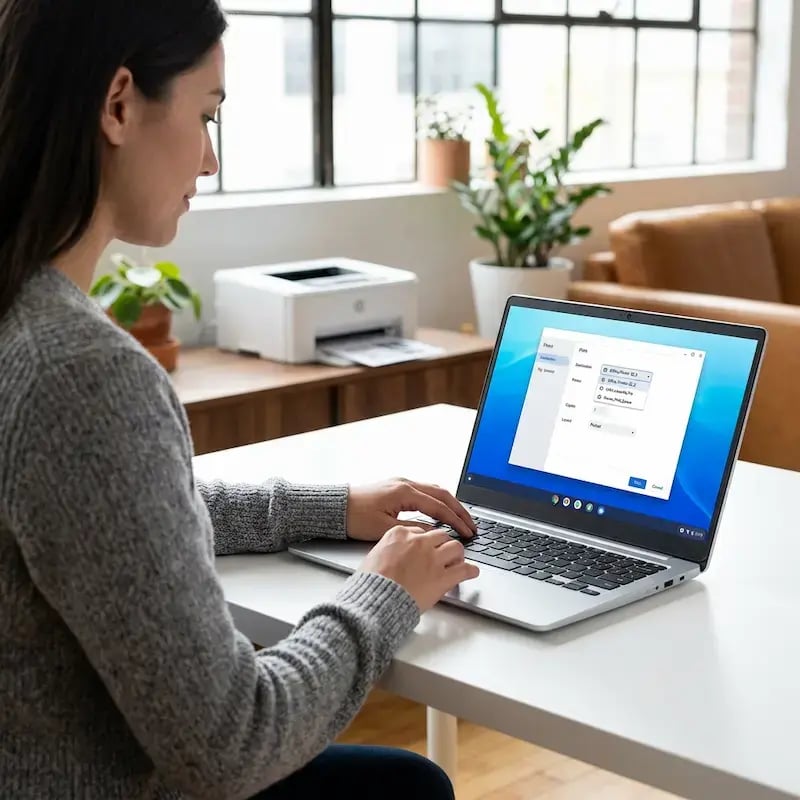

Cloud Printing Without a Local Print Server for Hybrid & Flexible Work
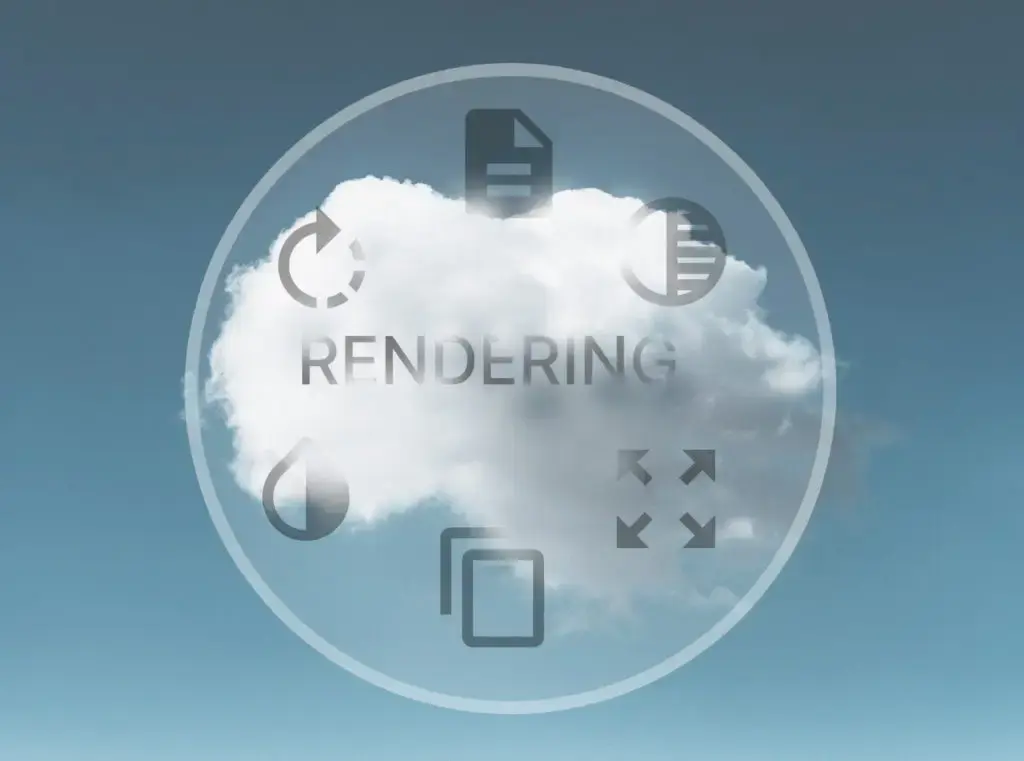
Cloud Rendering: How ezeep Makes Printing Driver-Free