By Charles Ian Pritchard on October 8, 2024

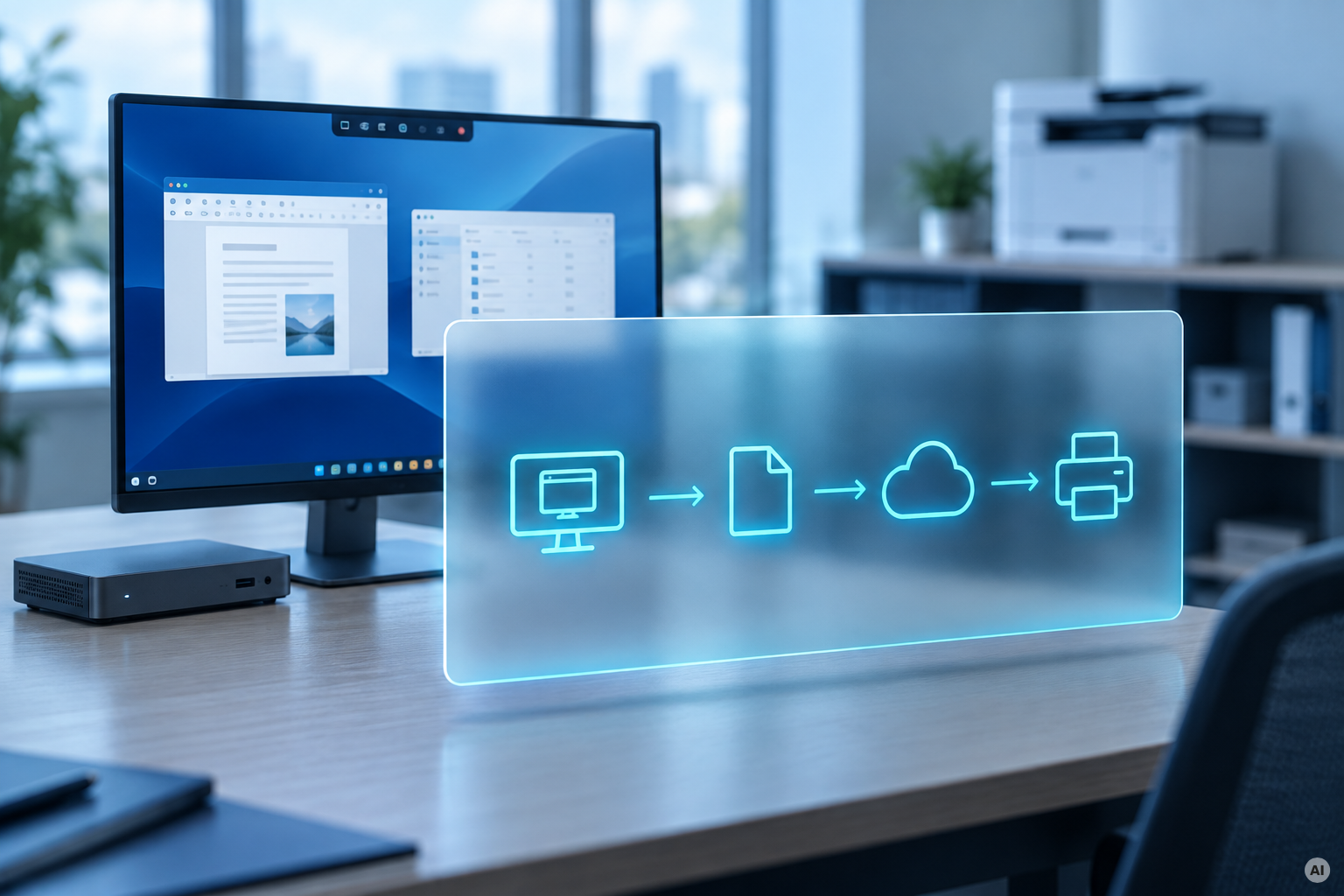
If you run Azure Virtual Desktop (AVD) or Windows 365 Cloud PC, you've probably hit a printing wall. Native AVD printer redirection is functional in simple setups, but it breaks down quickly in multi-session environments, complex driver configurations, or whenever a user's local printer has a session ID in its name and your ERP system doesn't know what to do with that.
This post explains what AVD printer redirection is, the three most common ways it fails, and what you can do about it.
What is AVD Printer Redirection?
AVD printer redirection is the default method Microsoft provides for printing from Azure Virtual Desktop. It uses the Microsoft RDP Client or Remote Desktop App to connect every printer installed on the user's local device - desktop, laptop, thin client - to the virtual desktop session. That includes physical printers and virtual ones like Microsoft Print to PDF or OneNote.
The mechanism relies on the Remote Desktop Easy Print driver on the virtual machine side. Rendering happens in the cloud, but the actual processing of the print job into the printer's native language takes place on the user's local device. That hand-off between environments is where most problems start.
The Three Most Common AVD Printing Problems
1. Corrupted or unreadable printouts
When a print job crosses the redirection bridge, the local printer driver does the final rendering. If that driver has a conflict, missing component, or font substitution issue, the output comes out garbled: wrong fonts, missing characters, or garbage text.
This isn't an AVD bug exactly. It's what happens when print rendering depends on a correct, functional driver chain on a device IT doesn't fully control. The fix is either embedding fonts in source documents, installing an alternative local driver, or removing the local rendering dependency entirely with a cloud-based solution.
2. Printers not mapping at all
If a user opens their AVD session and finds no printers, the most common causes are:
- Printer redirection is disabled in the host pool RDP properties (check
redirectprinters:i:1) - A Group Policy on the session host has "Do not allow client printer redirection" set to Enabled - GPO wins over host pool settings, so this blocks everything
- The Print Spooler service is stopped on the session host or local device
- The user is connecting via the web client, which has limited redirection support
Verify RDP properties in the Azure portal under Host pools > RDP Properties > Device Redirection. Then check Group Policy on the session hosts at Computer Configuration > Administrative Templates > Windows Components > Remote Desktop Services > Remote Desktop Session Host > Printer Redirection. If the GPO is set to block redirection, no other setting overrides it.
3. Printer names change every session
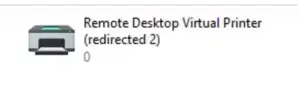
AVD appends a session ID to each redirected printer's name to keep them unique in multi-session environments. The result: a printer might be called "HP LaserJet Pro (redirected 3)" one day and "HP LaserJet Pro (redirected 7)" the next.
For users who manually pick a printer in Microsoft Office or a browser, this is annoying but manageable. For applications that store a default printer by name - ERP systems, CRM platforms, custom line-of-business apps — this is a real problem. The app tries to print to a printer that no longer exists, and the job fails silently or produces an error.
There is no native fix for this in standard AVD printer redirection. The session ID is generated dynamically per session, so the name will always change.
An Alternative: Managing AVD Printing with ezeep
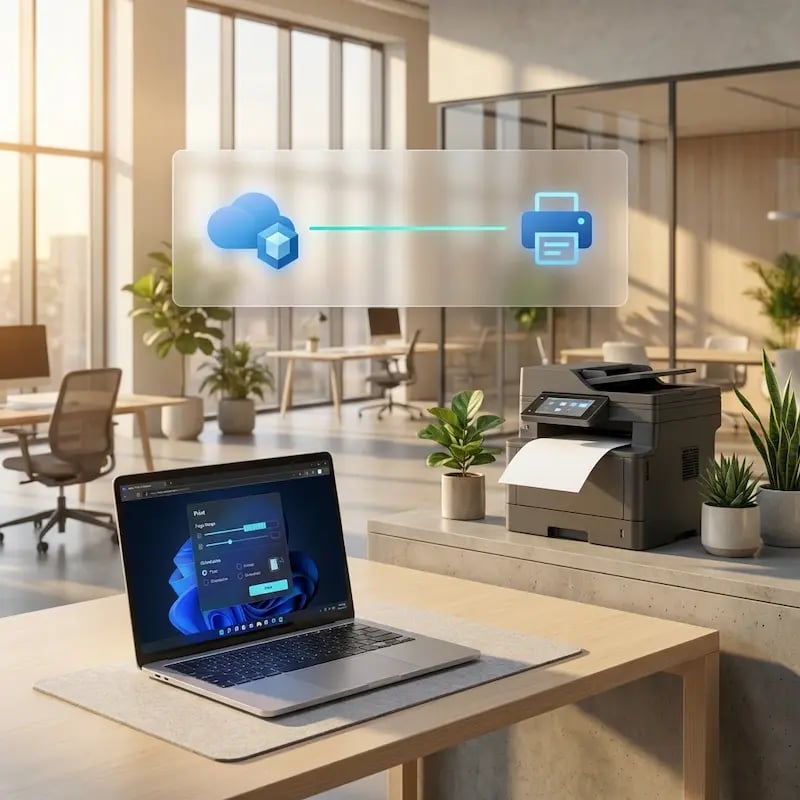
ezeep was a launch vendor for Azure Virtual Desktop and has handled printing in virtual desktop environments for over 25 years through ThinPrint's enterprise print management technology. Rather than redirecting local printers into the virtual session, ezeep manages printer assignment centrally in the cloud and delivers a consistent, named printer to every user in every AVD session, regardless of which session host they land on.
How ezeep works with AVD
Entra ID sync. Users are automatically imported into ezeep when they first sign into their AVD workspace. You assign printers to Entra ID users or groups directly in the ezeep admin console. No GPO scripting, no per-session configuration.
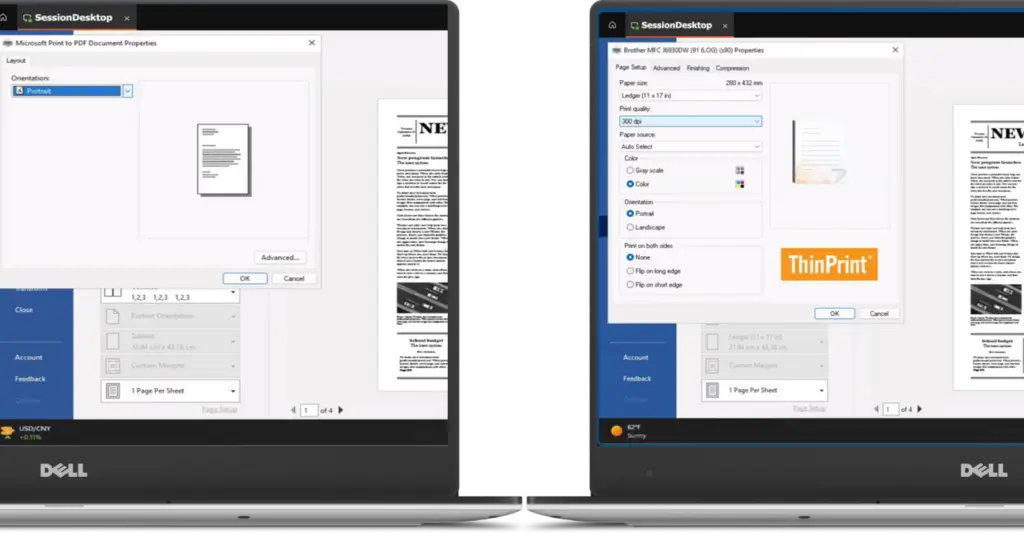
Full printer feature access. Default AVD printer redirection passes only basic settings: paper size, orientation, copy count. ezeep delivers the full feature set of each printer - tray selection, duplex, color mode, finishing options - because the printer assignment is managed at the cloud level, not limited by what the RDP client can pass through.
Consistent printer names. Because ezeep assigns printers centrally, the names don't change between sessions. ERP systems, CRM platforms, and any application that stores a default printer by name will find the same printer every time.
AnyPrinter. For organizations that want Pull Printing, ezeep's AnyPrinter queue lets users send a job from any AVD session and release it at the physical device by authenticating at the printer. IT doesn't need to know which office a user is sitting in or which printer is nearby.
Device coverage. ezeep works whether users are connecting to AVD via the Windows App, the Remote Desktop client, or an HTML5 web client - and across Windows, macOS, iOS, and Android. There's no dependency on a client-side driver.
Watch a 5-minute walkthrough: Entra ID sync and printer assignment in AVD
AVD Printer Redirection vs. ezeep: A Direct Comparison
| AVD Printer Redirection | ezeep | |
|---|---|---|
| Setup | Enabled in host pool RDP properties | Cloud sync via Entra ID |
| Printer names | Change per session (session ID appended) | Consistent across sessions |
| Printer features | Basic (paper size, orientation, copies) | Full feature set |
| Driver requirement | Driver must exist on local device | No local driver required |
| Web client support | Limited | Full |
| macOS / iOS / Android | Partial | Full |
| Pull Printing | Not available | AnyPrinter queue |
| ERP/CRM compatibility | Issues with dynamic naming | Consistent — apps find the right printer |
When Native AVD Printer Redirection Is Enough
Native redirection works for:
- Small teams where users always connect from the same device
- Environments where no applications rely on stored default printer names
- Users who only print from Office apps and manually select the printer each time
- Setups where all local devices have correct, up-to-date drivers
If your environment is more complex than that - multi-session hosts, varied devices, any line-of-business app with a default printer setting - redirection will create ongoing support calls.

Print From Remote Desktop to Local Printer
Windows Protected Print: What AVD, Citrix & RDS Admins Need to Know