By Karen Thulmann on September 15, 2026
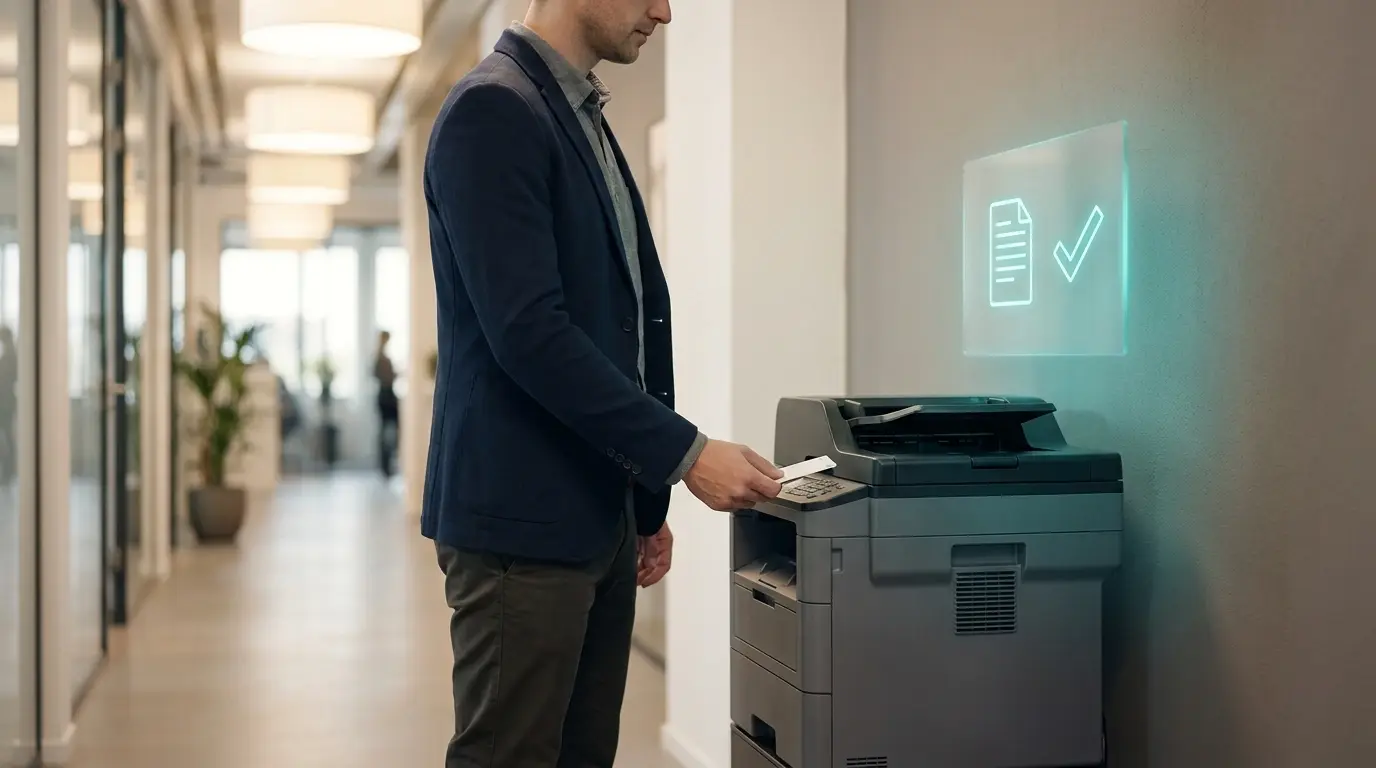
If your fleet runs HP multifunction printers, the ezeep experience now lives on the printer's own touchscreen. Someone walks up, taps a badge on the reader, and sees their held jobs on the panel.
They release what they need, scan a document straight into ezeep, and walk away. No browser tab, no scan client on a laptop, and nothing for you to roll out to the endpoint.
That is the ezeep App for HP Workpath. This post covers what HP Workpath is, what the app does at the control panel, how it fits alongside the connectors and Hubs you already run, and which devices it runs on.
What is HP Workpath?
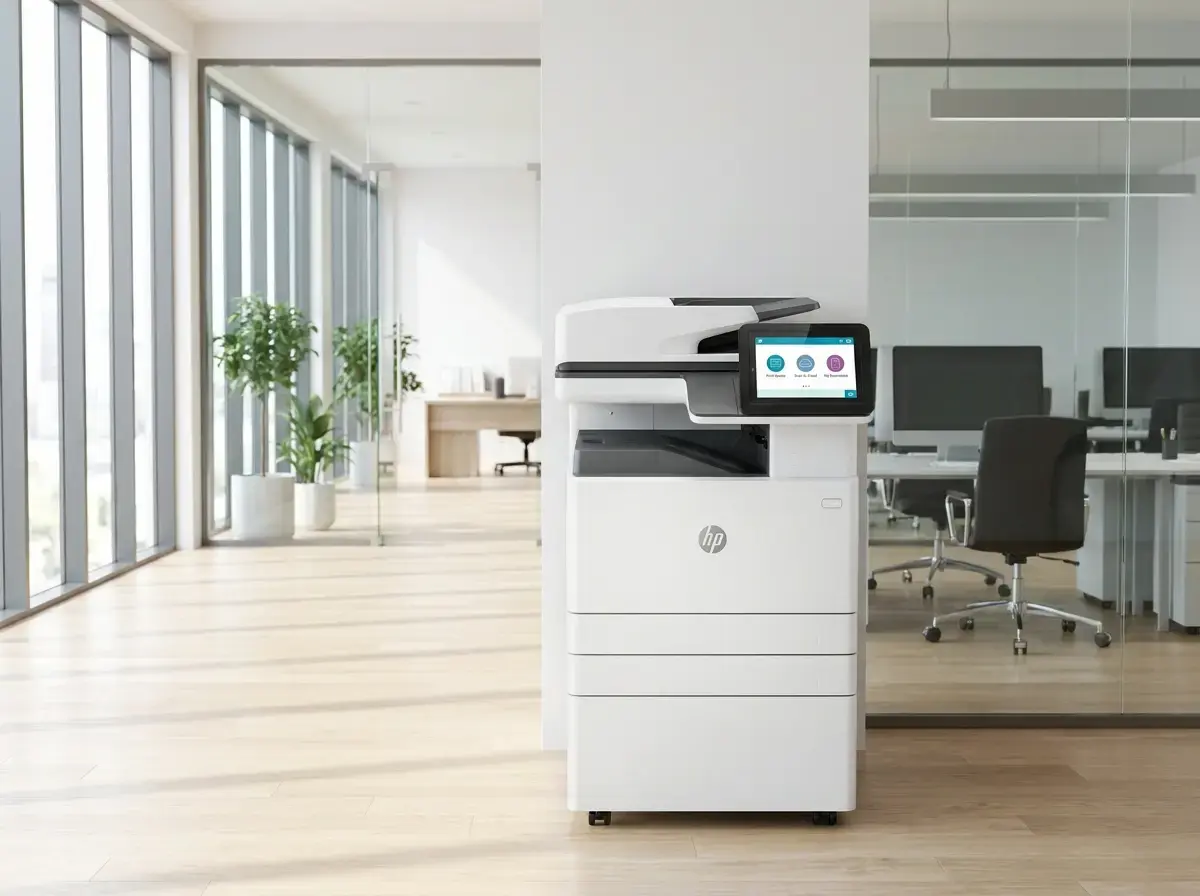
HP Workpath is HP's platform for running third-party apps directly on the control panel of HP multifunction printers. A Workpath app runs on the device itself and uses the printer's touchscreen, card reader, and scanner, instead of routing every interaction through a print server or a laptop client.
HP publishes a list of Workpath-compatible devices on its developer site. For an admin, the practical upside is that the printer becomes the interface. Users don't need to learn a second tool, and you don't need to maintain one on every laptop.
What does the ezeep App for HP Workpath do?
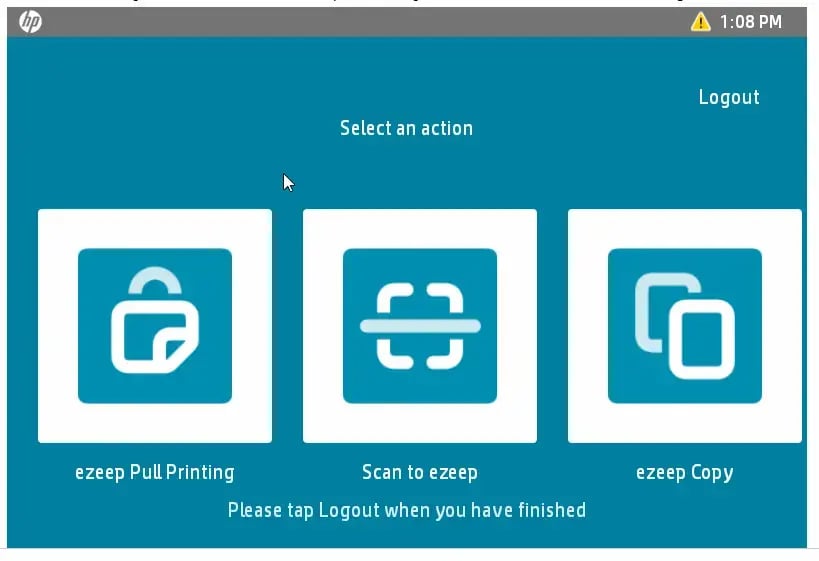
The ezeep App for HP Workpath is a native app for HP printers and MFPs running the Workpath framework. It runs on any HP Workpath printer that is set up in your ezeep environment and brings four functions to the device's control panel: pull printing, scan-to-cloud, copy tracking, and NFC authentication.The printer needs no direct internet access, and print and copy activity shows up in the reports you already have.
Pull printing at the panel
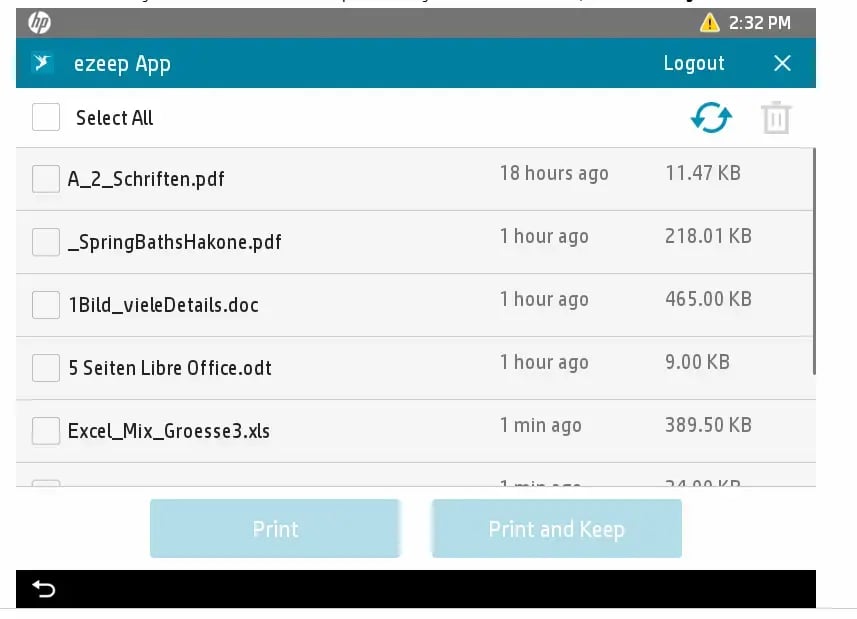
Users send a job to ezeep from whatever device they are on, then release it at any HP Workpath printer in your fleet by authenticating at the panel. Nothing prints until someone is standing there to collect it.
Two things change for you. Documents stop sitting in output trays for anyone to pick up, which is the part your security team cares about. And jobs nobody collects never print at all, which is the part your toner budget cares about.
The printer is set up in ezeep the same way as every other printer in your fleet. What changes is where users release: at the panel, with a badge, instead of from a phone or a separate release station.
Scan to the cloud without a scan client
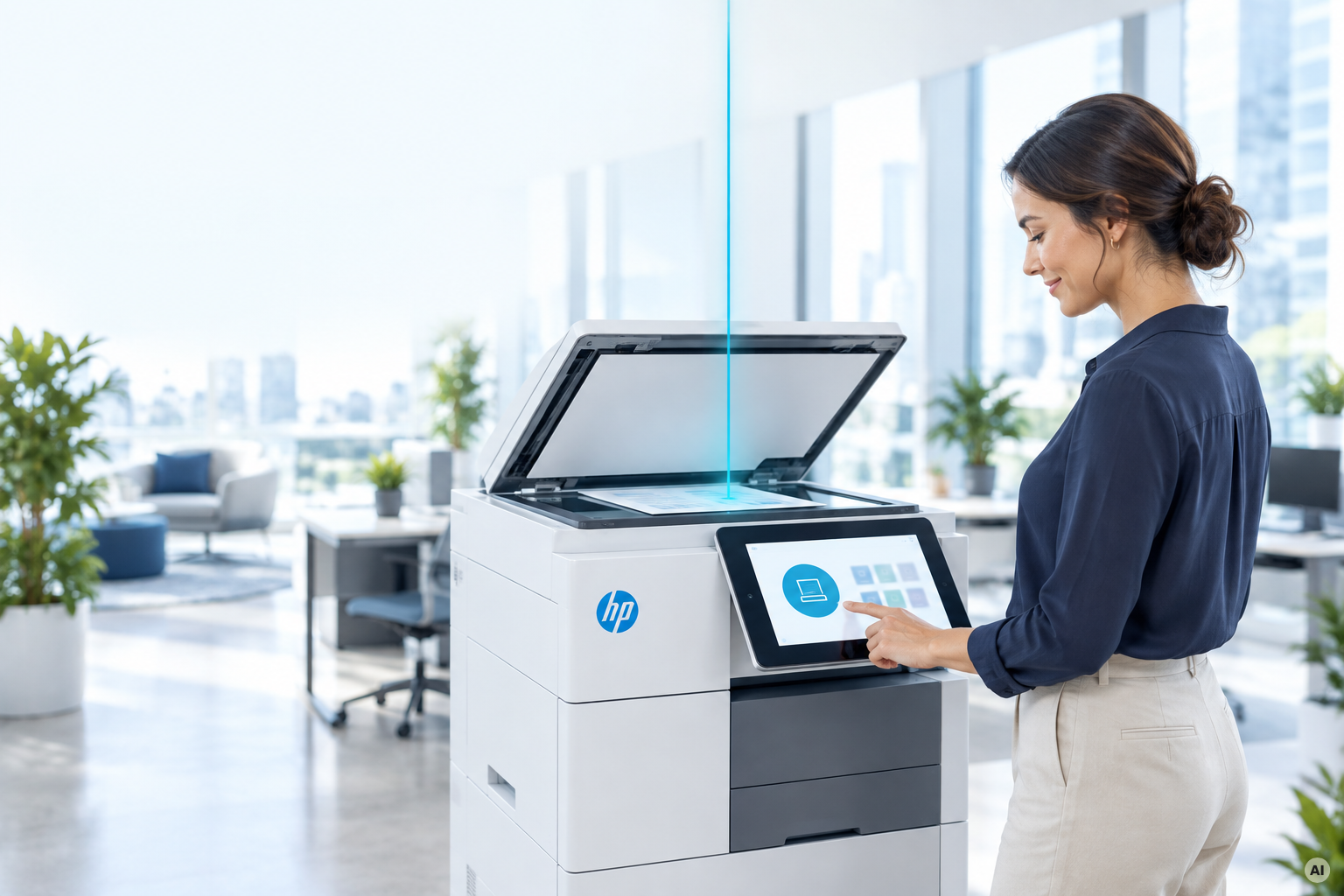
Scanning happens at the panel and lands in the user's ezeep portal. Users authenticate, put the document in the feeder or on the glass, and the scan shows up in the Documents folder of their ezeep account, ready to download from any browser. The app scans to PDF, JPEG, TIFF, or XPS.
There is no scan client to deploy or patch on workstations, and no shared scan folder on a file server that turns into a compliance question a year later. Scanning is enabled per account on request, so ask your ezeep contact to switch it on when you roll out the app.
Copy tracking
Copies made at the device are tracked in ezeep alongside print jobs, per user, and copy tracking can be turned on or off per account. If you charge back to departments or bill coworking members per page, copies stop being the blind spot in your reporting.
Badge in with NFC
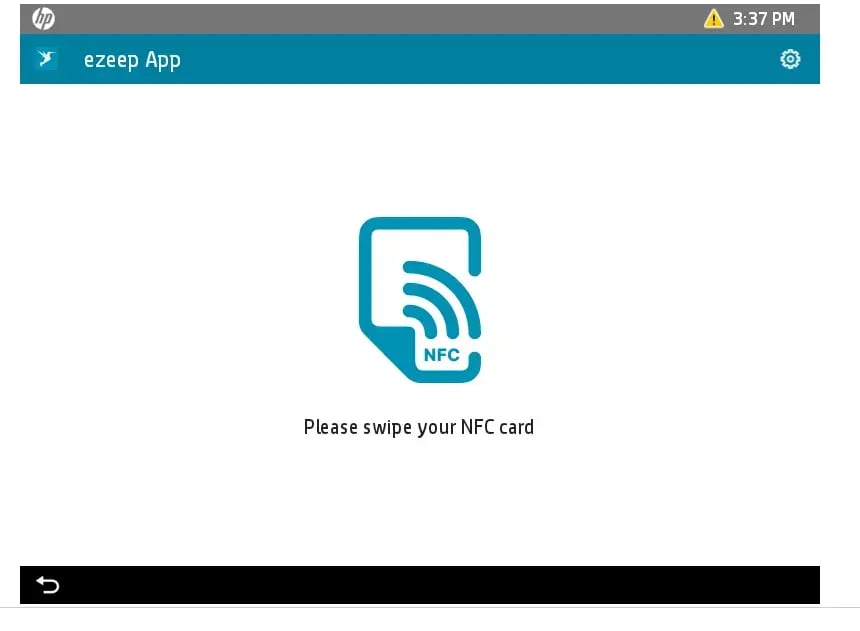
Users authenticate at the printer by tapping an NFC card on the device's reader, or by entering their ezeep user ID if a card isn't available. Authentication gates everything the app does, so releasing held jobs, scanning, and copying are all tied to a known person. Only the user who sent a job can release it.
How the app fits into your ezeep setup
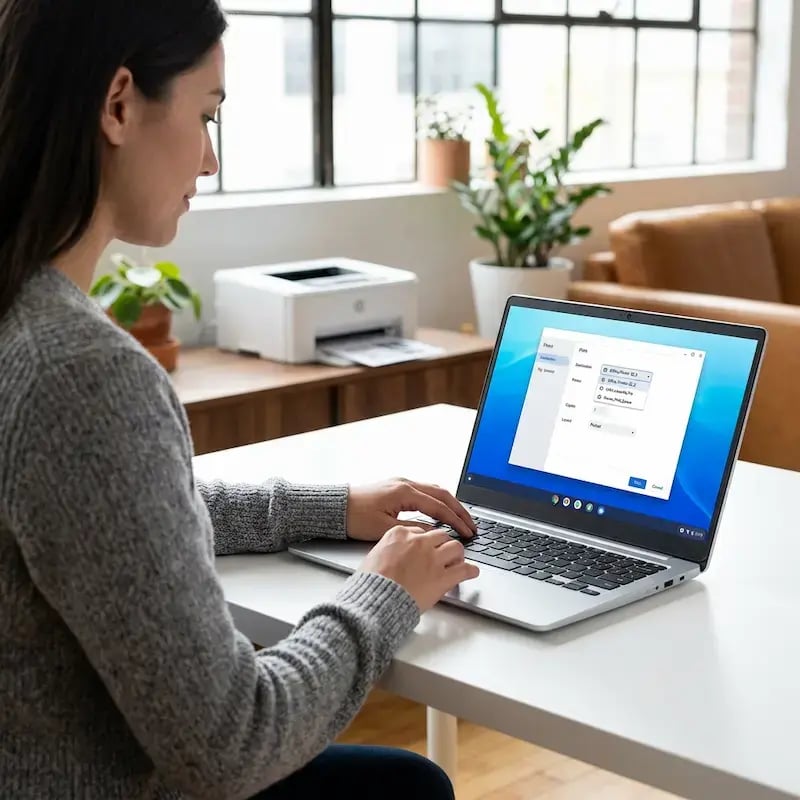
An HP Workpath printer runs the ezeep App on top of the setup you already have. You add the printer to ezeep the way you add any other, through an an ezeep Hub, and users print to it directly or send job to the pull-print queue the same way they do today. Because the printer connects through your existing ezeep setup, it needs no direct internet access of its own.
What the app changes is what happens at the device:
- Users release held jobs at the panel with a badge, so no release station and no phone step.
- Scans go straight from the panel to the user's ezeep account, so no scan client on workstations.
- Copies are tracked per user in the same reports as prints.
Nothing changes about how jobs reach the printer, and reporting stays in one place. The app adds the panel.
Where the ezeep App for HP Workpath fits best
The app was built with three environments in mind:
- Corporate offices running HP fleets. Badge release at the device, and departmental chargeback that includes copies, not just prints.
- Coworking spaces. Self-service printing with user-based billing. Print and copy activity flows into the coworking management platforms ezeep already connects to.
- Public sector. Authentication at the device and data handling aligned with GDPR, for teams whose print and scan workflows have to survive an audit.
Which HP printers can run the ezeep App?
The ezeep App for HP Workpath runs on HP multifunction printers and MFPs that support the Workpath framework. HP maintains the list of Workpath-compatible devices on its developer portal, and that list covers Workpath compatibility in general rather than devices ezeep has tested specifically.
ezeep has tested the app on the HP Color LaserJet Enterprise MFP M577. For any other model, check it against HP's compatibility list before you plan a rollout.
How to get the ezeep App on your HP printers
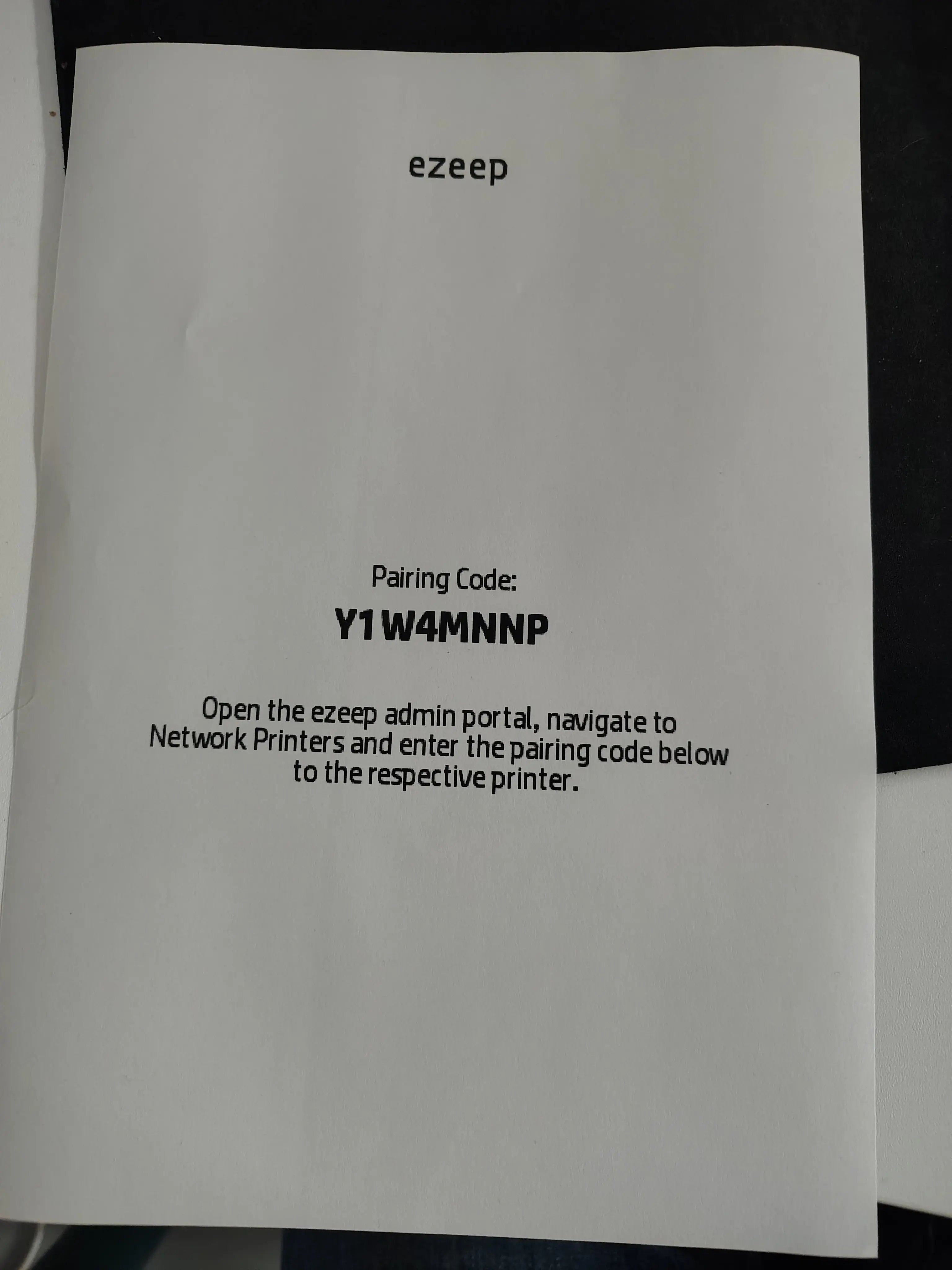
The app needs an ezeep Business or Enterprise subscription with the Pull Printing policy enabled, and an HP device on the Workpath-compatible list. Connect your printers to ezeep as you normally would, turn on Pull Printing in the admin portal, then pair the printer with the app and register users. The ezeep App for HP Printers article in the Knowledge Base walks through pairing, user registration, and turning on scan and copy, with a video for each step.
The ezeep app for HP Workpath is installed via the HP Command Center: simply add the ezeep app to your application selection in the catalog, then deploy it to the desired devices.
The short version
If HP Workpath devices are already in your fleet, the ezeep App gives you pull printing, scan-to-cloud, copy tracking, and badge authentication at the panel, on top of the setup you already run. ezeep is built on ThinPrint technology, which runs in production environments handling millions of printed pages a day, so the platform behind the panel has a long track record.
Serverless Scanning for HP Printers with ezeep and HP Workpath
Rooftop Office Uses ezeep, Lexmark, and Nexudus for Printing