By Karen Thulmann on July 28, 2026

A team picks a Friday, flips every print queue at once, and spends the next week answering tickets from people whose Monday printer no longer exists. The print server migration itself usually works. It's the rollout that comes apart, almost always because of timing rather than anything technical.
I work on cloud printing as a product manager, and what reaches my desk is the aftermath, the debriefs from the support teams who field the calls when a migration goes sideways. After enough of those the pattern is hard to miss, and it has little to do with the tooling. What decides whether a cutover is quiet or painful is the order you do things in. Get that order right and most people never notice the server left. Get it wrong and you find out which printers were load-bearing the moment the tickets start.
This is for the admin who owns the queues, knows which building still runs on a 2016 box in a closet, and wants to retire it without becoming the help desk for two weeks.
The short version: a print server migration stays quiet when the cloud path runs in parallel with the server, printers move group by group in order of blast radius, and the old box comes down only after the queues are confirmed empty.
Why are teams migrating off print servers now?
Two pressures are pushing print server migration up the list: security exposure and a change in how Windows prints. A print server is a single point of failure that also happens to be an attack surface, and Microsoft is moving Windows toward driverless printing that leaves driver-stacked servers behind.
PrintNightmare made the security half concrete for a lot of teams, since the Windows Print Spooler has been a repeat target and every unpatched server carries that exposure into the network.
What is Windows changing about printing?
Microsoft is moving Windows to a model built on IPP, the Internet Printing Protocol, with the inbox IPP class driver in place of third-party drivers. Two names matter here.
- Windows Protected Print, introduced with Windows 11 24H2 and Server 2025, is the strict version. It removes third-party drivers from the system entirely.
- Windows Ready Print is the softer on-ramp. It defaults new printer installations to the inbox IPP driver from July 2026 rather than forcing the switch.
The direction is driverless either way, and a print server stacked with third-party drivers is exactly what that direction leaves behind.
The pressure is real. But pressure is exactly what makes people rush, yet rushing is the whole problem. The goal is to move deliberately, not fast.
What should you inventory before a print server migration?

Inventory the real state of the print environment before planning a single cutover. Not the documented state. The real one. Pull the full picture:
- Every shared queue
- The driver behind each one
- The GPO or script that deploys it
- The users actually mapped to each printer
The gaps between what's documented and what's live are where the tickets come from. That one queue nobody remembers creating is the one finance uses for checks.
Which queues should you retire instead of migrate?
Retire the unused queues and dead drivers instead of carrying them across. A migration is the rare moment when removing cruft is easier than keeping it.
How do you group printers by risk?
Group the printers that survive by blast radius.
- Low risk: the conference room printer five people use
- High risk: the queue the warehouse label printers depend on, or the one an ERP system prints to unattended
You migrate the low-risk groups first and learn from them before going near the systems that page someone at 2am.
How do you sequence a print server migration?
Run the new cloud path in parallel with the old print server, then cut over one group at a time. The cloud path comes up while the server keeps serving, so users get the new printers before the old ones disappear. On the platform I work on, ezeep, this parallel run is the default way in rather than a big-bang cutover, and it's the biggest single factor in whether a migration is quiet.
What does the migration sequence look like step by step?
- Stand up the new environment and connect your printers through it while the print server still runs.
- Add printers to a pilot group, ideally your own team plus a few friendly users who will tell you when something is off instead of filing a ticket.
- Watch that group for a full business week, including whatever odd monthly job someone runs on the 1st.
- Expand to the next group only once the pilot is boring.
Why does driverless printing shorten the project?
Cloud rendering removes the drivers, so there is nothing to install on each endpoint. The device sees a printer that works, and a Chromebook hits the same printer as a Windows laptop without anyone rebuilding a driver matrix. Per-machine driver rollout is the step that usually turns a migration into a slog, and removing it is most of why the timeline compresses.
How long does a print server migration take?
A print server migration takes about a week for a small single site and two to three months for a large multi-site environment.
- Single site, under about 50 printers: about a week
- Multi-site, hundreds of printers, hardcoded backend paths, and a real change-management process: two to three months
The cloud path stands up fast either way. The pacing comes from piloting each group properly.
What should you test before each cutover?
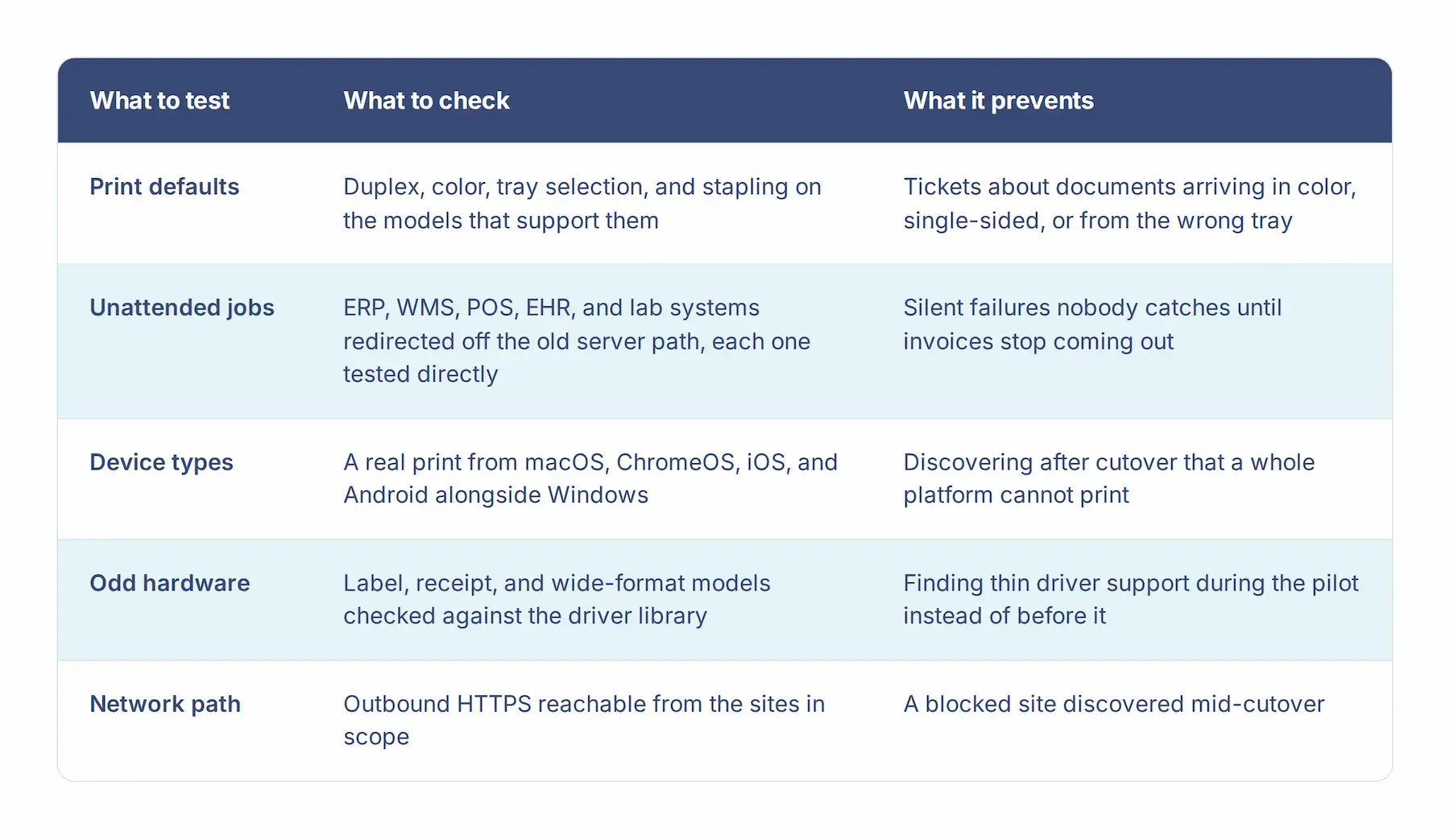
Test the things that actually break: print defaults and finishing options, unattended jobs, every device type in the building, odd hardware, and the network path. A pilot only helps if it covers these.
Print defaults and finishing options
Check duplex, color, tray selection, and stapling on the models that support them. Default settings are where users notice change first, and a printer that suddenly prints single-sided generates more tickets than one that's fully offline.
Unattended print jobs
Anything that prints without a person watching, such as ERP, WMS, POS, EHR, or lab systems, often has the old print server path hardcoded into its config. Redirect those to the new queue and test each one directly, because a missed path fails silently. The first person to notice is whoever's downstream, missing a document they were counting on.
Every device type in the building
If you support ChromeOS, MacOS, iOS, and Android alongside Windows, print from each before calling a group done. The whole reason to leave the print server behind is that it never handled those well.

Odd hardware
Label printers, receipt printers, and wide-format plotters are where driver support gets thin. Check the platform's driver library for those specific models before the pilot, not during it.
The network path
Cloud printing runs over outbound HTTPS, which most networks already allow, but confirm it rather than discovering a blocked site mid-cutover.
What goes wrong when a print server migration is rushed?
Rushed migrations fail in five predictable shapes: the big-bang cutover, orphaned unattended jobs, drifted print defaults, missing communication, and the old server left running afterward. None of them is a tooling problem.
-
The big-bang cutover. Everything moves Friday night, and Monday the help desk queue becomes the migration status page. Even a technically clean migration produces this if users had no parallel period to adjust.
-
Orphaned unattended jobs. Someone migrates the user-facing queues, forgets the ERP printer with no human attached, and nobody notices until invoices stop coming out.
- Skipped communication. A short note before each group moves does more than any technical step. "Your printers are the same, you just print through a new app now" prevents most of the confusion tickets on its own.
- Default drift. Users don't file tickets because printing is down. They file because their document came out in color, or single-sided, or from the wrong tray. Match the defaults on the new path to what people had, then change them on purpose later.
- The leftover server. Teams migrate the printing but leave the old box running "just in case," which keeps both the attack surface and the maintenance alive past the project that was supposed to end them. Set a decommission date and hold it once the queues are confirmed empty.
What does a quiet print server migration look like?
A migration nobody notices has a shape:
- Inventory the real environment.
- Clean out the dead queues.
- Group printers by risk.
- Run the new path in parallel.
- Pilot with people who talk to you.
- Test the unattended jobs and the defaults.
- Communicate before each move.
- Expand one group at a time.
- Turn off the old server for good.
Each of those steps is ordinary on its own. The difference comes from doing them in order rather than jumping straight to the cutover.
If you're scoping one of these, the sequence is the piece worth getting right before you pick a date. My colleagues work on these migrations daily and would be glad to help you map out yours.


Cloud Print Management Software: What IT Teams Should Evaluate in 2026

Will Windows Ready Print Break Title and Escrow Printers?