By Karen Thulmann on October 19, 2026

You're building something in Lovable. An order tool for a friend's shop, a check-in app for a weekend event, a warehouse tracker that finally replaced the spreadsheet nobody wanted to touch. It comes together fast, right up to the step where the app has to produce something physical. A receipt. A badge. A shipping label. Not a PDF that opens in a new tab and leaves the user hunting for a printer, but a sheet of paper coming out of the printer at the front counter.
Everything else your app talks to lives in the cloud. The database, the email service, the payment provider. The printer is the one thing that doesn't, and for years that made printing the feature that quietly got cut. With the ezeep MCP, Lovable can add real printing to your app the same way it adds a database or a login: you describe what should print and when, and it builds the connection.
The click-by-click setup lives in the ezeep MCP setup guide; this is the part before and after those clicks.
Why Couldn't No-Code Apps Print Before?
A no-code app runs in the cloud. A printer sits in a room. Between them there used to be a driver on somebody's PC, a print server, or a workaround with a headless browser and a lot of hope. None of that was something you could ask an AI app builder to set up for you, so printing dead-ended at "export as PDF."
The ezeep MCP closes that gap by describing cloud printing as a set of actions an AI can read and use: list the printers in an account, check what one of them can do, send a document, confirm it printed. Lovable reads those actions the way it reads any other connected service, then writes the code that calls them. Behind that, ezeep renders the job in the cloud and delivers it to the printer, so nothing has to be installed on the machine next to it.
What Building It Looks Like
You type something like "when a customer completes checkout, print the receipt on the front counter printer." Lovable looks at what your ezeep account offers, finds the printer, and writes the code to send the job. You approve the connection once. Then you run a test order, and a receipt comes out of a printer across the room.
That's usually the moment the feature stops being abstract. Most people building in Lovable have watched their app send an email or save a record. Watching it move a physical object is different, and it tends to be followed by a list of everything else that could print.
Whose Account Does The App Print Through?
Before Lovable can build anything, one question needs an answer: whose ezeep account is this app printing with?
For an internal tool, a kiosk, or a back-office app, the answer is almost always one account. Every job the app sends goes through it, and the people using the app never see an ezeep login. ezeep calls this the shared account model. You approve it once in a browser tab with a short code, and from then on your app prints without anyone signing in again. This is the setup ezeep recommends for the kind of projects described above.
If you're building a product where each of your users prints under their own ezeep account (a multi-tenant app, or a tool where every user manages their own printers), that's the other option. ezeep MCP supports it too; the difference is that your users authorize their own accounts instead of you authorizing one. Decide which one you're building before you prompt, because it changes what Lovable sets up.
What The Setup of The ezeep MCP Looks Like
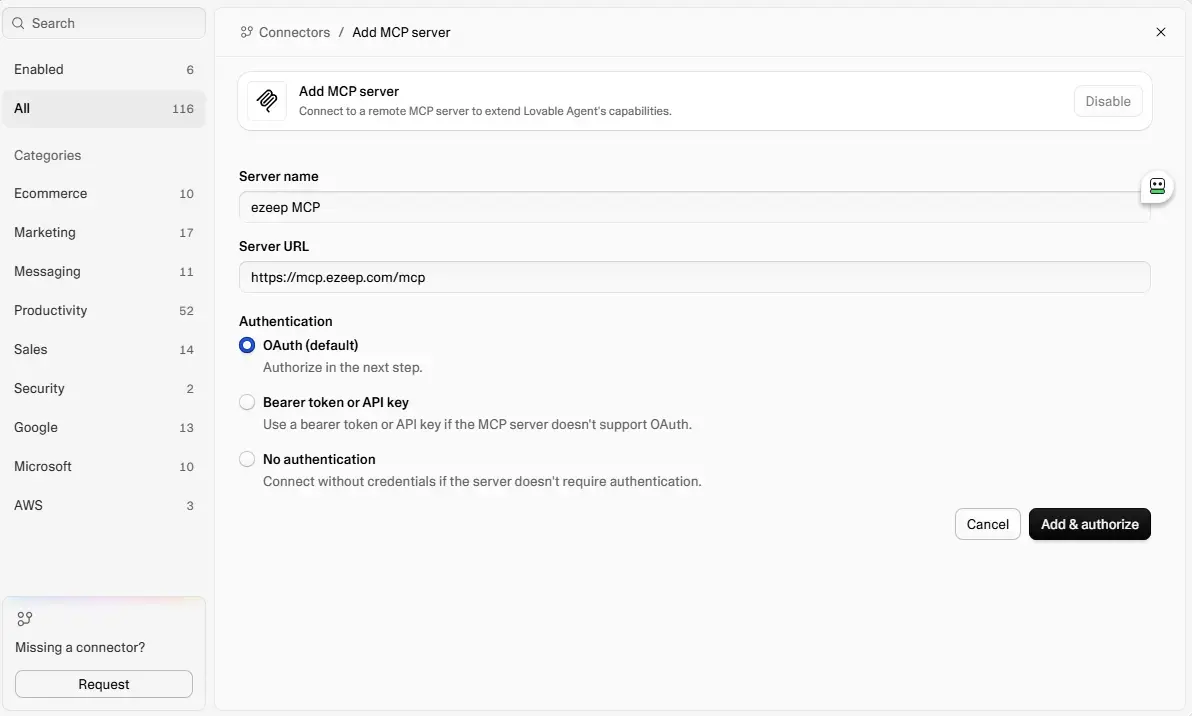
Five steps, none of them code. Exact clicks are in the ezeep MCP setup guide.
- Connect ezeep MCP in Lovable's integrations (one-time copy and paste of the ezeep connection).
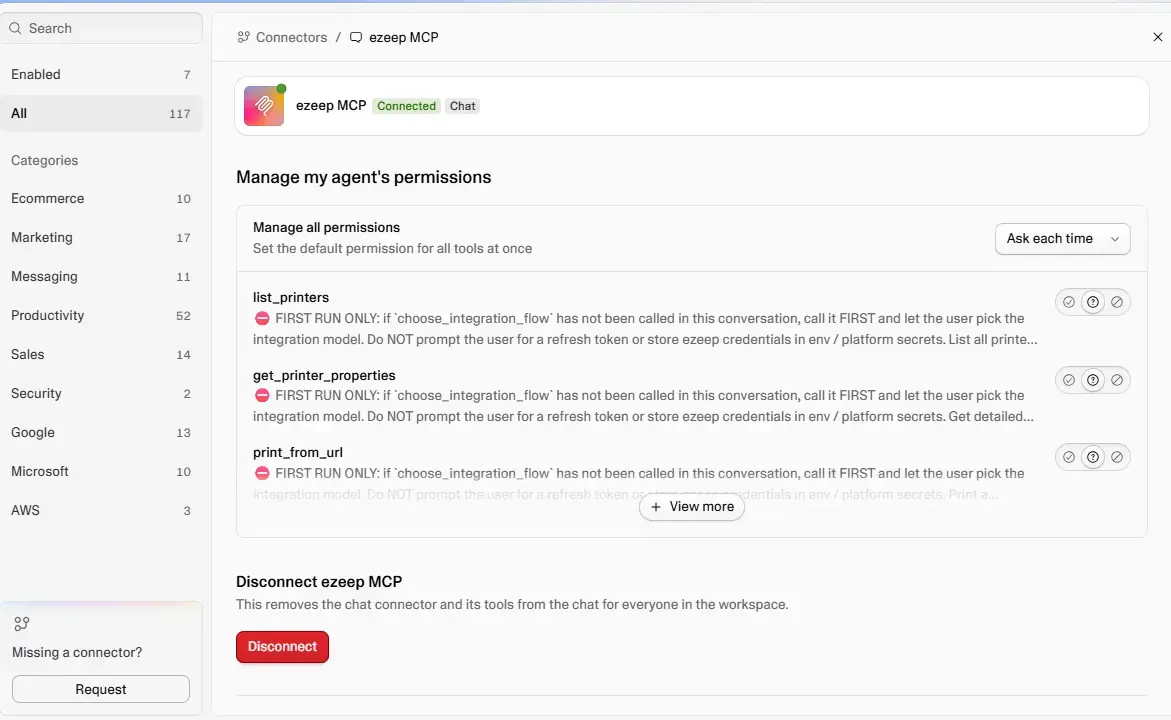
- Ask Lovable to add printing and describe the trigger: which event, which document, which printer.
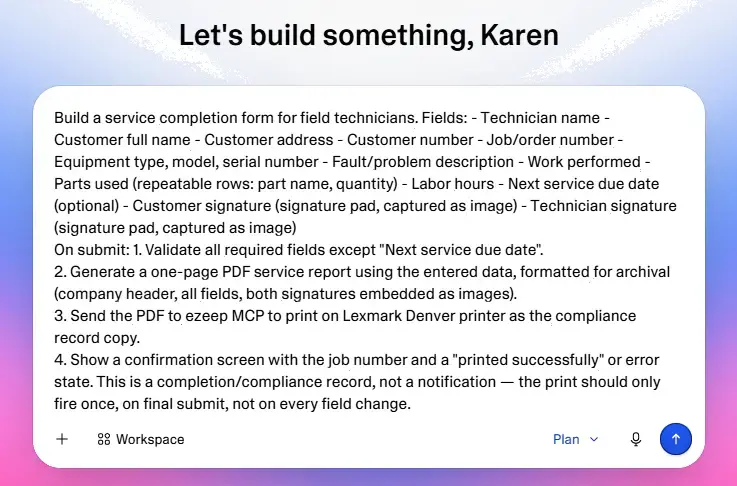
- Approve the ezeep connection in the browser tab that opens.
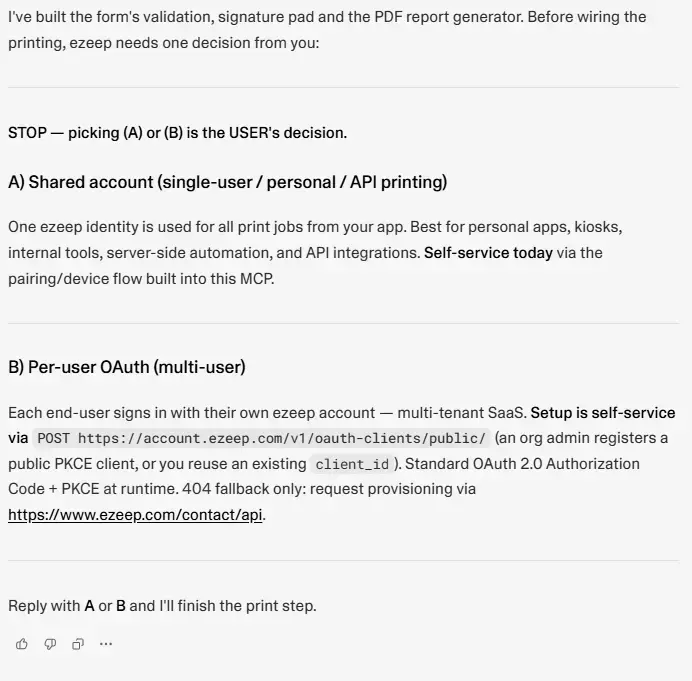
- Lovable builds the print call and shows you where it fires.
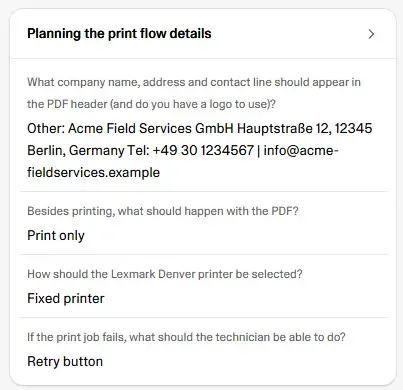
- Run a test. Pick a document you don't mind spending a sheet on.
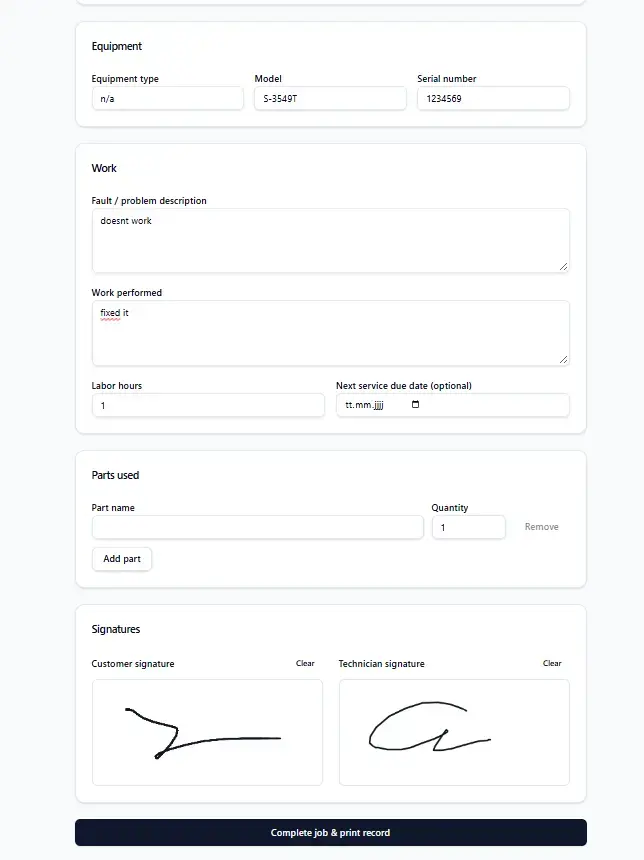
After step 3, your deployed app prints through the ezeep API with the access you just granted. Lovable used ezeep MCP to understand and build the integration; the running app doesn't need it.
What People Build Once Printing Is On The Table
Order comes in, label comes out. A shop tool that prints the shipping label and packing slip at the packing station the moment an order is paid. Nobody opens a carrier portal, nobody copies an address.
Check-in tools. A badge or a ticket printed when someone arrives, instead of a QR code they have to screenshot and find later.
Kitchen and counter tickets. An order ticket at the pass the second the order lands, for the kind of small operation that doesn't run a full POS.
Daily paperwork. A pick list, an inventory tag, a work order for whoever's on the floor and doesn't carry a laptop.
The common thread: the app finishes a job that ends with a person holding a piece of paper. Until now that last step was where the automation stopped and someone opened a print dialog.
Two Things to Know Before You Ship
There is no simulation mode. Every print action sends a real job to a real printer. Test with a throwaway document, not your customer-facing flow.
And check your account model against what you're building. Shared account is right for an internal tool and wrong for a consumer product where strangers each connect their own printer. Both work; you just want to pick the right one when Lovable asks.
How to Connect ezeep MCP to Claude Code
ezeep App for HP Workpath: Print, Scan, and Release at the Printer