By Henning Volkmer on June 17, 2026
TL;DR
The official Mopria lookup is at mopria.org/certified-products. Search by manufacturer or model. Certification is not retroactive; older models that aren't on the list won't get added without a manufacturer firmware update, which is unlikely for hardware out of vendor support. The PWG (IPP standards body) maintains a related but separate list at pwg.org/printers for IPP Everywhere certification. A faster diagnostic: enable WPP on a test client, look at which printers Windows flags for removal, then cancel out before confirming. The flagged list is the incompatibility report.
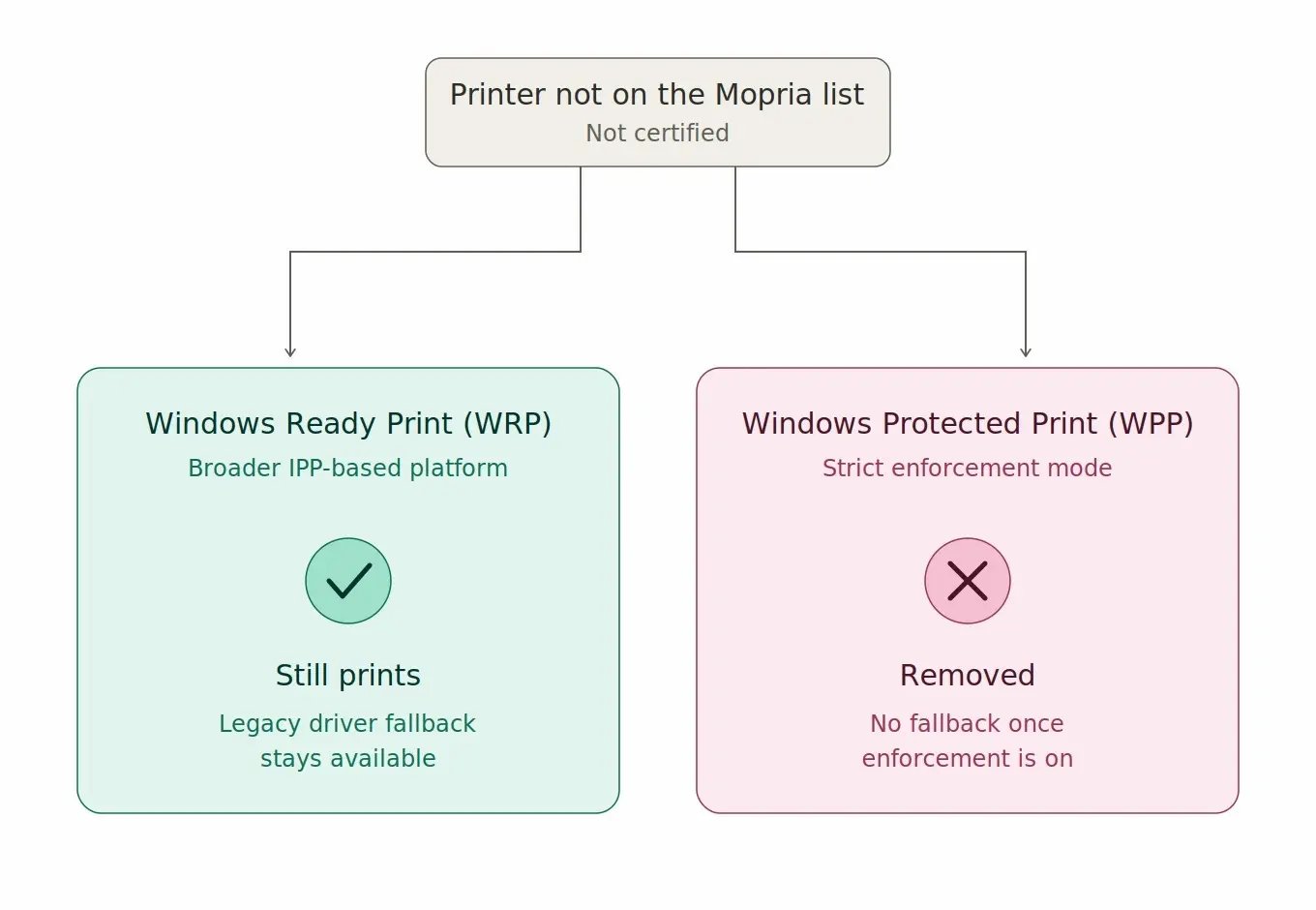
One distinction to keep straight: Mopria certification is the printer-side requirement for Windows Protected Print (WPP), the strict enforcement mode with no driver fallback. It sits on top of Windows Ready Print (WRP), the broader IPP-based print platform that still allows a legacy driver fallback. A printer that isn't Mopria-certified can still print under WRP through that fallback path. It stops working only once WPP enforcement is on.
What are the ways to check Mopria certification?
There are two reliable methods. The first is the directory check: look the model up on the official Mopria list. The second is the Windows Protected Print preview: enable WPP on a test client to see which printers Windows flags in your specific environment, then cancel before confirming. The directory check tells you which models are certified; the WPP preview tells you which printers in your fleet survive WPP as currently configured.
Method 1 - The directory check: where is the official Mopria list?
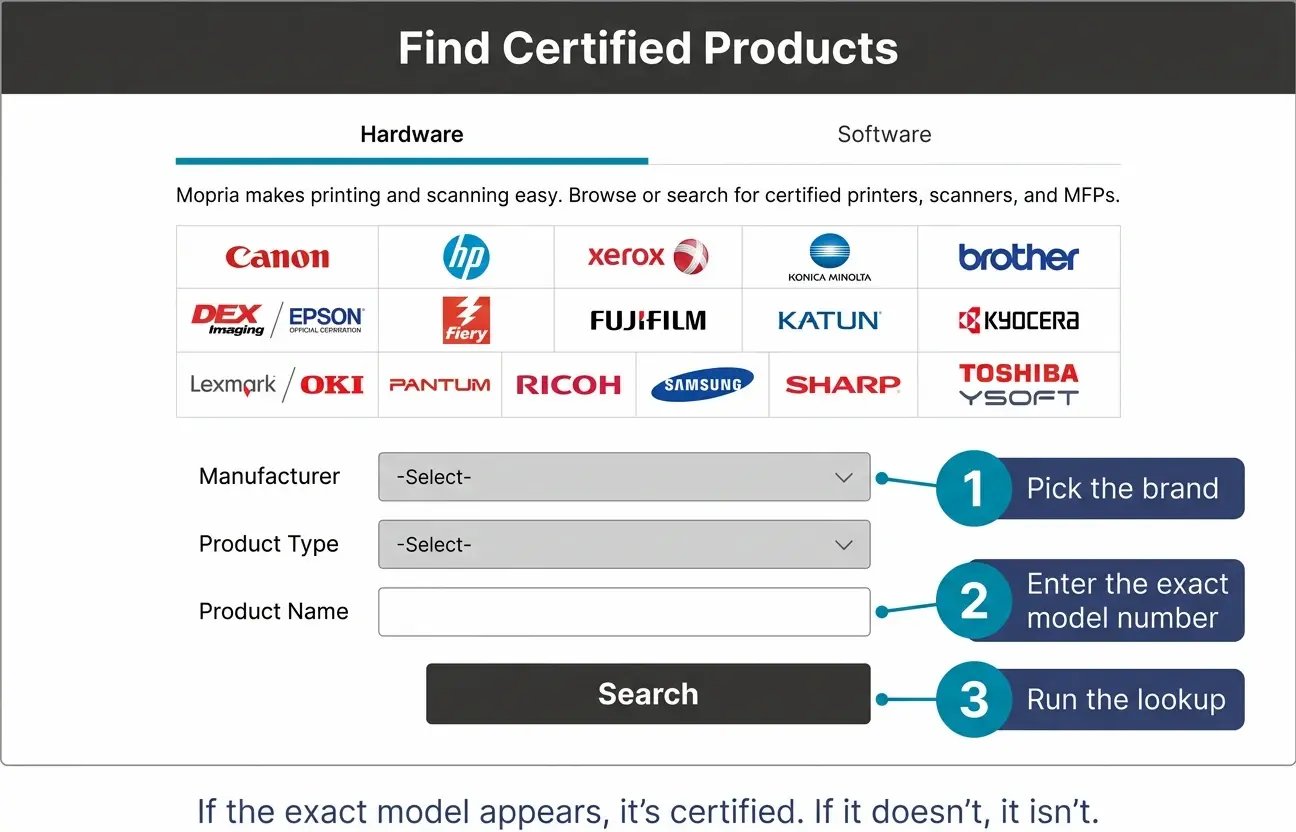
Mopria Alliance publishes a public, searchable list of Mopria-certified printers, multifunction devices, and scanners at mopria.org/certified-products
Filtering options: manufacturer, product type (printer, MFP, scanner), and connectivity. Over 10,000 models from major manufacturers including HP, Canon, Epson, Brother, Xerox, Lexmark, Konica Minolta, Ricoh, Kyocera, and Sharp are on the list. More than 120 million Mopria-certified devices are in active use globally.
If the printer's manufacturer and exact model number appear on the list, the device is Mopria-certified and compatible with Windows Protected Print (WPP). If the model isn't listed, it isn't certified, and it stops working when WPP is enforced. Under Windows Ready Print without WPP enforcement, an uncertified model can still print through the legacy driver fallback.
A caveat: certification is not retroactive. Older models that aren't on the list today depend on the manufacturer to issue a firmware update that meets current certification requirements, and the device line then has to be re-submitted for testing. For models out of vendor support, this isn't going to happen. For models still under support, manufacturer firmware updates may add certification. It's worth checking the manufacturer's release notes for the specific model.
What is the PWG IPP Everywhere list, and how is it different?
The Printer Working Group (PWG, the IPP standards body) maintains a related but separate certification list at pwg.org/printers. PWG IPP Everywhere is the underlying IPP-based driverless printing certification that Mopria builds on. WRP is itself IPP-based, which is why IPP Everywhere and Mopria certification are the relevant reference points. The Mopria list and the PWG list overlap heavily, but aren't identical. Mopria certification adds requirements beyond IPP Everywhere baseline, and some devices appear on one list and not the other. For WPP compatibility specifically, the Mopria list is the authoritative source. The PWG list is useful context for understanding why a device might be IPP-capable without being Mopria-certified.
Method 2 - The WPP preview: How do I see which printers WPP will remove?
The practical alternative: enable WPP on a single Windows test client, look at which printers Windows flags for removal, then cancel out of the confirmation dialog before any actual changes are made. The flagged list is the incompatibility report for that environment.
The steps:
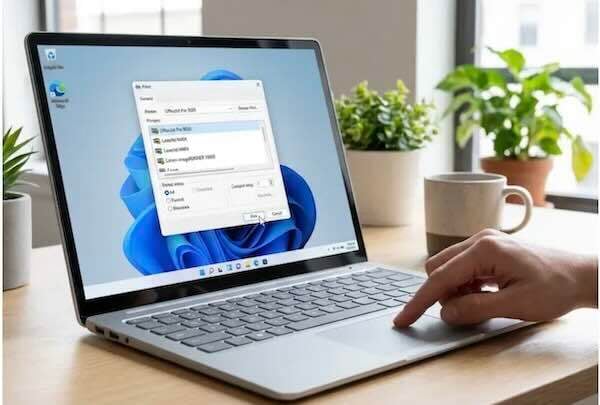
- On a Windows 11 24H2 or later test client: Settings > Bluetooth & Devices > Printers & scanners > Printer Preferences > Windows protected print mode > Set up.
- Windows shows the list of printers that will be uninstalled when WPP is enabled. These are the non-Mopria-certified or third-party-driver printers.
- Cancel out of the dialog before confirming. No changes are made.
This is a five-minute diagnostic that produces an environment-specific answer. It works on a single workstation without affecting any others.
Why check both the Mopria list and the WPP preview?
The Mopria list tells you which models are certified. The WPP preview tells you which printers in your specific environment are configured in a way that survives WPP. The combination matters:
- A Mopria-certified printer can still be flagged by the WPP preview if it's currently installed using a third-party driver. In that case, it's uninstalled when WPP is enabled, then reinstallable through the IPP class driver path.
- A non-Mopria-certified printer is always flagged with no Windows-level workaround once WPP is enforced. Either disable WPP and stay on WRP with the legacy driver fallback, refresh hardware, or route the print path through a stack that doesn't require Mopria certification at the printer.
What happens to non-certified printers if you're on ezeep?
ezeep doesn't require the printer to be Mopria-certified. The cloud-rendering path forwards print-ready data to the device regardless of the device's certification status. For an environment where the Mopria check turns up a lot of red (specialty hardware, older MFPs, label printers, plotters), ezeep keeps those devices in service through a WPP transition without a hardware refresh.
For mixed environments where some devices are Mopria-certified and others aren't, ezeep handles both the same way. The printer's certification status doesn't affect the print path.
Talk to an expert about your fleet's Mopria status
Send us your printer inventory. We'll walk through which devices are Mopria-certified, which need a PSA, and what the path looks like for the ones that aren't.

Will Printers That Aren't Mopria-Certified Stop Working Under WPP?

IPP: The Protocol That's Replacing Print Drivers